Discover answers to commonly asked questions about therapy, psychiatry, insurance, and more!
Book a SessionThe quality of your video call relies heavily on the devices and internet connection the most common issue is poor internet connection or speed. Please be sure you are in a good location with adequate internet.
Click here to access our Client Portal.
Adding your credit card to the client portal simplifies your healthcare journey by ensuring your copays and payments are handled swiftly and securely. This not only offers convenience but also aids in uninterrupted access to essential services, making your commitment to mental health care seamless and worry-free.

As an existing client, you have access to the Client Portal where you can manage all your appointments! To cancel an appointment, follow these steps:
When canceling and rescheduling appointments, please be mindful of our cancellation policy as you may be charged cancellation fees. Our cancellation policy states $110 will be charged if the appointment is canceled less than 24 hours in advance. If you can't make it to your in-person session, you can do a telehealth (over video) session. Please reach out to your therapist to switch from in-person to telehealth via Messages in the Client Portal.
Contact our Billing team and they'll send you a insurance waiver.
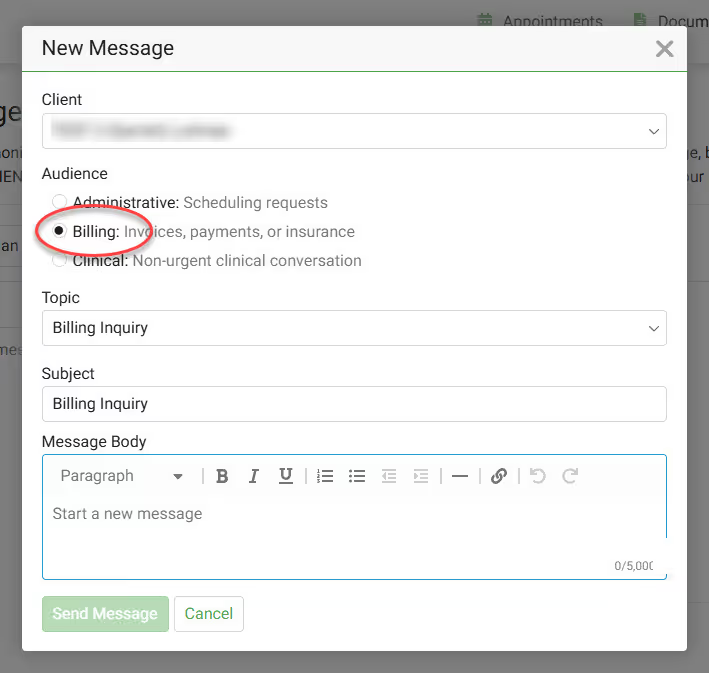
How to contact our Billing team:
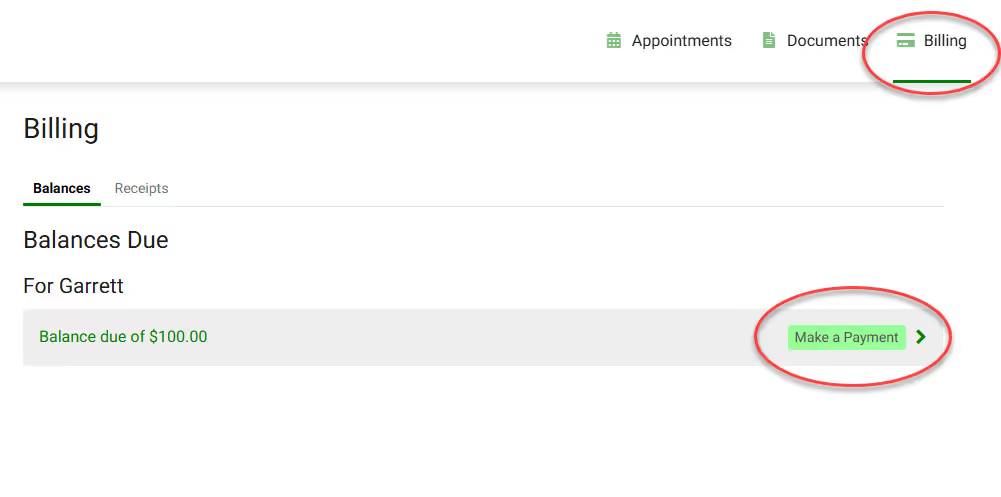
Clients can pay for their sessions via credit card, debit card, or HSA/FSA cards in the Client Portal.
You may also put a CC on file for automatic payment at the time of your session! Complete the Payment Authorization form to store a card on file!

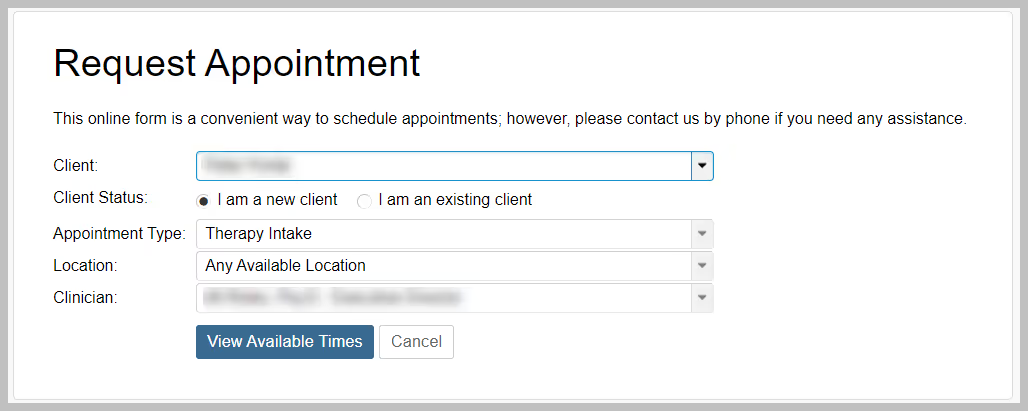
Existing clients have access to the Client Portal to request new sessions!
To reset your Client Portal password, follow these steps:
If you have records (i.e. Medical Records) that you want to send to your provider at Overcomers, you can email them at support@overcomewithus.com. You may also visit the Client Portal, click the Documents tab and then click Upload Document.
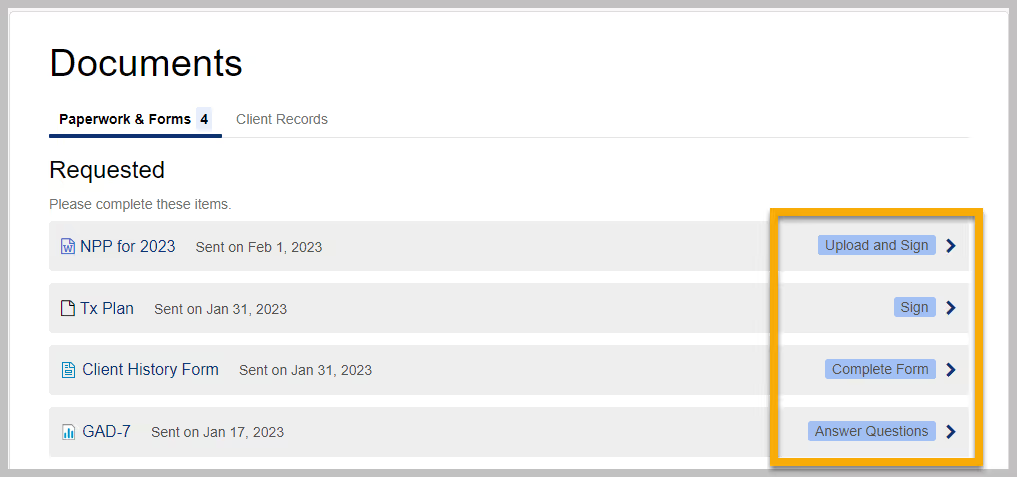
You can locate documents Overcomers' has sent you for e-sign in the Client Portal. Pending documents are shown on your homepage as well as the Documents page.