Google Workspace
Google Workspace
Intro to Gmail
OC's Gmail is a HIPAA-compliant inbox that offers our team a secure and private communication platform. It is designed to meet the strict Health Insurance Portability and Accountability Act (HIPAA) regulations, ensuring the confidentiality, integrity, and availability of protected health information (PHI). Our Inbox is HIPAA compliant; however, the client’s inbox is not. TN Messaging is the most secure/HIPAA-compliant way to message the client about treatment. Learn more: How to use TN Messaging.
Logging in to Gmail
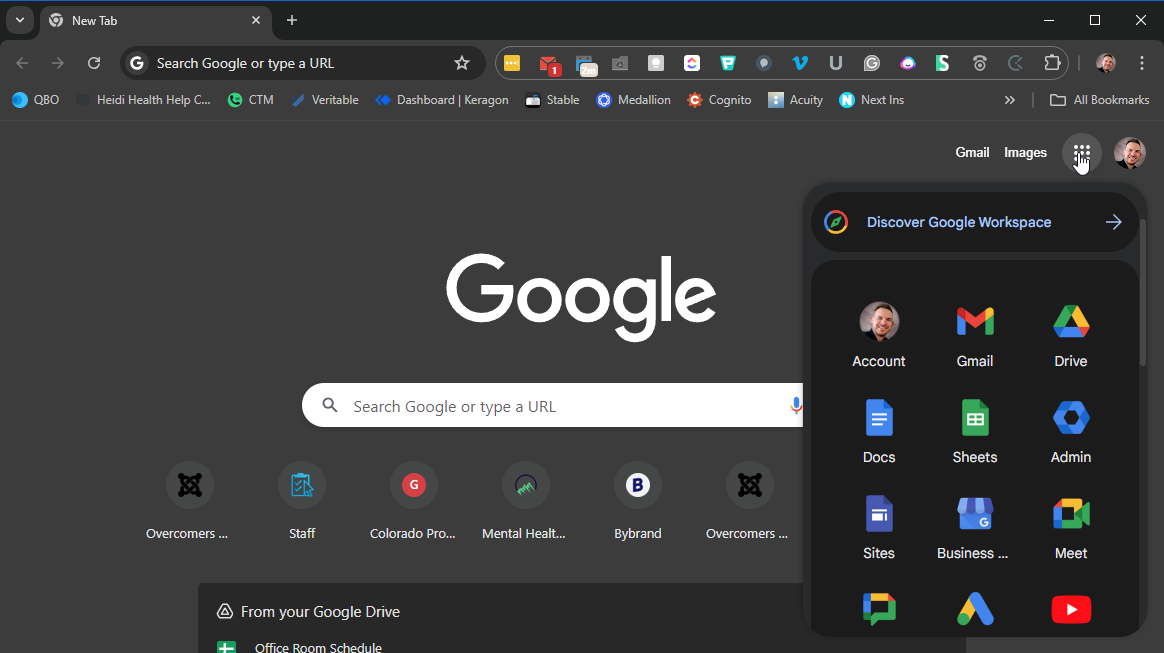
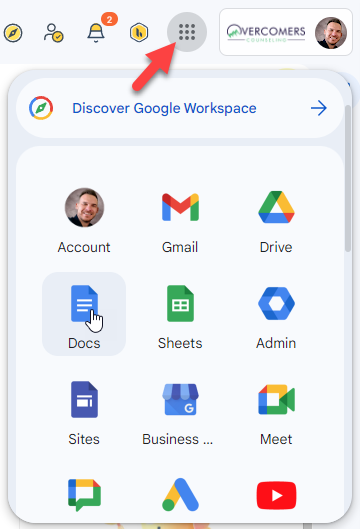
You are already logged into your OC Gmail when you created your OC Chrome Profile. Review how to create your OC Chrome Profile here: Overcomers' Chrome. You can access many of OC’s Google Workspace products by clicking the grid icon next to your profile pic.
Basic Navigation
Email Signature
Your email signature has been updated and is controlled by the admin—no need to create or adjust your email signature.
Using Filters and Labels
At times, managing your email inbox may seem daunting. However, with the use of automatic filters and labels, you can efficiently sort, filter, and organize your inbox, making it more manageable. Here are some tips!
Use the “Filter Messages like these”
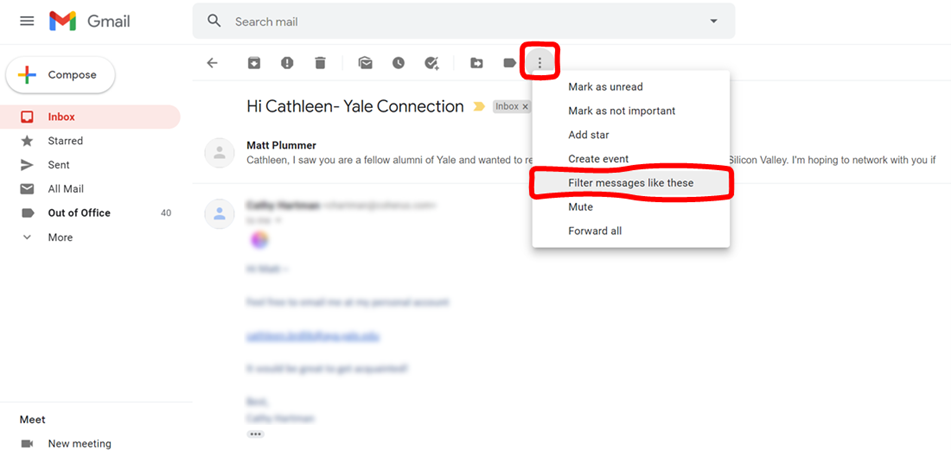
Using the command to filter messages in Gmail allows users to efficiently manage their inbox by automatically organizing incoming emails based on specific criteria. This saves time and effort from manually sorting through a cluttered inbox, ensuring that important messages are not missed. Additionally, by filtering out unwanted messages, it helps to maintain a clean and organized inbox, making it easier to find and respond to important emails. This can improve productivity and reduce stress, as well as provide a better overall user experience for managing emails in Gmail.
You could set up a filter for emails like:
- New client on the waitlist
- Admin Reminders
- Meeting Reminders
- And so much more!
Remember, some Admin emails require action steps, so if you filter and ‘archive’ the email, you could miss vital information.
It’s best practice to Filter >> add Label >> Skip the Inbox and then, at a time that’s convenient for you, review all the emails with that Label (they should be in “bold” under that label).
Start Using Color-Coded Labels
Labels in Gmail are a way to categorize and organize your emails. They act as virtual folders, allowing you to group similar emails, making finding and managing them easier.
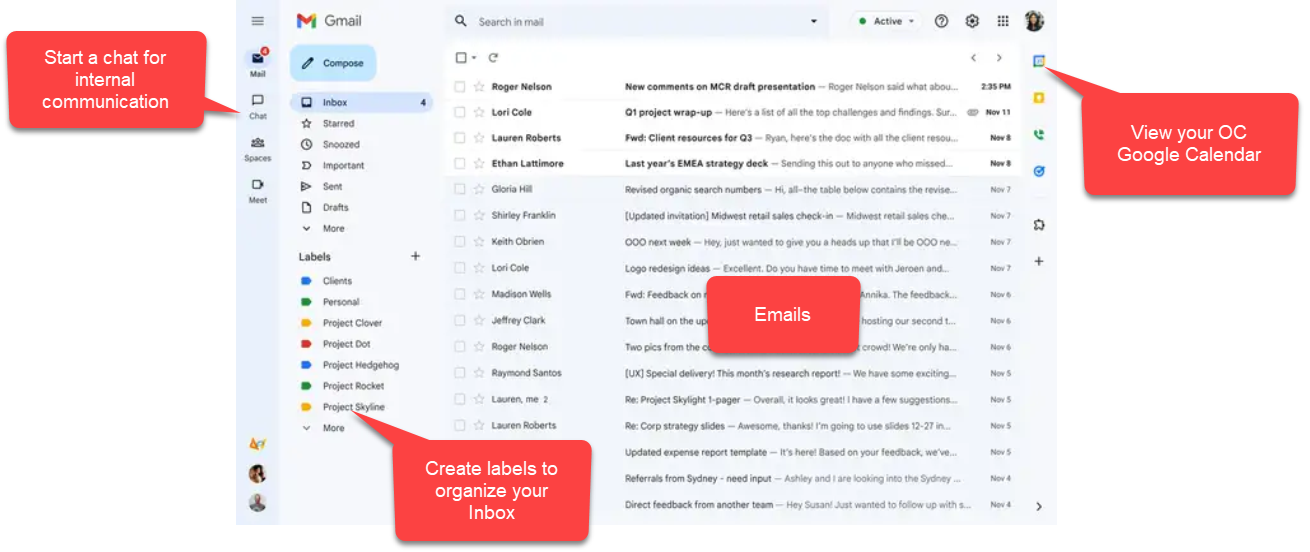
To use labels in Gmail, you can either create your own custom labels or use the default ones provided by Gmail. To create a custom label, click the "More" button on the left side of your inbox and select "Create new label." You can then name your label and choose its placement in the hierarchy.
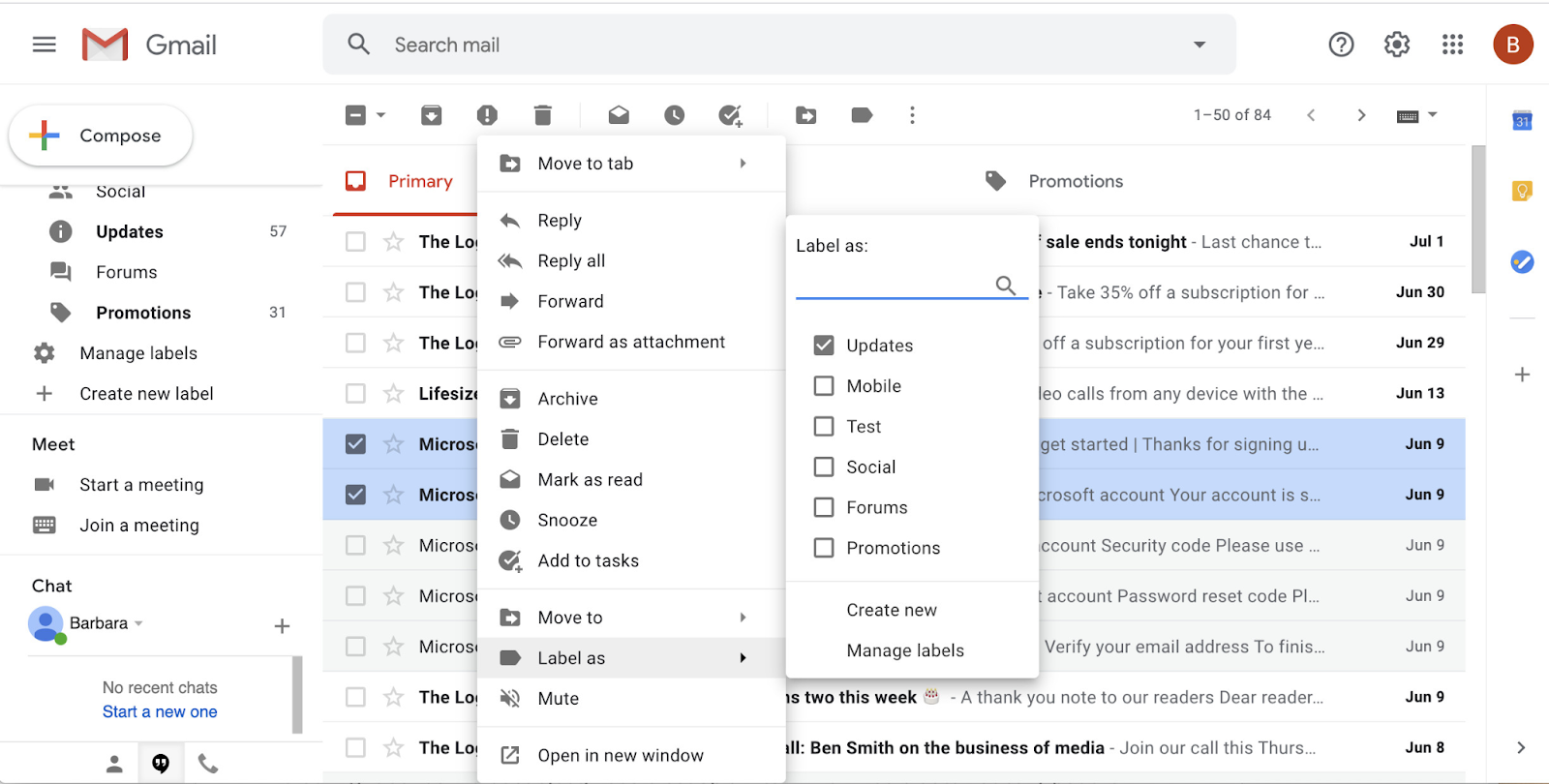
Once you have created your labels, you can assign them to specific emails by clicking on the checkbox next to the email and selecting the desired label from the "Labels" drop-down menu. You can also assign multiple labels to one email if necessary.
Using labels in Gmail can help you stay organized and save time when searching for specific emails. You can easily filter your inbox by label, making it easier to locate important messages. Additionally, you can also use labels as a way to prioritize and flag certain emails for follow-up or action.
In summary, labels in Gmail are an essential tool for managing your emails effectively. They allow you to categorize and organize your inbox according to your preferences, providing a more efficient way of managing your correspondence.
Intro to Google Chat
Overview Video
How Overcomers' uses Chat
- As an alternative to email, you can chat with other staff members.
- Schedulers may send you a quick chat about a client running late, etc.
- Google chat is usually easier to communicate long discussions vs. emailing back and forth.
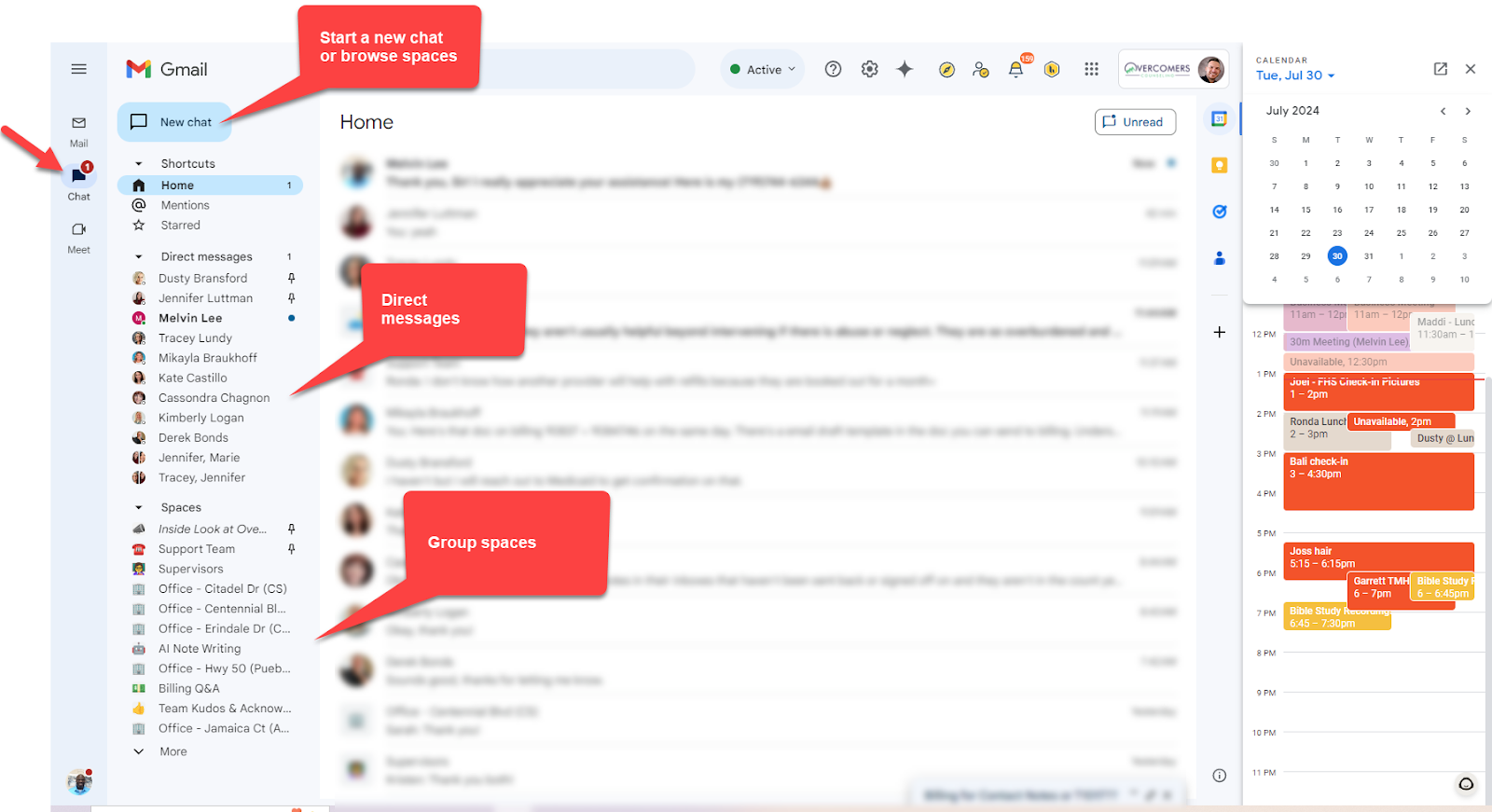
- Find other Chat “Spaces” to communicate around a particular topic.
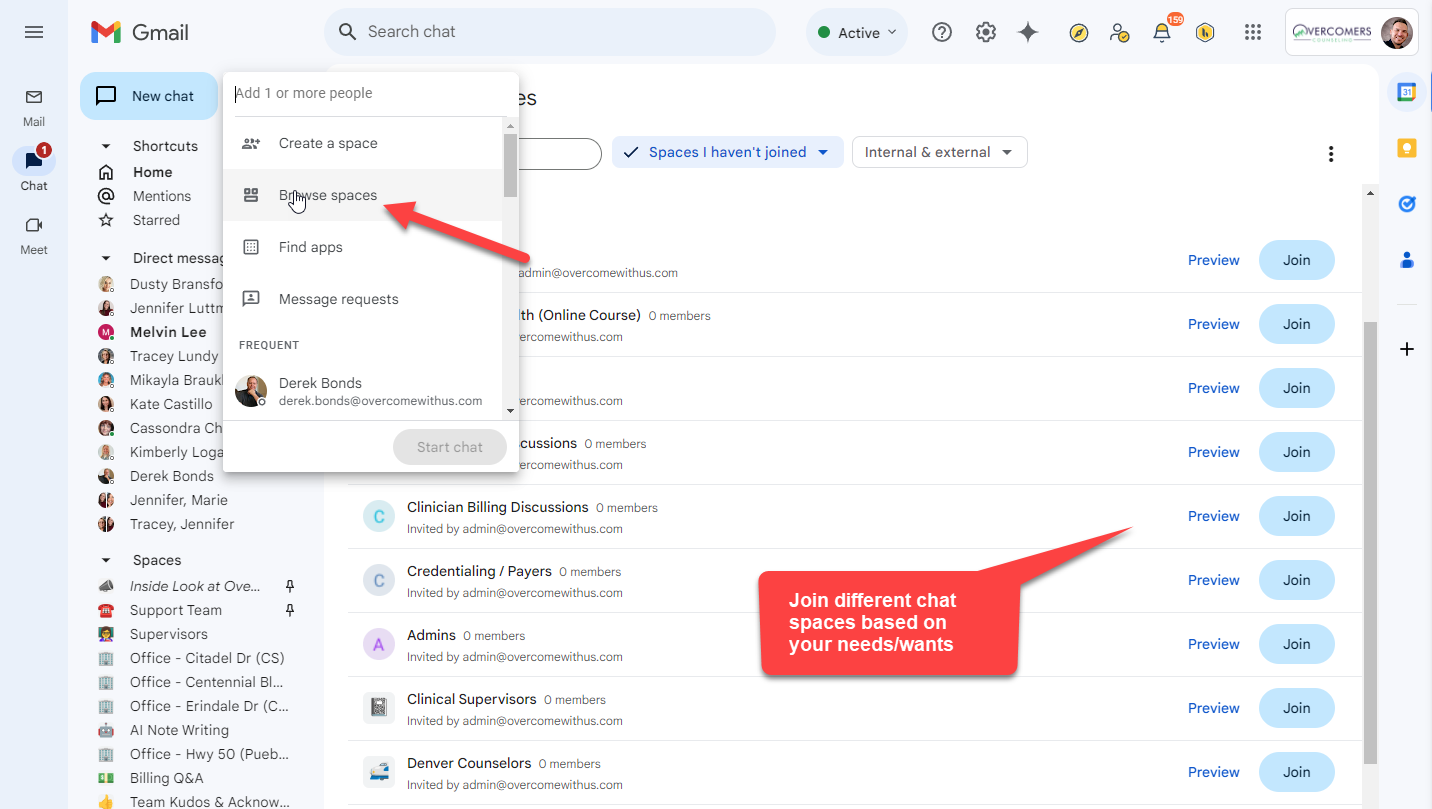
Learn more: Google Chat Tips.
Intro to Google Calendar
With Google Calendar, you can quickly schedule meetings and events and get reminders about upcoming activities, so you always know what’s next. OC's Google Calendar is HIPAA compliant.
How we use it
We primarily use Google Calendar to share and create Google Meets Links for staff and/or clients and to manage our Company Calendar.
How to Access Google Calendar
Navigate to www.google.com/calendar and log in using your OC's credentials if needed.
How to respond to calendar invites
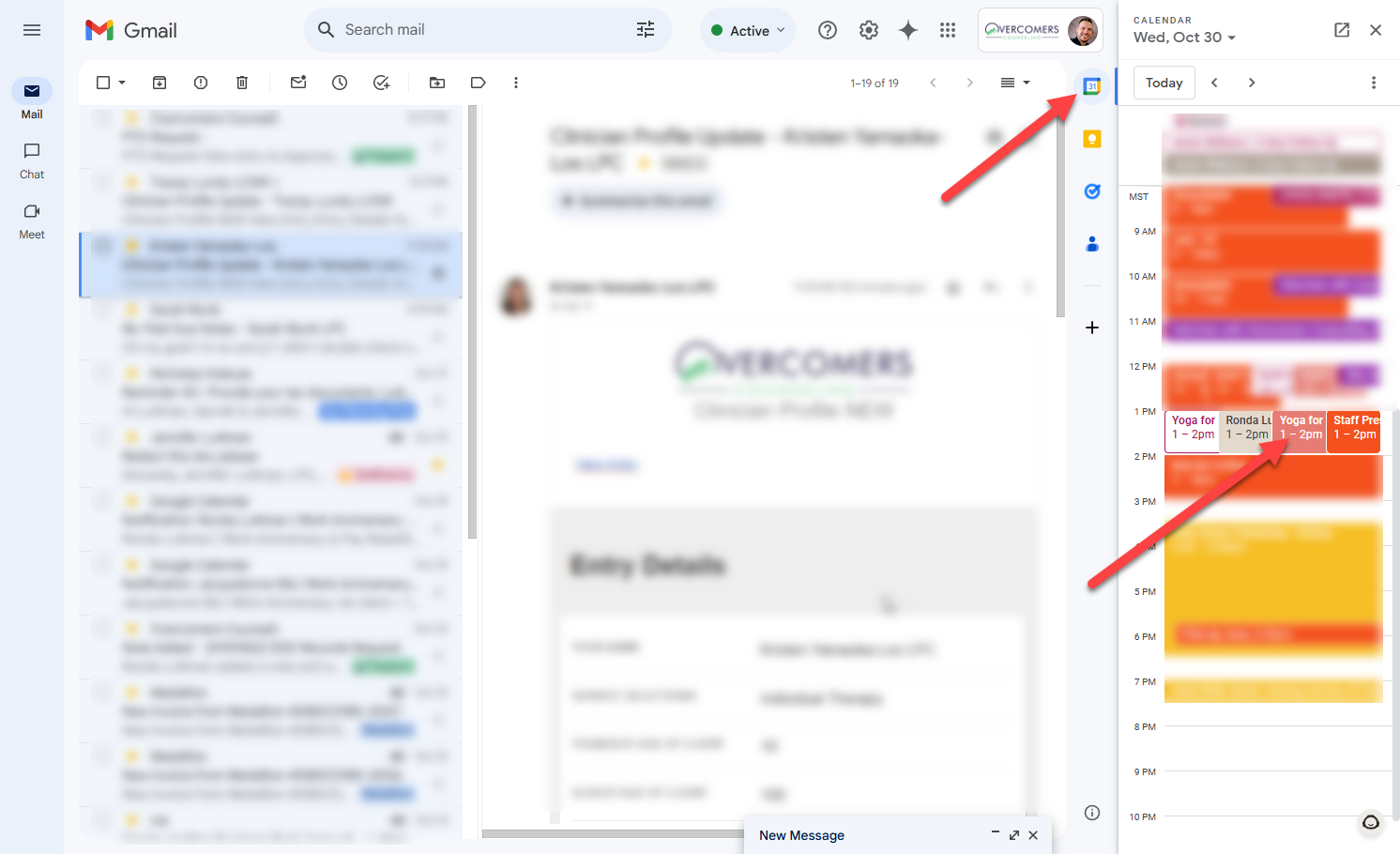
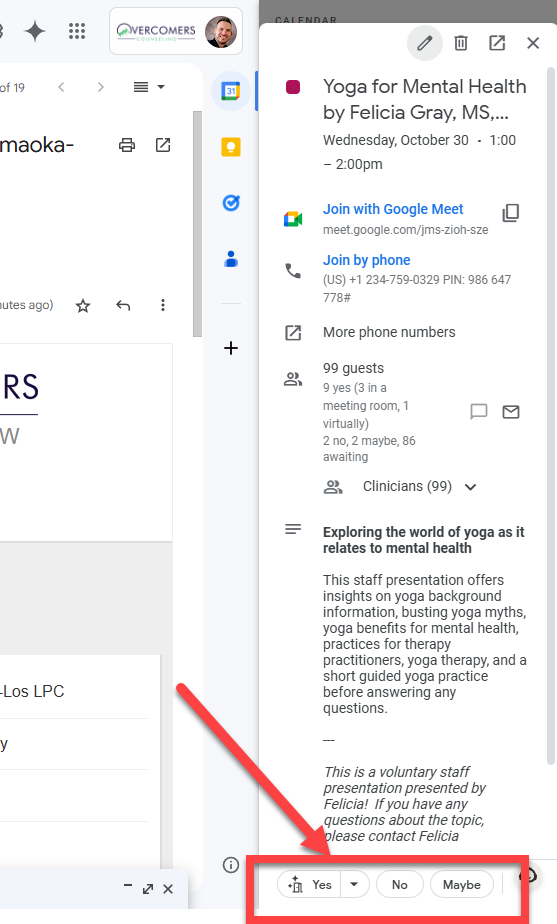
Here are two easy ways to respond to a meeting invite. Responding with "Yes" or "No" greatly benefits planning.
- In the email invite:
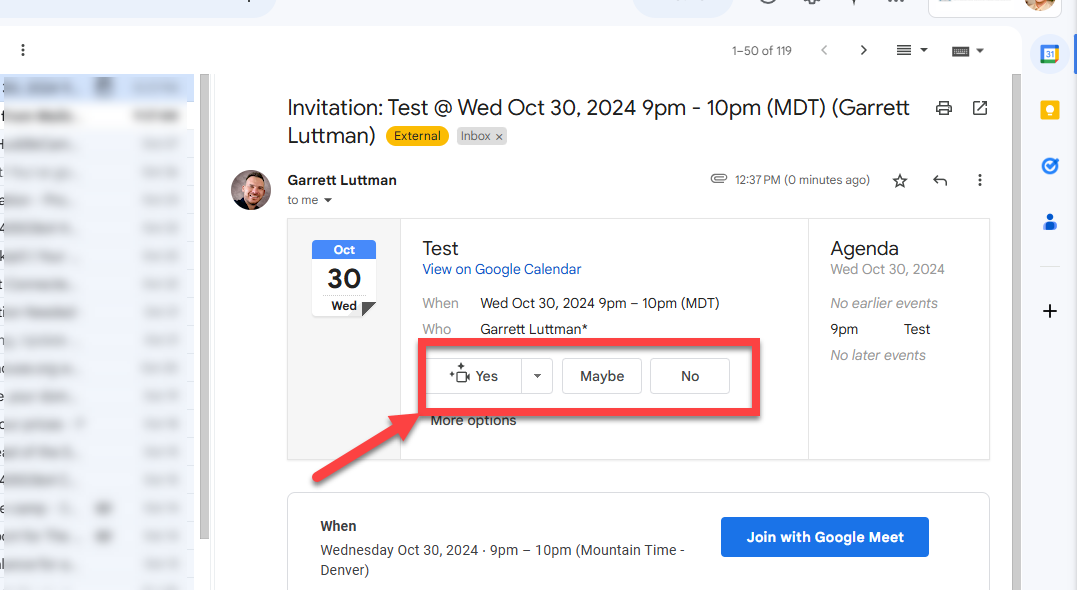
- In Google Calendar (which you can access from within Gmail):
How to create events in Google Calendar and add Google Meets
Intro to Google Drive
OC’s Google Drive contains all your client letters, documents, etc., and all our organization documents. More importantly, it’s HIPAA compliant. Google Drive allows users to store files on their servers, synchronize files across devices, and share files. Files created and edited through the office suite are saved in Google Drive.
How we use it
Letters created via Google Docs are stored in OC Google Drive. All “how-to” documents, videos, and worksheets are stored in Shared Drives.
Overview of Google Drive
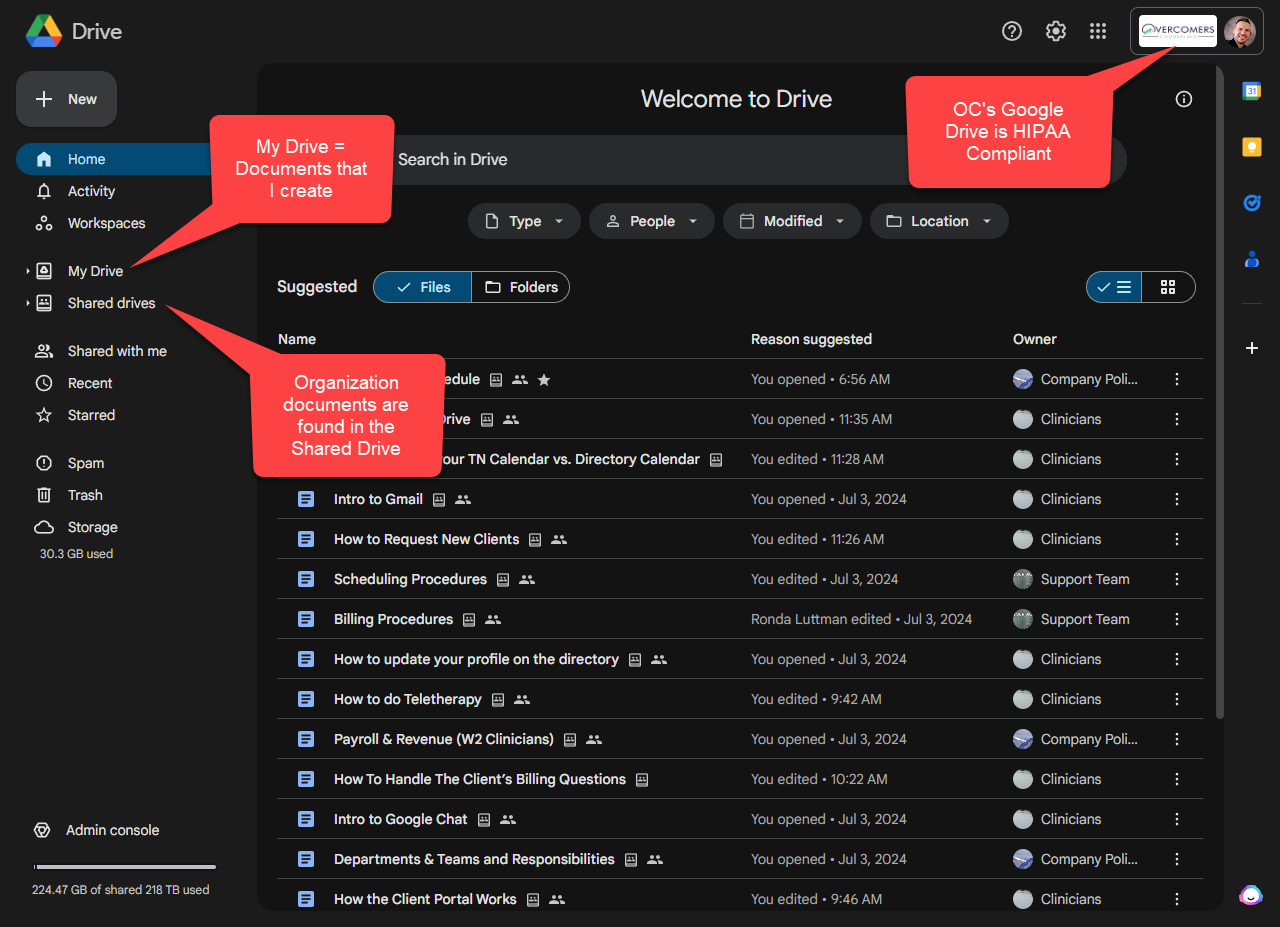
- Shared Drives are "drives" shared across the whole company and/or specific roles.
- Your personal OC Drive will store your workable client-specific letters and docs. After you finish creating the document, it should be uploaded to TherapyNotes.
Do NOT store PHI on your computer/drive (i.e., Windows Explorer, Finder App).
Intro to Google Docs
Google Docs is a powerful tool for collaboration and document authoring. OC's Google Docs is HIPAA compliant because the document is stored in OC’s Google Drive. MS Word is NOT HIPAA compliant.
Creating a Google Doc
There are several ways to create a document from scratch or a template. Here are a few options:
You can access many Google products whenever you see the Dot Grid.
Template Gallery
Use OC's template gallery to quickly and easily create certain letters for clients such as:
- Treatment summaries
- Blank Letterhead
- Safety plans
- ...and a lot more
To create a Termination Letter, use the Termination Letter form located in our EHR > Help > search Termination.
How to create letters from Template Gallery video:
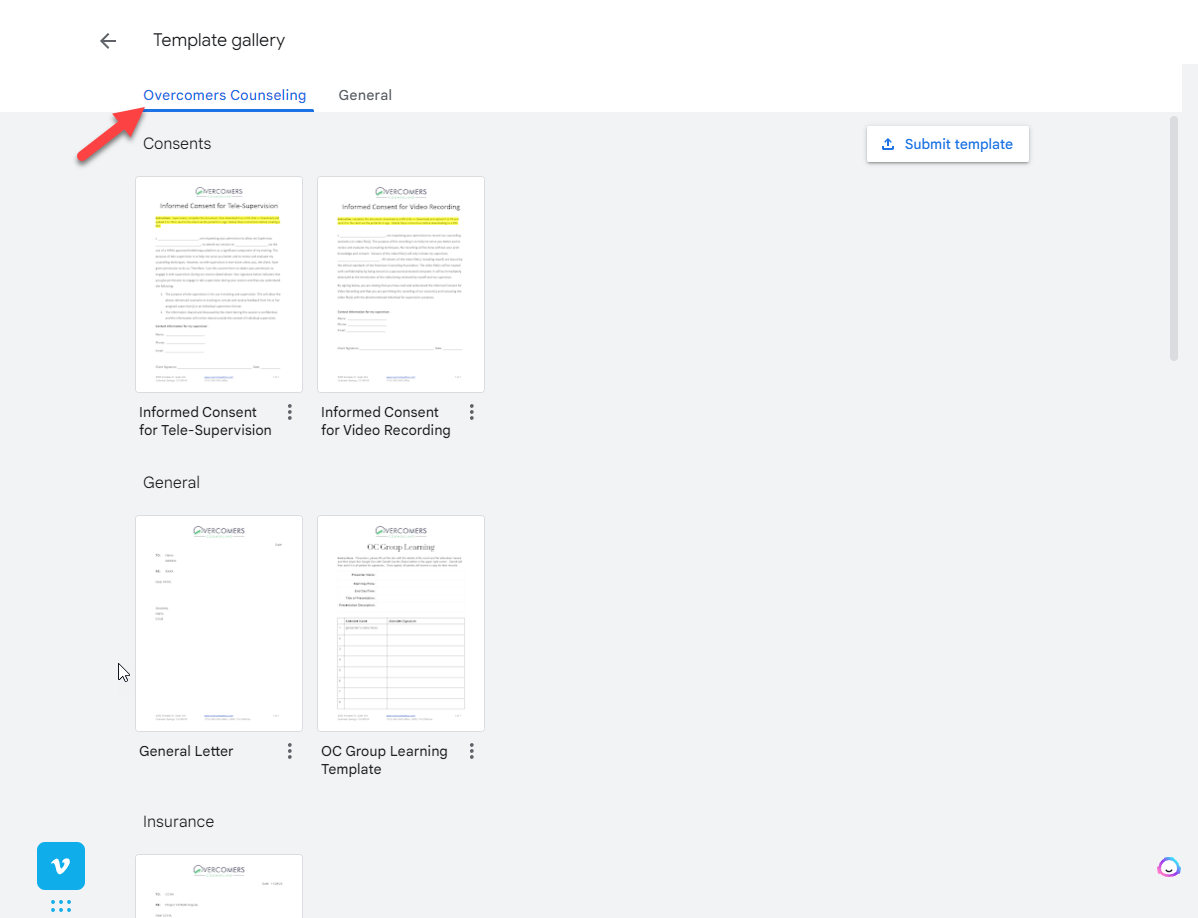
Intro to Google Meets
Google Meet is a video conferencing service developed by Google. It allows users to virtually meet and collaborate with others using video and audio calls.
Watch this video to learn how to use Google Meets as an alternative telehealth platform:
How to Schedule a Meeting
To schedule a meeting, open the Google Meet app and click on the "New Meeting" button. You can then enter the details of your meeting, such as the meeting title, date, and time. You can also invite others to your meeting by entering their email addresses.
How to Share a Meeting Link
To share a meeting link with someone, follow these steps:
- Open the Google Meet app and click on the "New Meeting" button.
- Enter the details of your meeting, such as the meeting title, date, and time.
- Click on the "Invite guests" button.
- Enter the email addresses of the people you want to invite.
- Click on the "Send" button.
The invitees will receive an email with a link to the meeting. They can click on the link to join the meeting.
To copy the meeting link and text it to someone, follow these steps:
- Click on the "Invite guests" button.
- Click on the "Copy meeting link" button.
- Open CTM and paste the meeting link into the message. Learn more: CallTrackingMetrics CTM
Use Google Meet Features
Once you're in a meeting, you can use the Google Meet features to collaborate with others. Some of the features include:
- Video and audio calls
- Screen sharing
- Chat
- Breakout rooms
- Polls
- Q&A
How to Share Your Screen
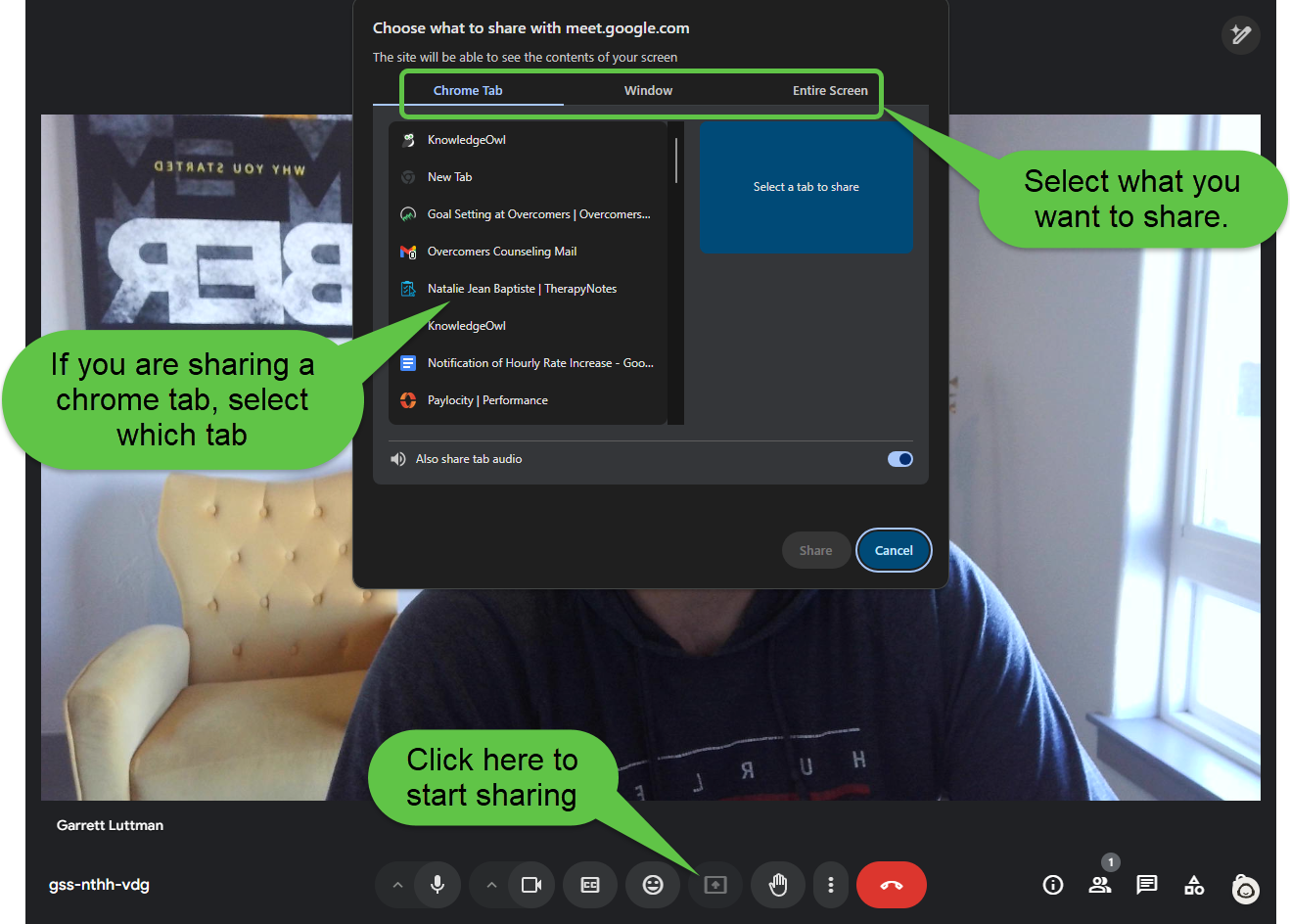
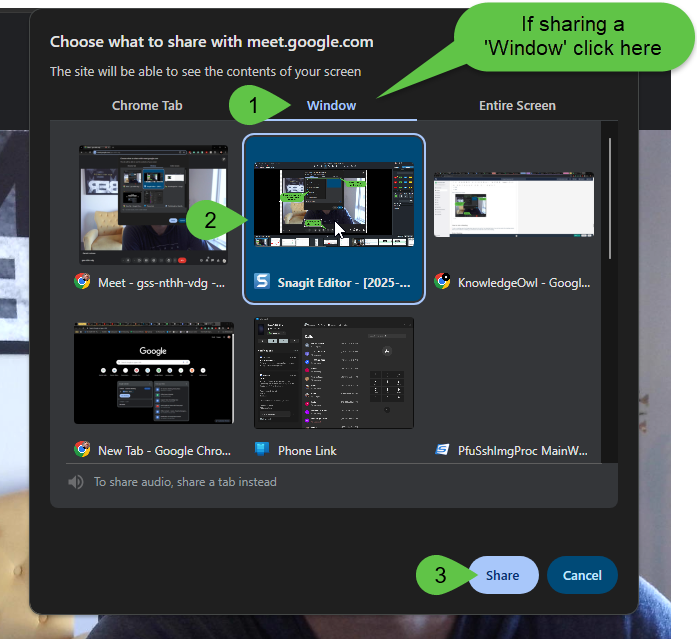
If you want to share your Entire Screen, click Entire Screen.
How to Join a Meeting
To join a meeting, open the Google Meet app and click on the "Join Meeting" button. You can then enter the meeting code or link. If you're invited to a meeting, you will receive an email with a link to the meeting.
End a Meeting
To end a meeting, click on the "End Meeting" button. You can also leave a meeting by clicking on the "Leave Meeting" button.
2FA for Google (Two-Way Factor)
If logged into your Overcomers’ Google Workspace, follow the steps below. However, Google may prompt you to set up 2FA when you first log in. If so, follow the prompts.
- Go here: https://myaccount.google.com/
- Click “Security”
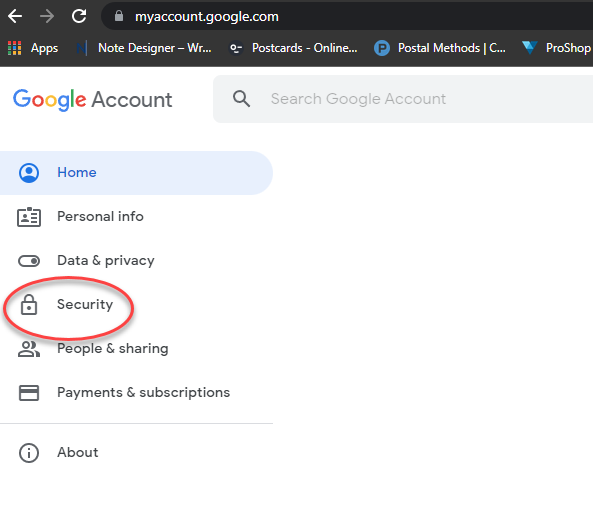
- Turn on 2-Step Verification.
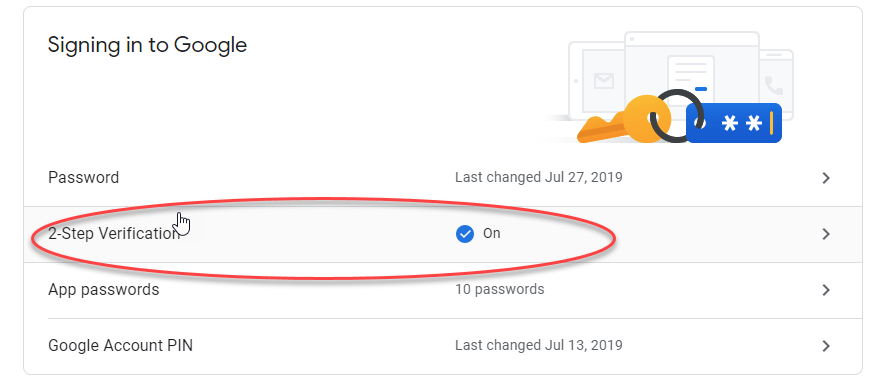
- Follow the steps
- When you log in, there are several ways to verify your account (SMS, Google Authenticator app, etc.). Select the one that is most convenient for you.