Communicate via TN Messaging
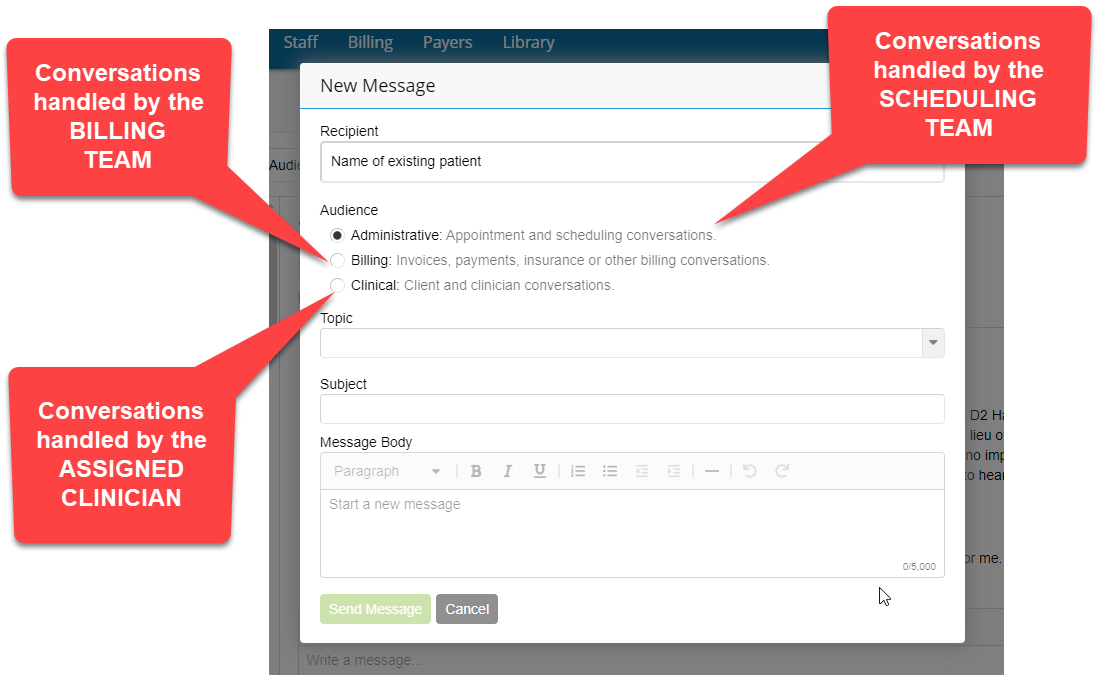
TN Messaging allows clients and Overcomers to better communicate with one another. Clients can send and receive messages through the Client Portal. Client messages are organized by groups: Administrative, Billing, and Clinical. These groups set the permissions of who can view and respond to the message and create a structure to keep messages organized and HIPAA compliant. Clinicians can always see messages related to their assigned clients.
Administrative messages
- Are visible to Practice Schedulers, Practice Admins, assigned Clinicians, Supervisors, and Clinical Admins
- ARE HANDLED BY THE SCHEDULING TEAM
Billing messages
- Are visible to Practice Billers, assigned Clinicians, Supervisors, and Clinical Admins
- AND ARE HANDLED BY THE BILLING TEAM
Clinical messages
- Are visible to assigned Clinicians, Supervisors, and Clinical Admins
- AND ARE HANDLED BY THE CLINICIAN.
Inbox Overview
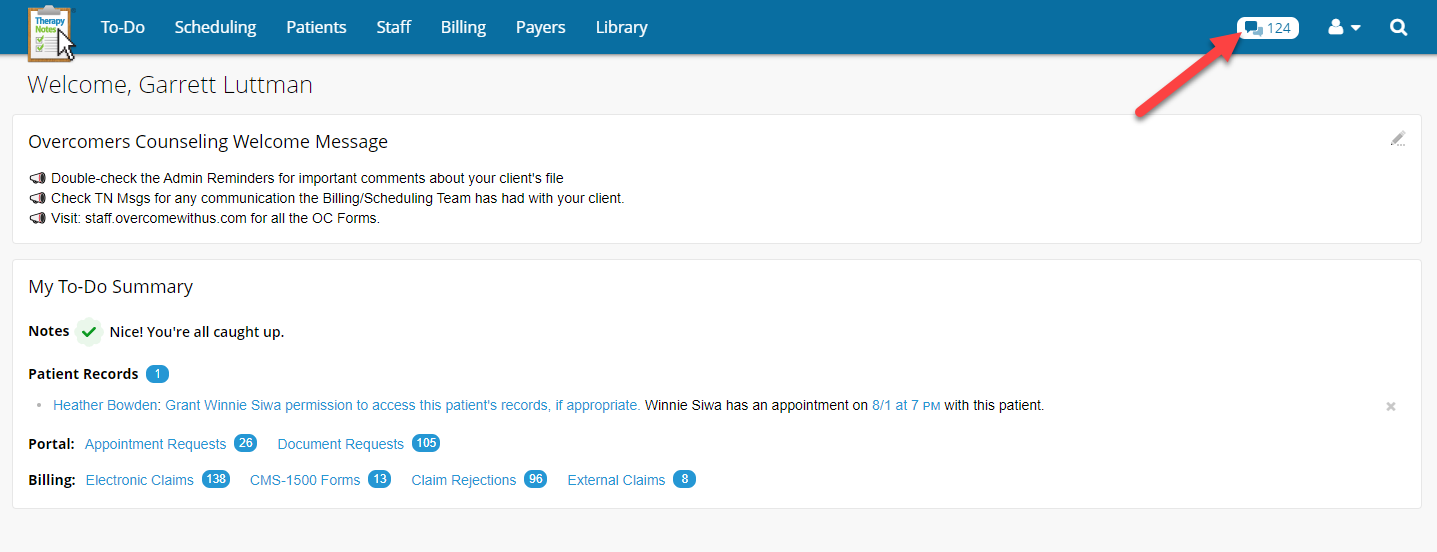
To navigate to your inbox, click the Inbox icon in your top navigation menu.
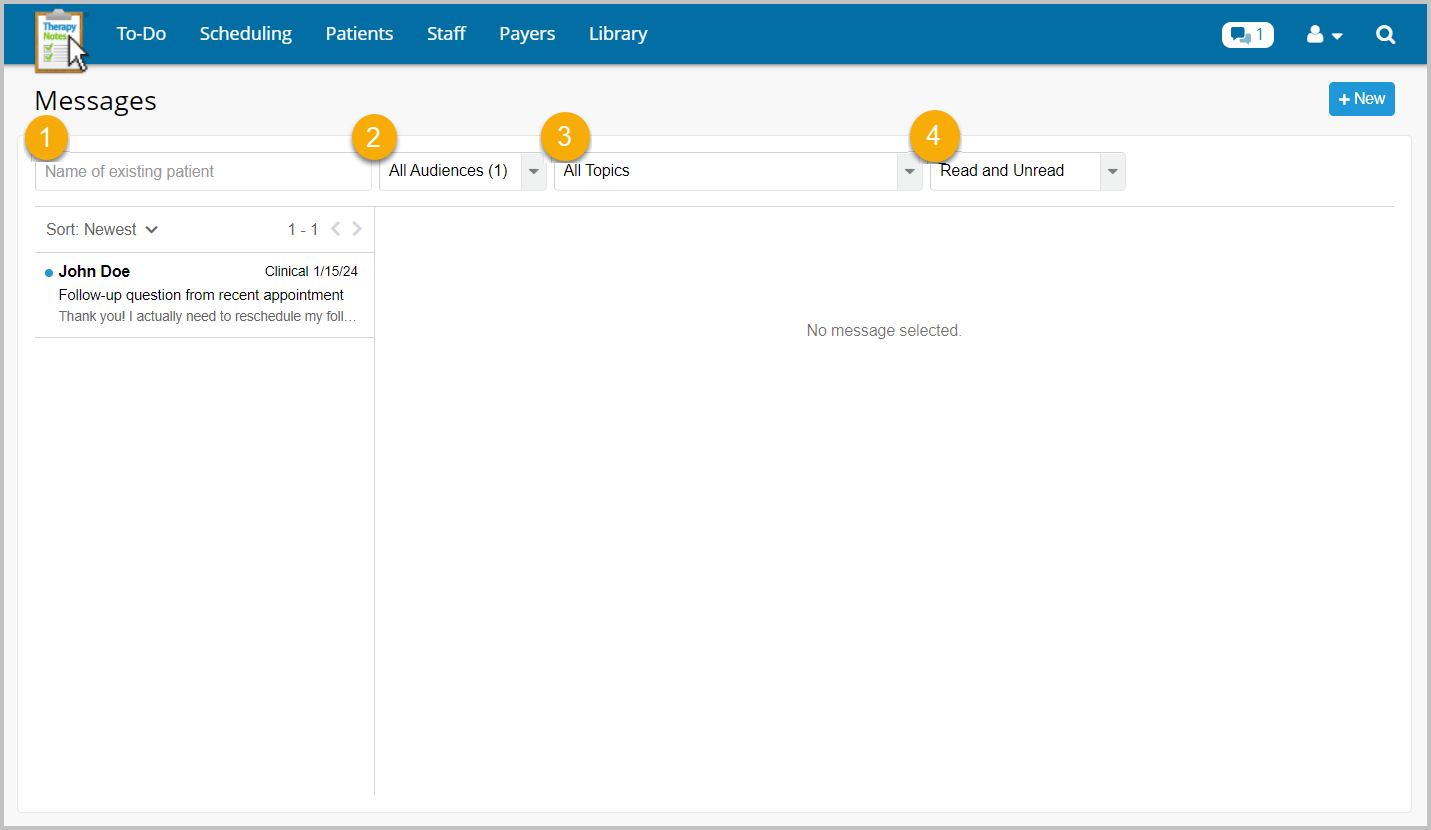
When viewing the inbox, filtering allows you to narrow down the messages shown if you are looking for a specific message.
- Use the first filter on the left to search for a specific client by typing the client's name in the field and selecting them in the drop-down. This filters the entire inbox to only messages with that client you can access.
- The Audience filter allows users to filter their inbox to only see messages with that audience type selected. For example, if you are a clinician who does not handle any billing, you can filter your inbox to Clinical and not see the billing or admin messages that come in for your assigned client.
- The Topics filter allows users to filter all messages down to a certain topic.
- The last filter allows users to filter by message state- Read and Unread, Unread Only, All Including Archived, and Deleted messages.
Creating a New Message
To create a new message, click the + New button on the top right.
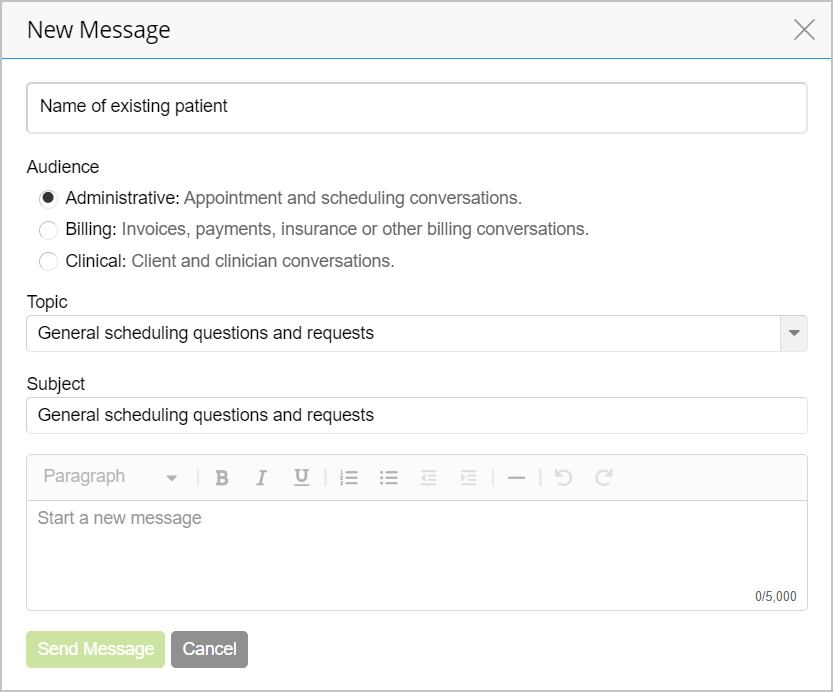
- You can type your client's name or select their name from the dropdown.
- Select the audience.
- Select a topic, and the subject will populate automatically. You can edit the subject as well.
- Type your message and click Send Message.
You can still send a message if your client does not have a portal account. The message will invite the client to create their portal account first to view the message.
Responding to Messages
When a user receives a new message, the icon in the header displays the number of new messages next to it. Clicking on the icon brings the user back to their inbox to view the new message. New threads have a dot indicator to the left of them, and new messages inside a thread have the same dot indicator.
Please respond to messages within 24 hours.
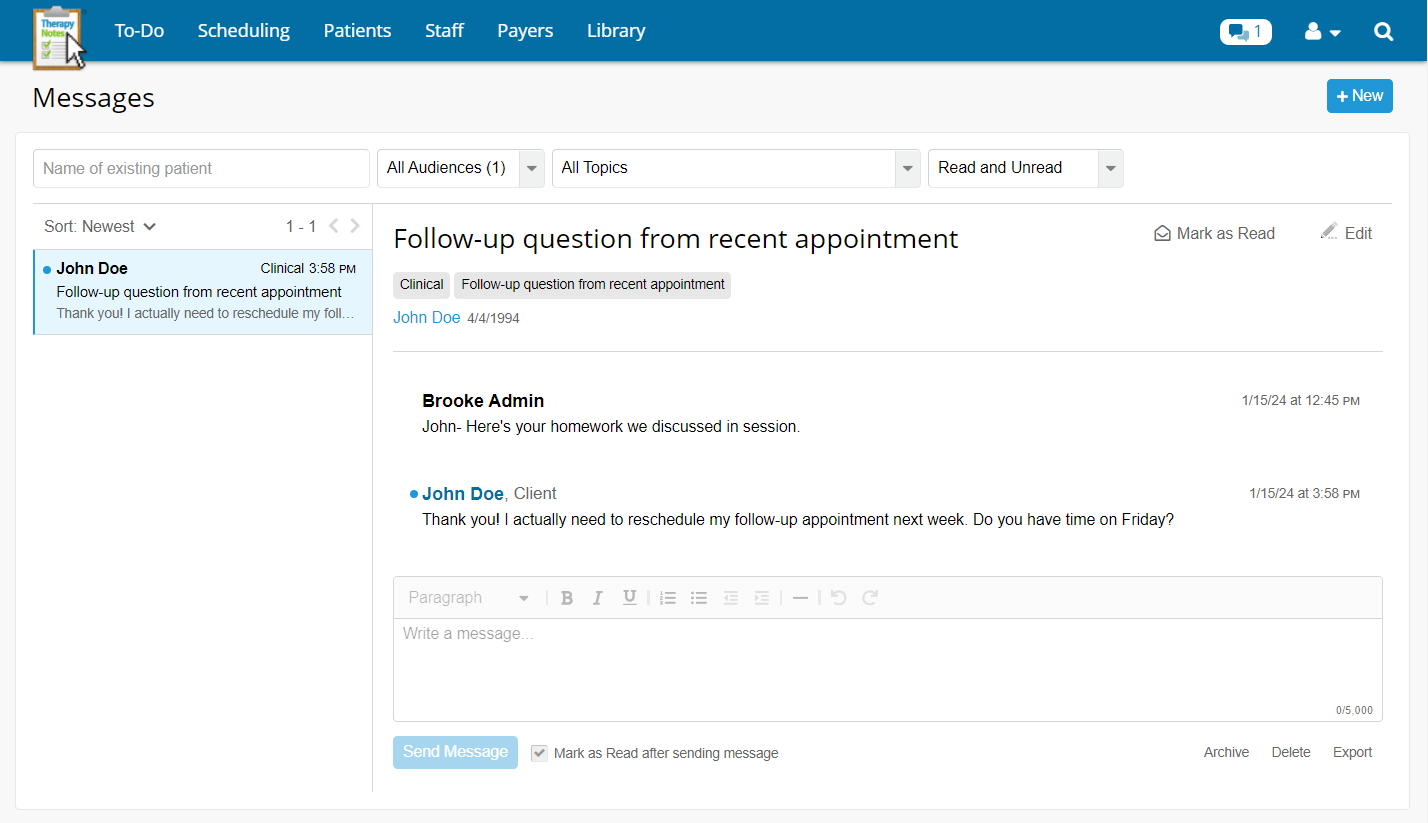
- Hover over a message inside a thread to mark individual messages as read or unread and delete
Note: All users can delete messages that clients have not seen. If a client has seen a message, only Clinical Admins can delete Clinical messages and Practice Admins can delete Admin and Billing messages. - Once you type in the field to respond, the Send Message button will enable.
- The checkbox to Mark as Read after sending message is auto-selected so any messages in the thread will be marked as read. Uncheck this before sending if you would like to keep the messages unread.
- Archive, Delete, and Export at the bottom will do those actions at the thread level.
What does the client receive?
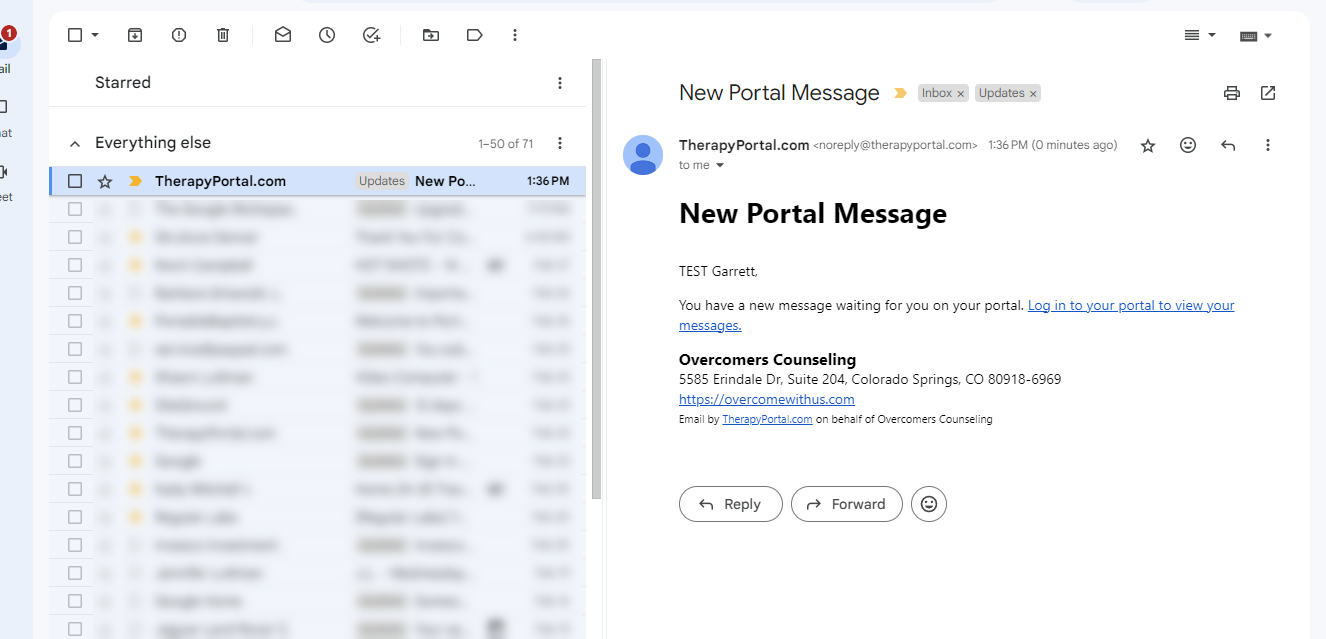
When you send a new message or reply to an existing message, the client receives an email that says they have a new message (this is what keeps it secure).
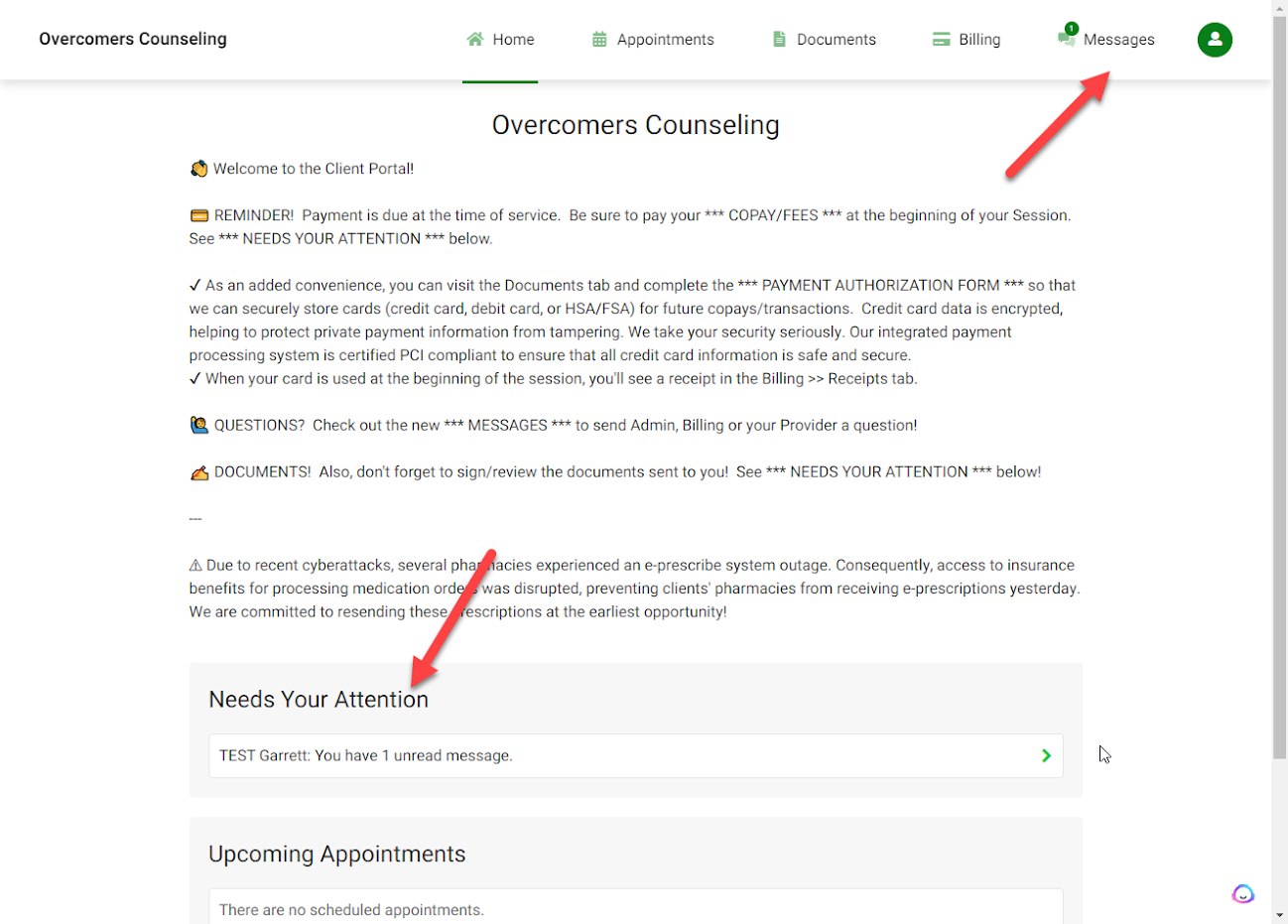
What does the client see when they login to the Client Portal?
This is the home page after login.
Are TN Messages a part of the client’s file?
TN Messages are NOT part of the client's file unless you take further action to make them a part of the file.
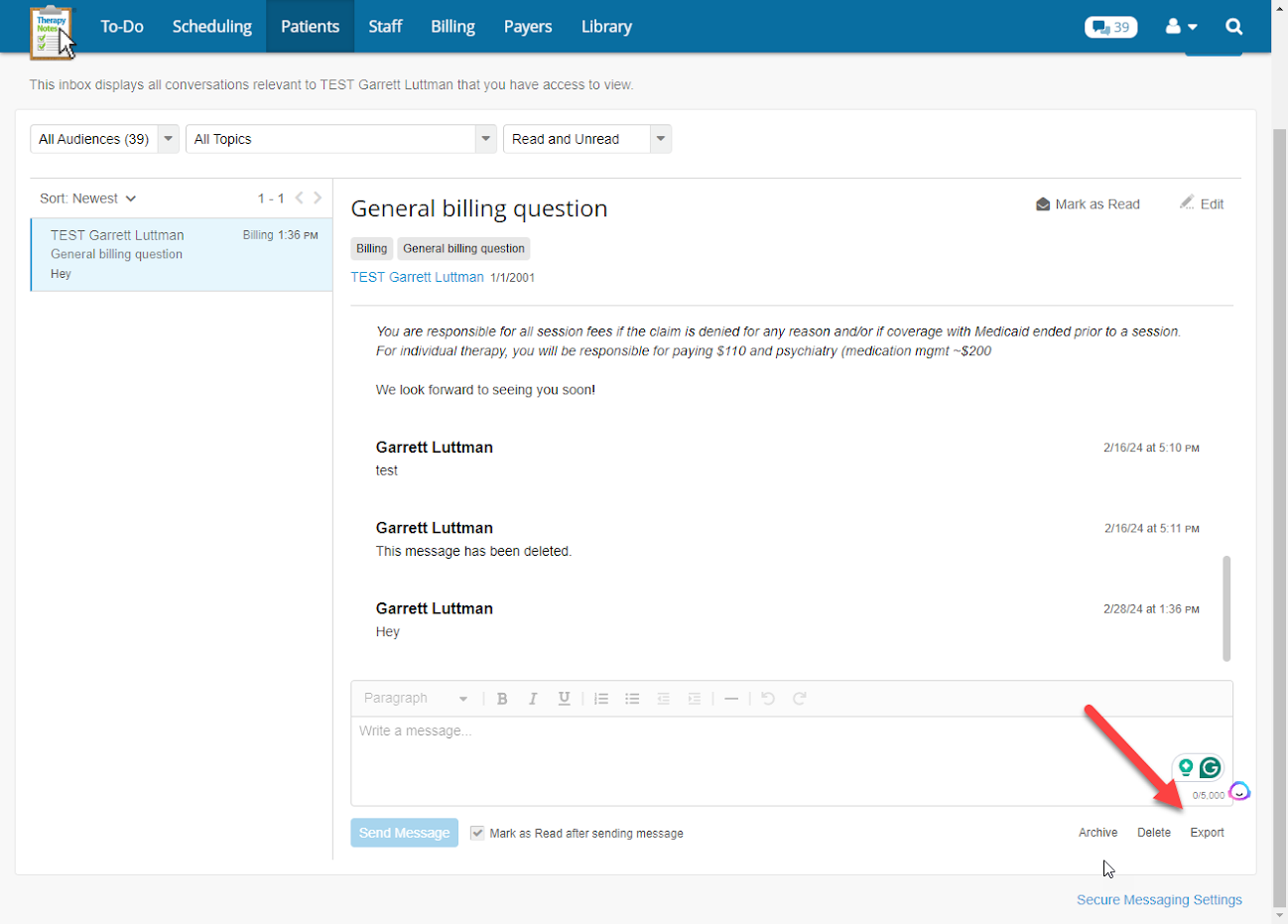
If you want any communication thread to be part of their "file," you would need to make a contact note OR you can export a TN Msg thread, which will produce a PDF that you can add to the client's file (Documents tab)—just like printing out a PDF of an email communication.
Editing a Thread Header and/or Assign Message to Correct Subject
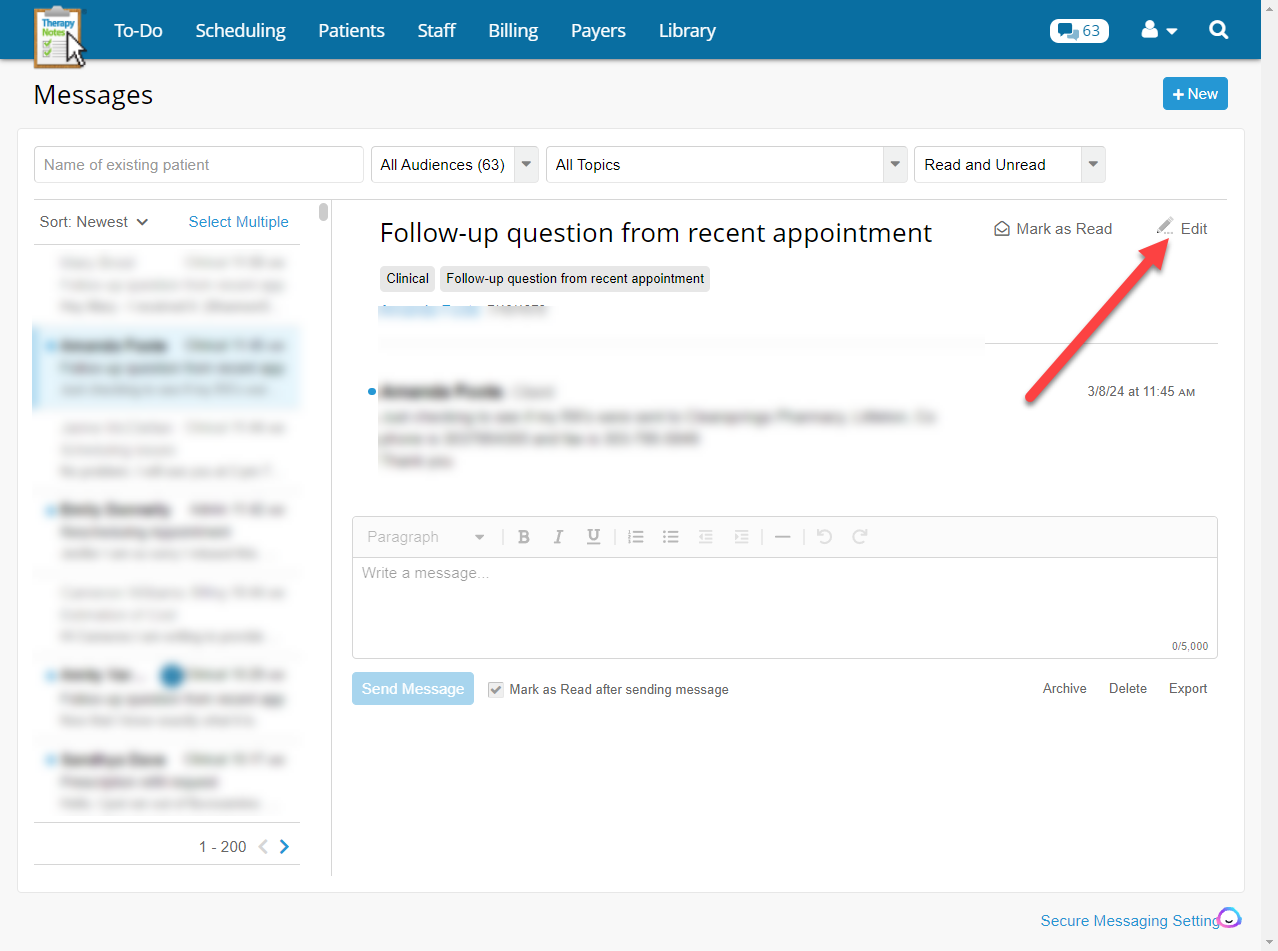
When viewing a thread, use the button edit button to edit the thread header. Once this is open, the user can edit the audience, topic, and subject. When changing audiences, there were be a confirmation message that displays the change in message viewing. For example, if a message was a billing message but is changed to an admin message, billers will no longer have access to the message and admins will now have access to it.
How long do the messages stay in the portal?
Messages are auto-archived at 60 days.
Canned Messages
Copy and paste some of the preformatted messages to use within TN Messaging!
Scheduling Messages
Hello!
Your online/telehealth appointment is starting now! Click Join Session on the home page of this Client Portal. If you have issues joining, please send me a message here.
Hello!
Your in-person appointment is starting now. If you can't make it in, we can switch to a Virtual session to avoid a cancellation fee. Reply here and let me know if that’s what you’d like to do.
Hello!
You are due for a follow-up appointment to prevent any lapses in medications or treatment plan interruptions. Click on the Appointments tab and click Request New Appointment to view my calendar and schedule an appointment. Let me know if you have any questions!
Emergency Cancelation
Hello!
Unfortunately, I have an emergency come up and I need to cancel our appointment today! I do apologize for the inconvenience but I’d like to get your reschedule as soon as possible. Click on the Appointments tab and click Request New Appointment to view my calendar and schedule an appointment.
Missed Appointments for Medicaid Client
Hello!
It looks like you missed your appointment today! I hope that everything is okay. I’ve attempted to call you, but there was no answer. You still have future appointments scheduled, but please let me know if we need to cancel/reschedule these appointments as well. You can manage all your appointments by clicking on the Appointments tab here in the Client Portal.
Please keep in mind Medicaid’s policy: if a member has 3 no-shows or late cancellations, they are ineligible to book appointments with the clinician for 3 months. This rule is designed for cases where cancellations are necessary and unforeseeable.
Missed Appointment for Non-Medicaid Client
Hello!
It looks like you missed your appointment today! I hope that everything is okay. I’ve attempted to call you, but there was no answer. You still have future appointments scheduled, but please let me know if we need to cancel/reschedule these appointments as well. You can manage all your appointments by clicking on the Appointments tab here in the Client Portal.
A late-cancel/no-show fee ($110) has been applied for today’s session that was missed. We’ll attempt to run your card on file to pay this balance, but if we don’t have a card on file, please pay your outstanding balance by clicking on the Billing tab here in the Client Portal.
Pending Portal Documents Messages
Hello!
Reminder, you have pending documents to sign/complete here in the Portal. Click on the Document tab to view the documents. Let me know if you have any questions!
Billing Messages
Hello!
Friendly reminder! You have an outstanding balance for your sessions with me. Please pay this balance as soon as you can by clicking on the Billing tab. Let me know if you have any questions!