Google Chat Tips
Google Chat: the undisputed champ of internal communication—HIPAA-compliant, fast, and foolproof! That’s why adding your Overcomers Google Account to your phone isn’t just a good idea—it’s a no-brainer. Skip it, and you might miss out on crucial messages while you're away from your computer. Don’t let FOMO get the best of you—get connected!
Sometimes, the constant 'ding' of notifications feels less like staying connected and more like a game of whack-a-mole. Here’s how to keep in the loop without losing your sanity.
#1 Set your status appropriately
- In Gmail, select the status in the top right corner, but don't just set it to Away/Automatic; click 'Add a status.'
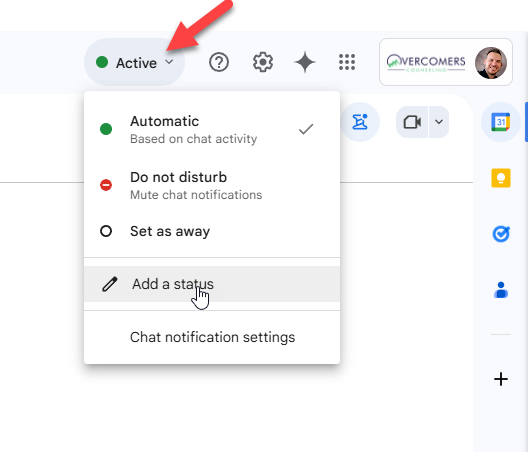
- Select from the default statuses or add your own.
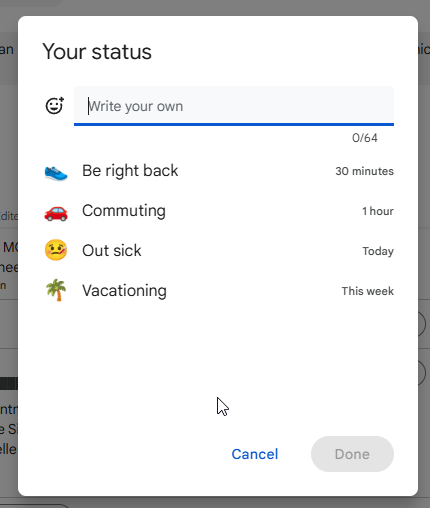
- Be creative, but just let the staff know what's going on.
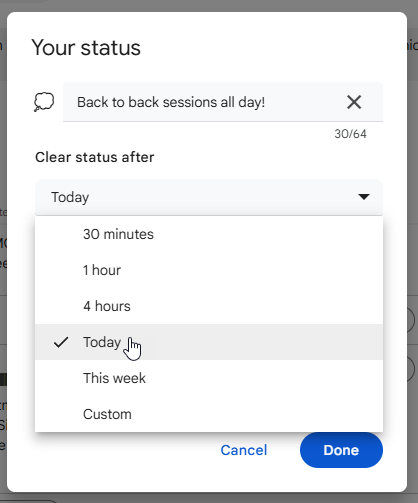
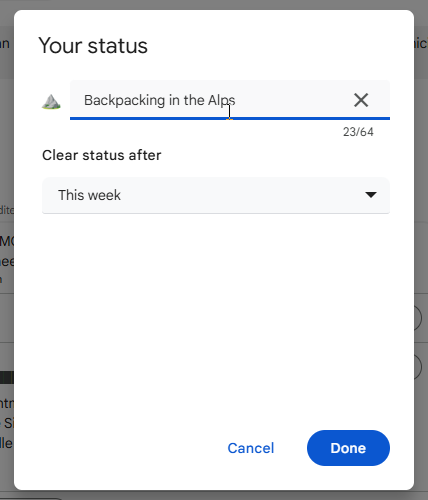
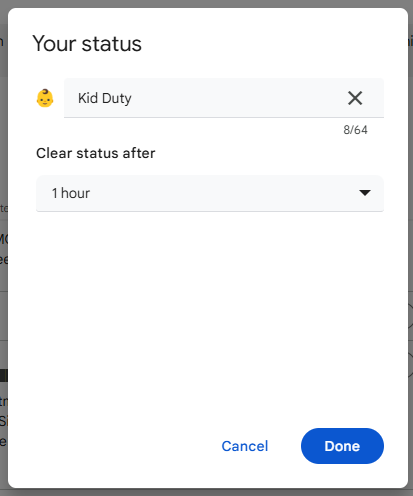
The most crucial part is "clear status after ... "; this will make sure after the time transpires, you'll go back to 'active.'
#2 Change the notification method in chat rooms
Here’s a game-changer: drowning in chat rooms full of endless chatter that doesn’t involve you? Time to silence the noise. Set notifications to only ping when you’re @ mentioned. You’ll still see the conversations go bold in the sidebar, but no more unnecessary dings disrupting your day. Now you can check in on the chaos whenever it suits you—because you’ve got better things to do than babysit a chat room.
- Go to the chat room/space that you want to adjust the notifications on.
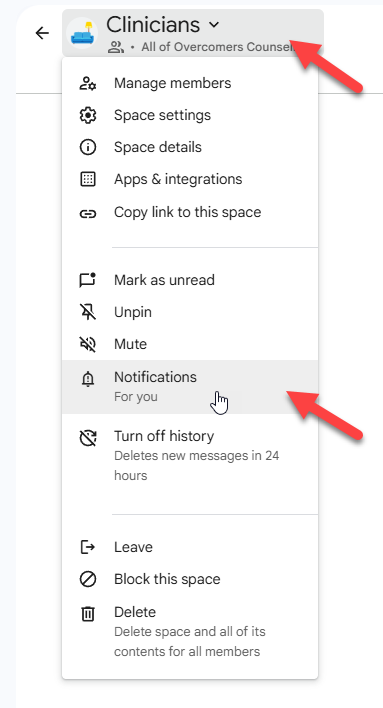
- Click on notifications and select the option that best suits you. I (Garrett) like the @ mention because I'm in every chat room and wouldn't get anything done but read chats if I got notified of every message in every room.
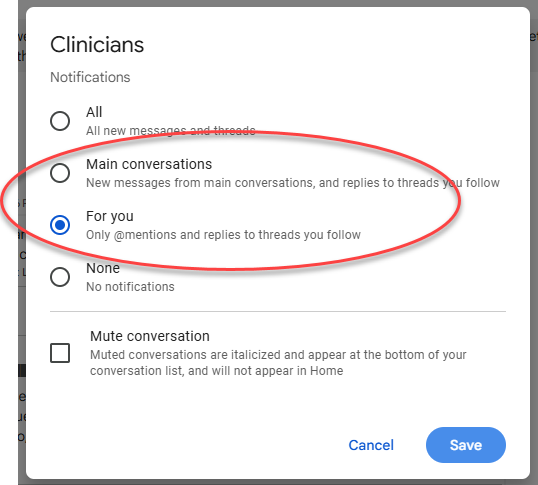
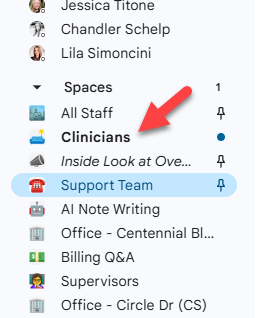
- When you are available to read the chat, you can see the bold chat rooms in the sidebar.
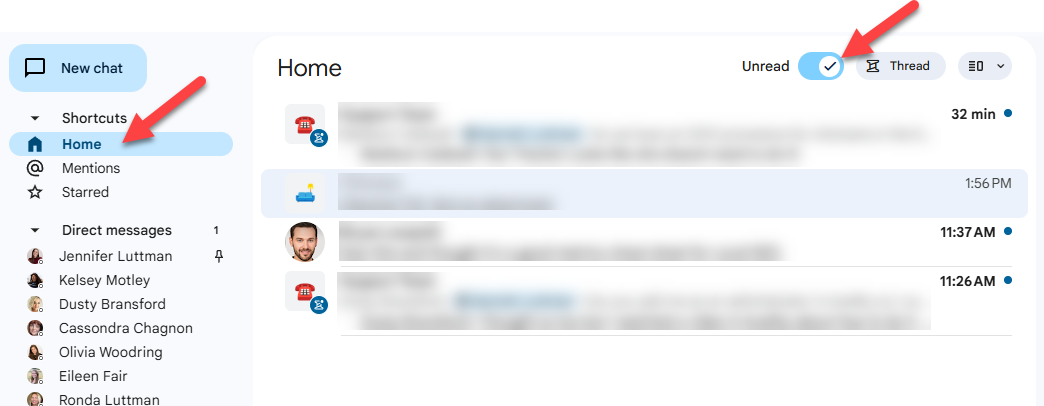
- Use the Home feature to get caught up on all chats across all the chat rooms and direct messages.
#3 Use the @ mention
Using the @ mention yourself is a great way to keep the critical party in the loop and make sure they are notified. Type @, then the person's name, and select the appropriate person.
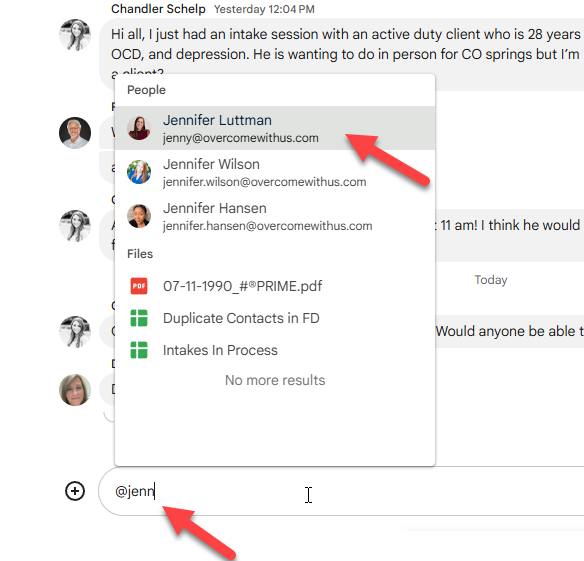
The individual you are communicating with in the chat room should be highlighted in this manner:

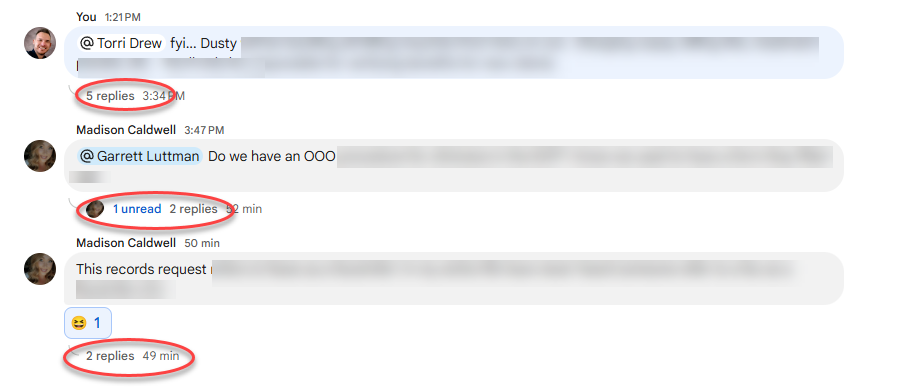
#4 Use Threads
Using Threads is the preferred way to keep multiple conversations organized! Below, you'll see three different discussions on different subjects happening within hours of each other but organized into threads.