Send and Process Documents/Assessments
Sharing documents or sending assessments must be done through the Portal. You must follow up with the client to complete these documents/assessments or remove them from the portal if the client has no intention of completing them. For most documents/assessments, the clinician is responsible for 'processing' the document after completion. Ideally, all documents should be 'processed' within 2 to 7 days of receipt.
Refer to the steps below for instructions on how to send and process these documents/assessments.
Overview video
Step-by-Step Procedure to Send Documents
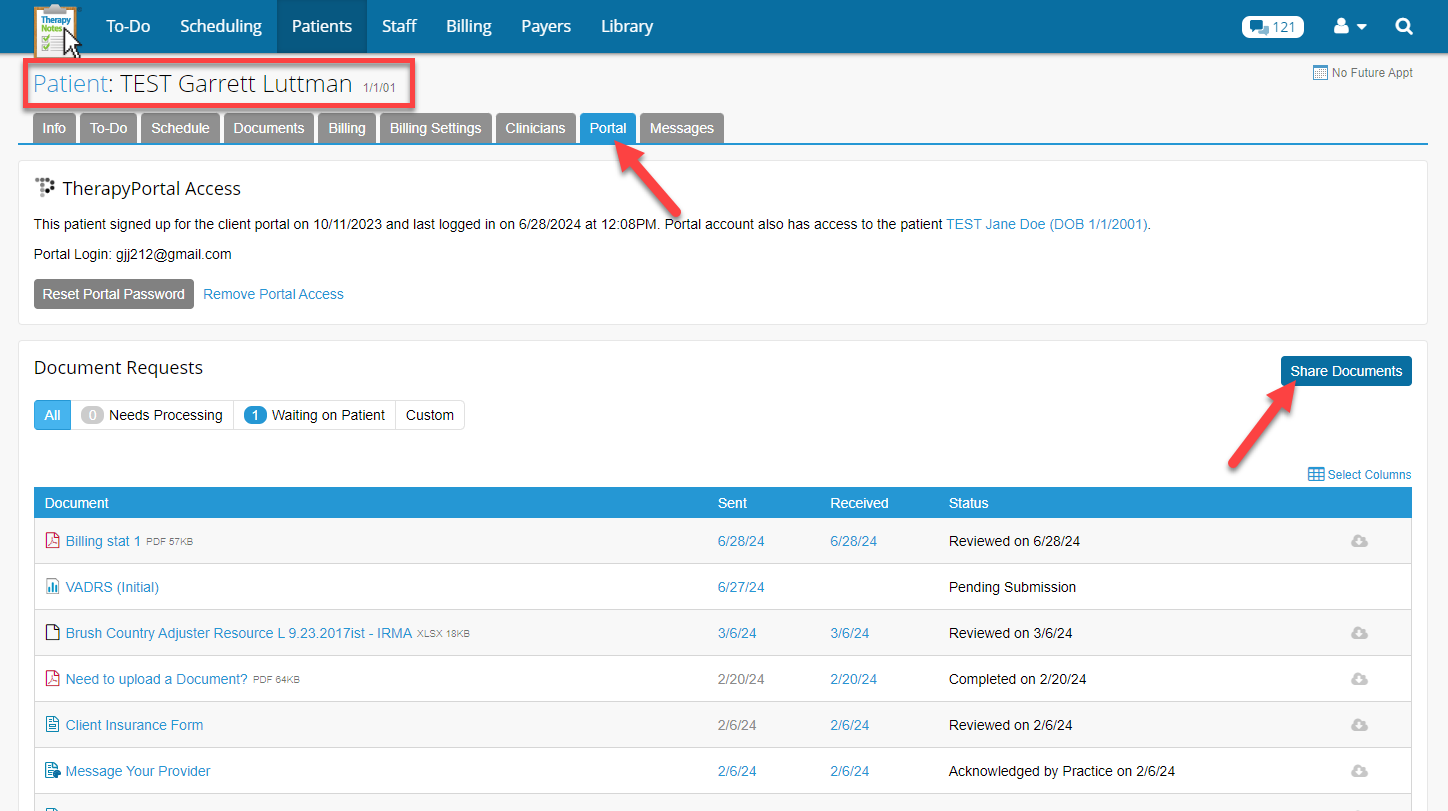
- Go to the client’s file, click on the Portal tab, and click Share Documents
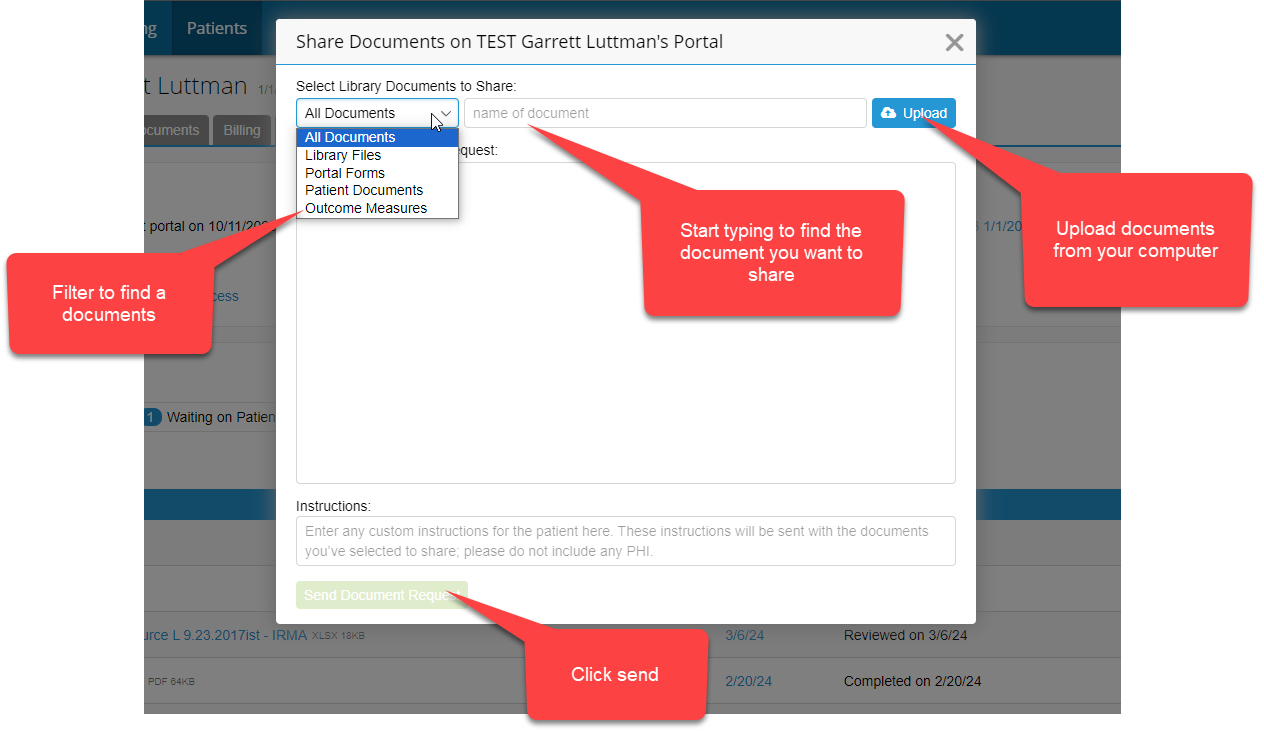
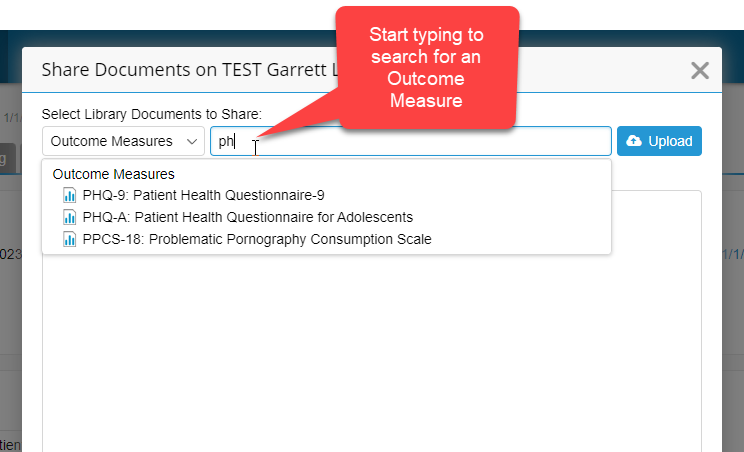
- You can share Patient Documents, TN Library Files, Outcome Measures and/or upload documents from your computer:
- After you have added all your documents, be sure to set the patient’s response to Review, Upload or E-Sign:
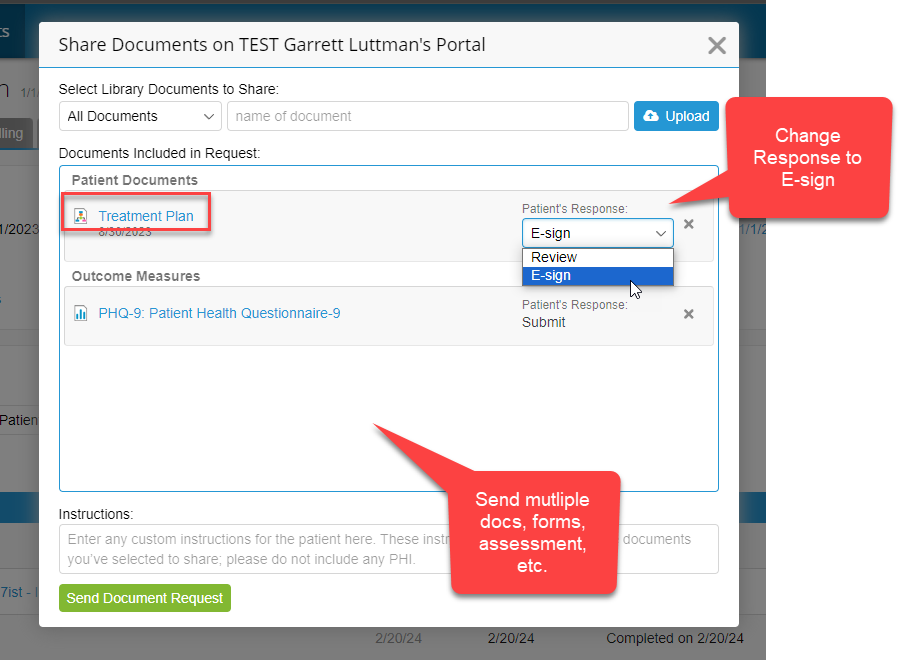
- Add instructions you’d like the client to receive, then click Send Document Request.
What Documents are “Pending”
Please have your client complete any pending documents, e.g., signing the treatment plan during your next session. Treatment Pausing will start 12/1/24 if the Disclosure, About Me or Treatment Plan still needs to be signed.
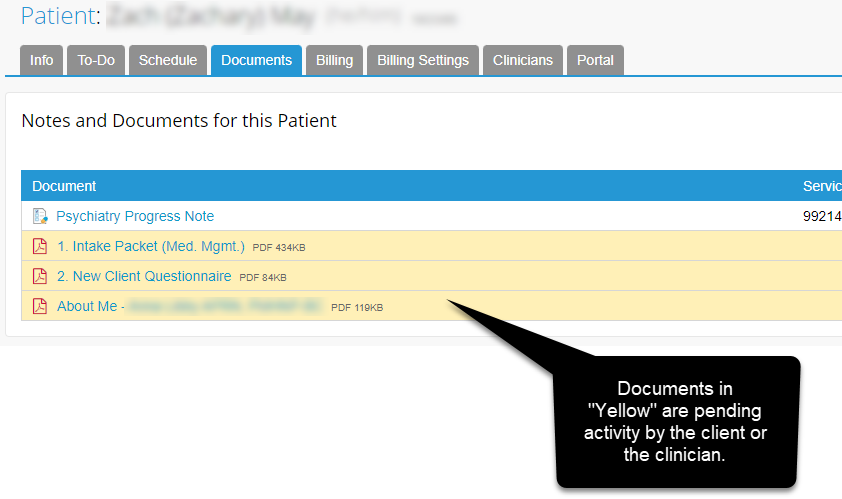
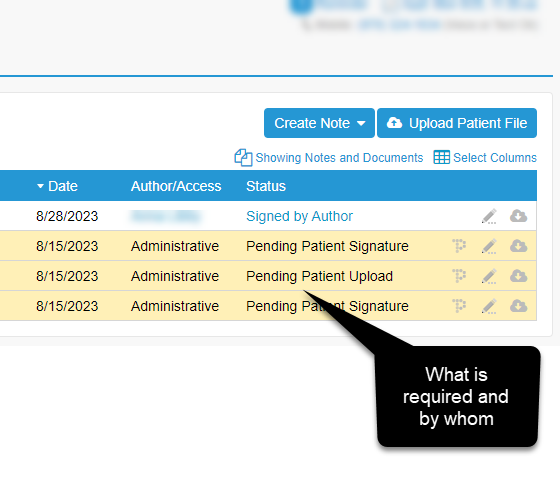
View all pending patient documents
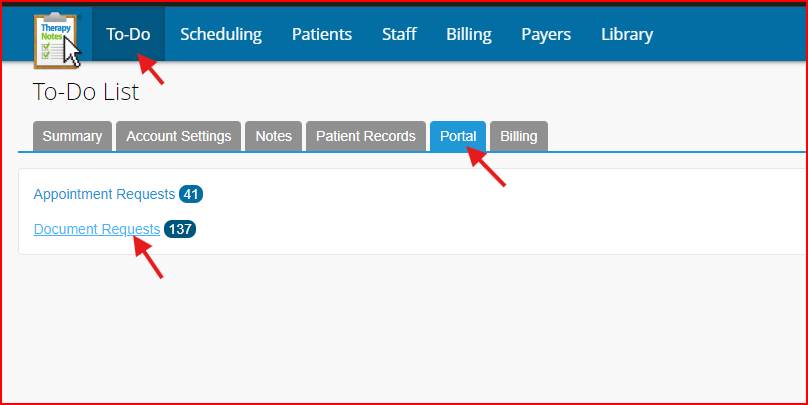
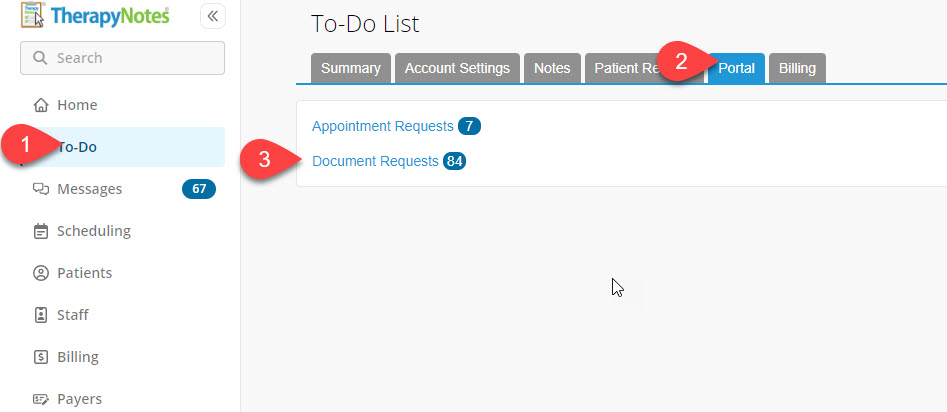
- In TN, go to the To-Do list and click on Document Requests.
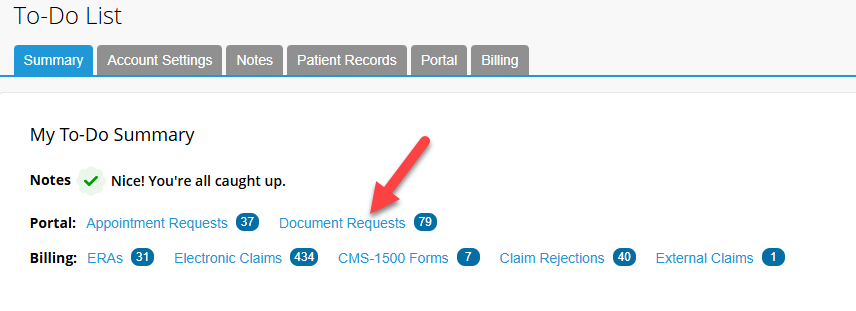
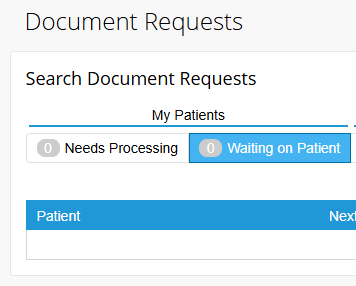
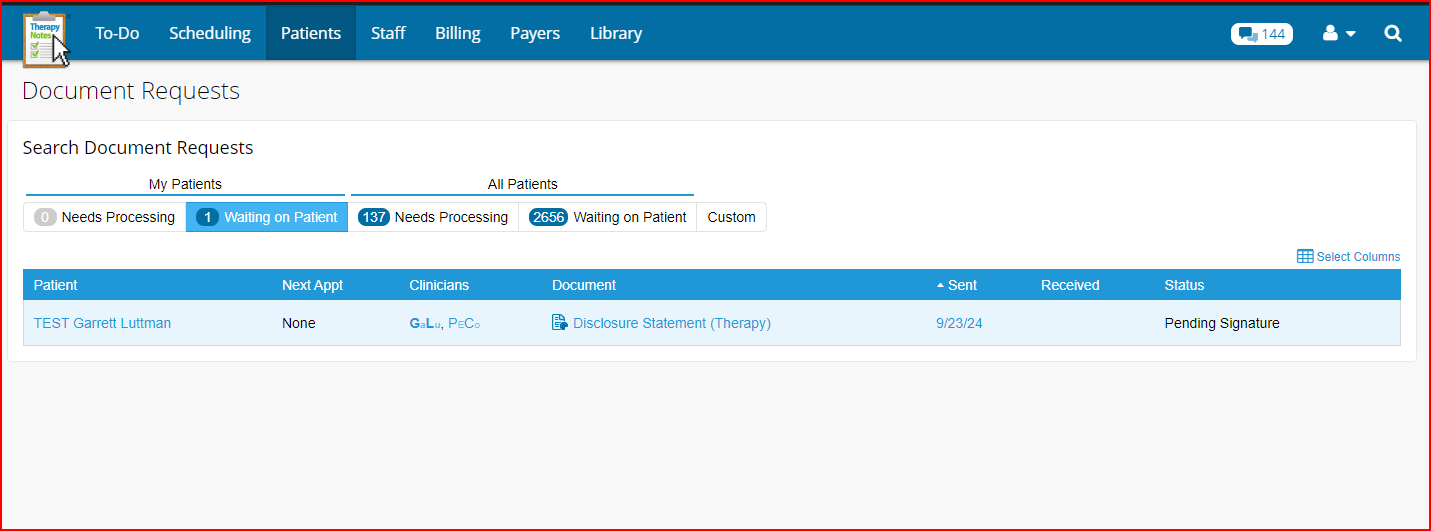
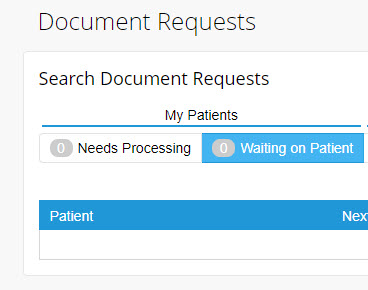
- Click on “Waiting on Patient” to view all pending documents:
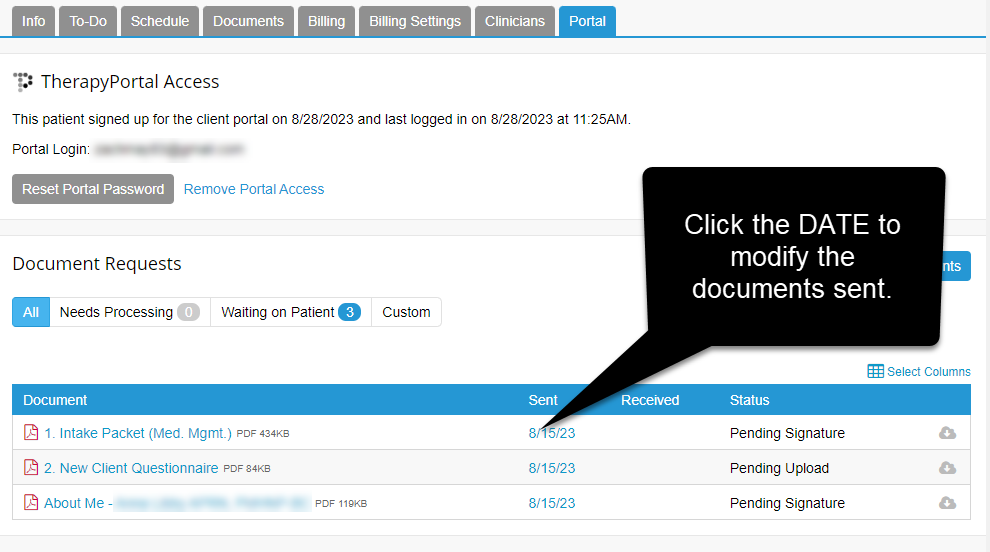
How to remove a document request from the Client Portal
- Go to the Portal tab
- Click the ‘x’ to remove a document request.
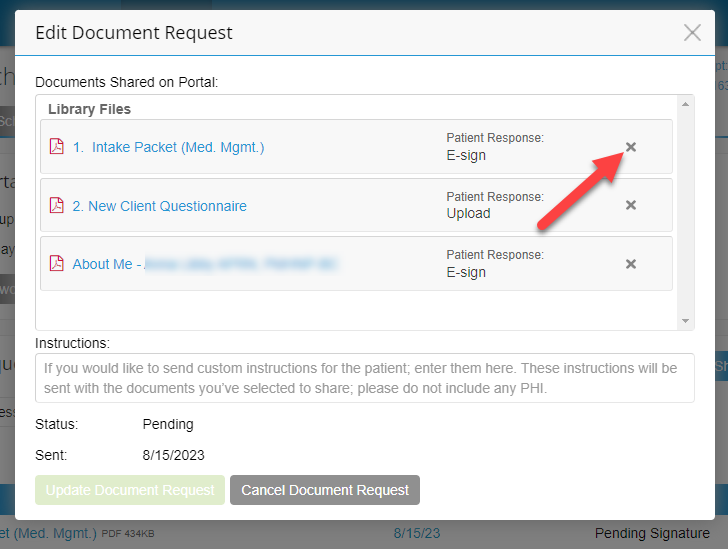
You can resend the document request (after removal) to trigger a new email notification.
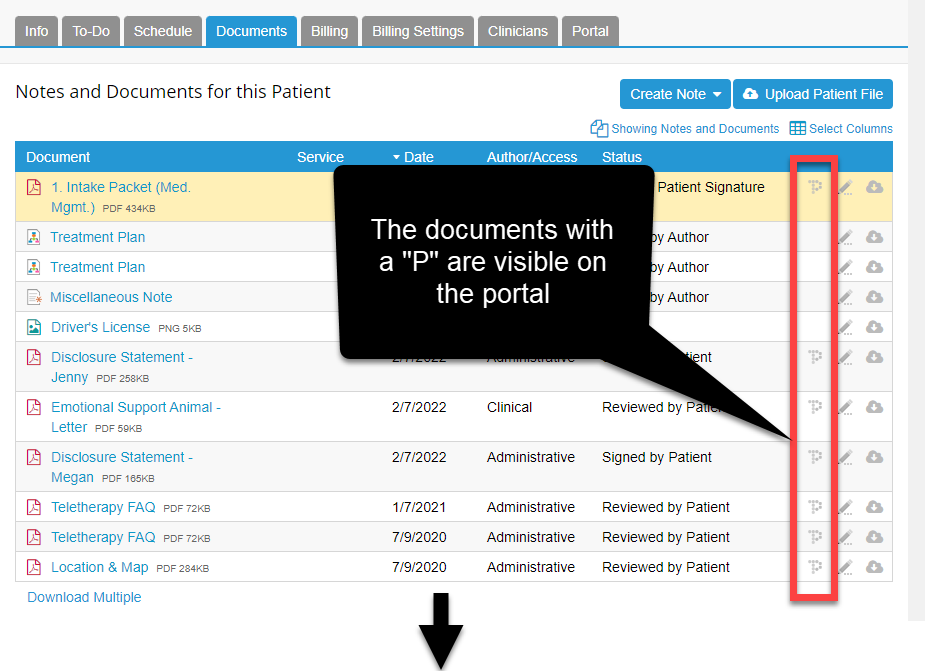
What records do the clients see on the Client Portal?
Clients can only ‘see’ documents you shared with them on the portal.
Clinician View
Client View (in Client Portal)
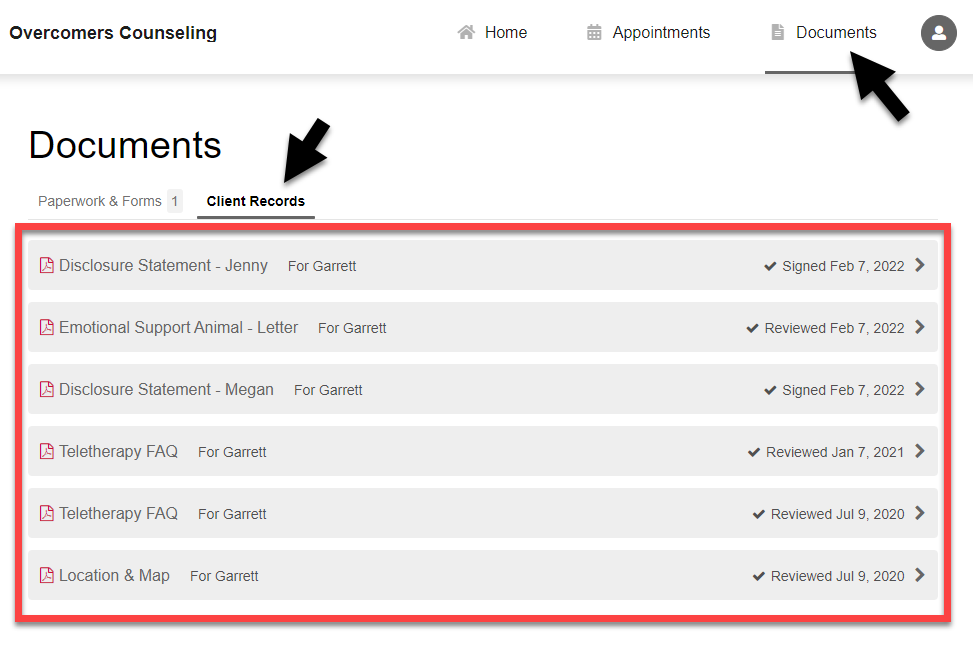
Client’s Perspective of the Client Portal
Video Tutorial
Mobile version view of the documents area.
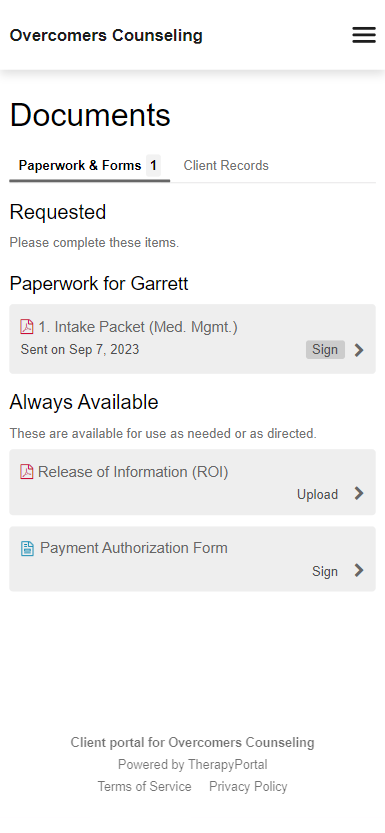
Client Portal View
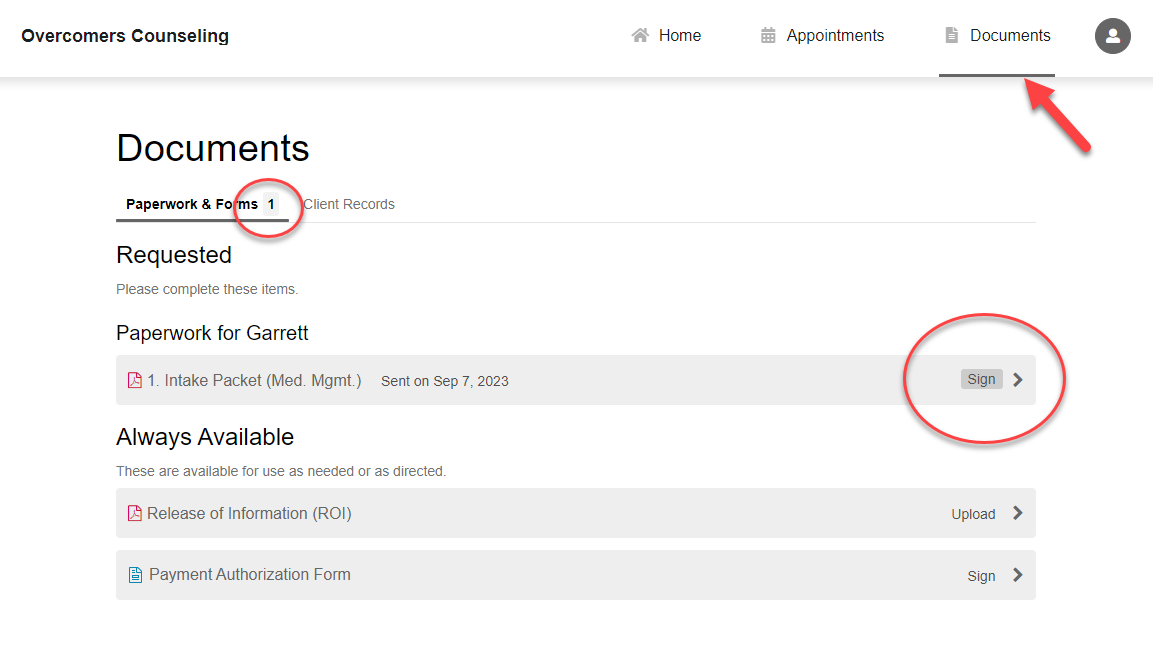
View all clients' pending document requests
It is crucial to have your client complete all your document requests. A simple way to achieve this is by having the client log into the Client Portal at the beginning of each session. They can conveniently log in on their phone. If you are meeting in person, you can provide them with your Chromebook, or they can open a new tab in their browser to complete the documents during the TH session.
View all your pending document requests by going to TN >> To-Do >> Portal tab >> Document Requests.
My Patients >> Waiting on Patient shows all the documents your clients need to act on.
How To Process Documents
Please follow these directions to process any documents your clients have filled out:
- Click on the document tab in your client's TN file
- Under status - you will see in blue the words "Pending Practice Processing."
- Click on the words "Pending Practice Processing."
- Scroll to the bottom of the document and you will see a grey box labeled "Mark as Processed."
- As long as the document was signed and filled in correctly click on "Mark as Processed."
- A new box will appear that says "Process Signed Document."
- Click on the green box "Mark as Processed."
Clean up pending document requests
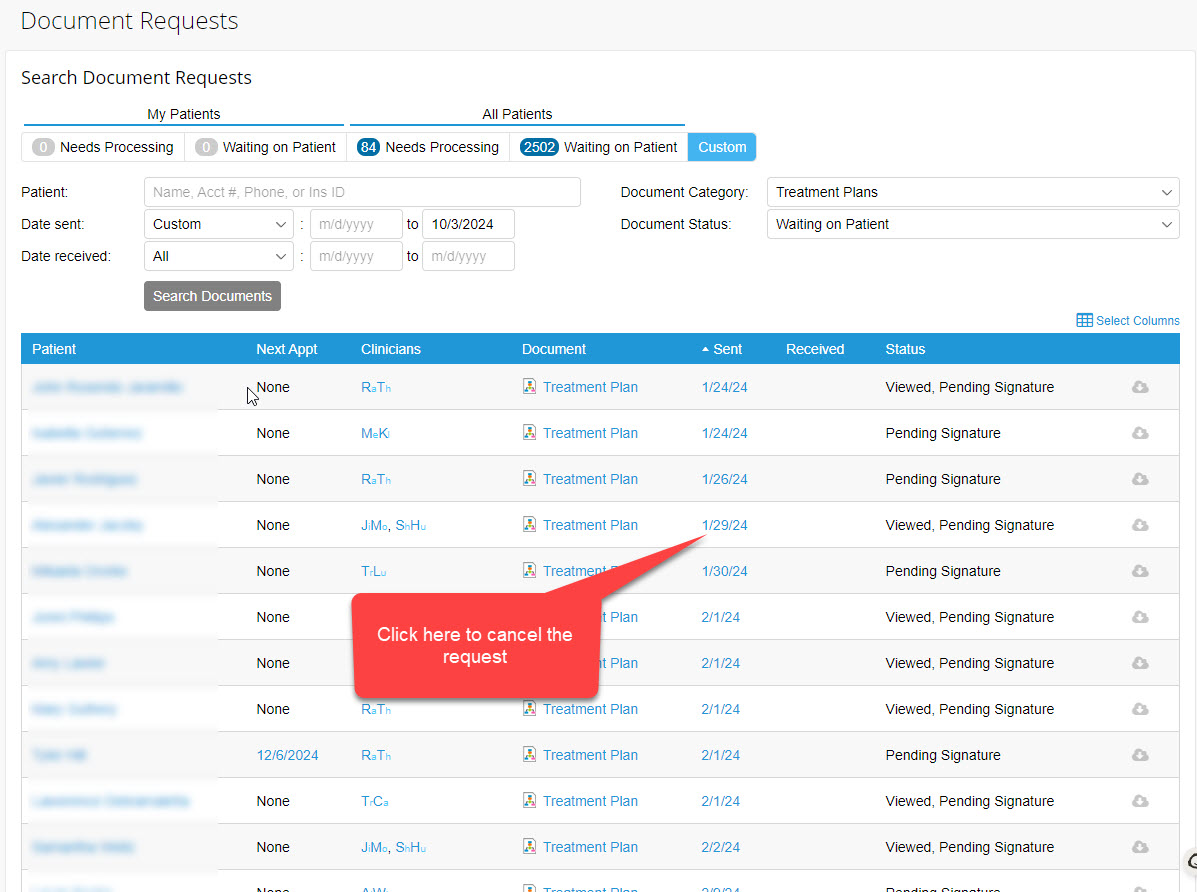
Take a moment to ensure that any pending portal documents for terminated clients are cleaned up to keep your files up-to-date and accurate. Review and cancel any docs under the 'waiting on patient' if the client has been terminated.
- Go to TN >> To-Do >> Document Requests >> Waiting on Patient
- To cancel the request, click the date and remove the document or cancel the request altogether.
Reminder
- If a client is terminated, write a termination note (Termination Note Expectations & Procedure).
- Ensure your active clients complete the required documents (Disclosure, About Me, Treatment Plan) to avoid Treatment Pauses.
- Feel free to cancel any outcome measures you sent days/months ago if you feel the client will never fill them out. If the client rarely uses the portal, you'll want to consider doing the assessment 'with' them during the session.