Record a Session for Supervision
Step 1 - Get Consent from your Client
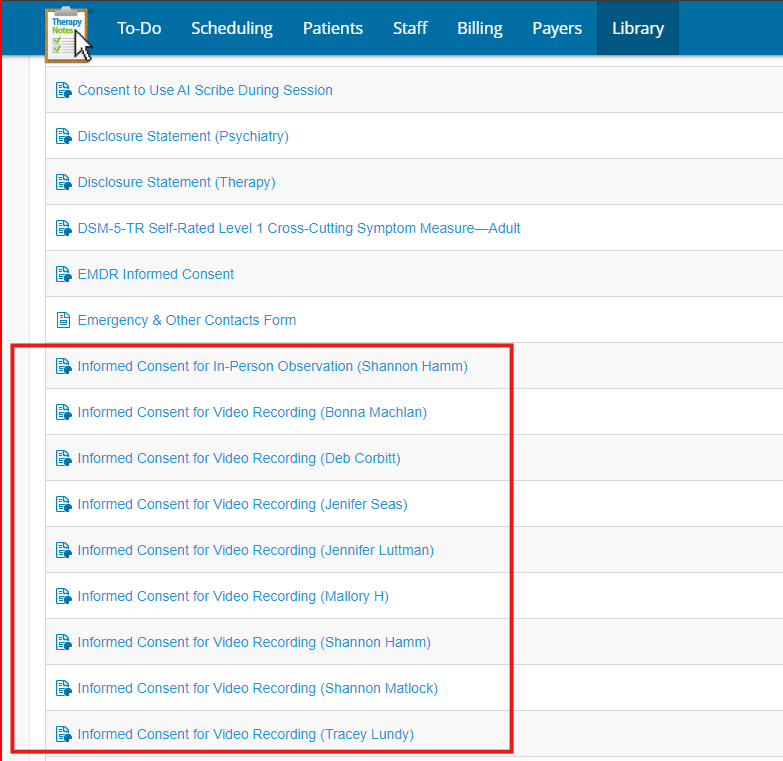
Send your client the ‘Informed Consent for Video Recording (Supervisor Name)’ found in the TN Library.
Recording an In-person Session on your Chromebook
To record a session and then share it with your supervisor, follow the steps below:
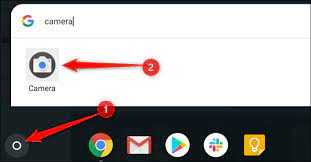
- Open the camera app on your Chromebook or any computer
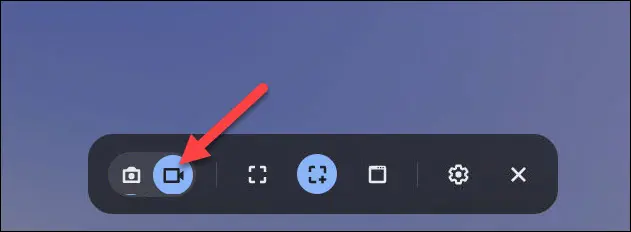
- Change from camera to recorder
- Position the Chromebook to make sure it can see the entire session
- Press Record
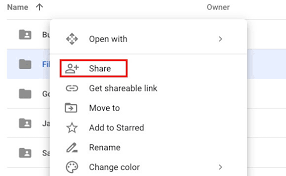
- After the session, stop recording and the file will be saved on your Chromebook in your Google Drive account.
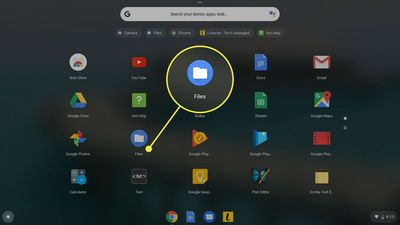
- Then, you can share that file with your supervisor.
Recording a Teletherapy Session
- Use Overcomers’ Google Meets for your Telehealth session
- When you start the meeting, click the ‘3 dots’ and then click RECORD
- When you are done with your sessions, just hang up
- You’ll receive an email in about 15-30 minutes from Google letting you know where your meeting recording is saved (it’s in your Google Drive).
- Find the file and share it with your Supervisor.