How to Create Note Snippets and Share
Writing therapy notes doesn’t have to feel like reinventing the wheel every session. Note Snippets let you keep your most-used language ready and waiting inside the EHR—so when you’re completing a note, you’re not scrambling for the “right wording” or copying from an old chart like it’s 2017.
With Note Snippets, clinicians can save blocks of text, organize them by purpose, and share them with others when helpful. Think of them as your go-to building blocks: consistent, efficient, and always within reach.
Creating Note Snippets
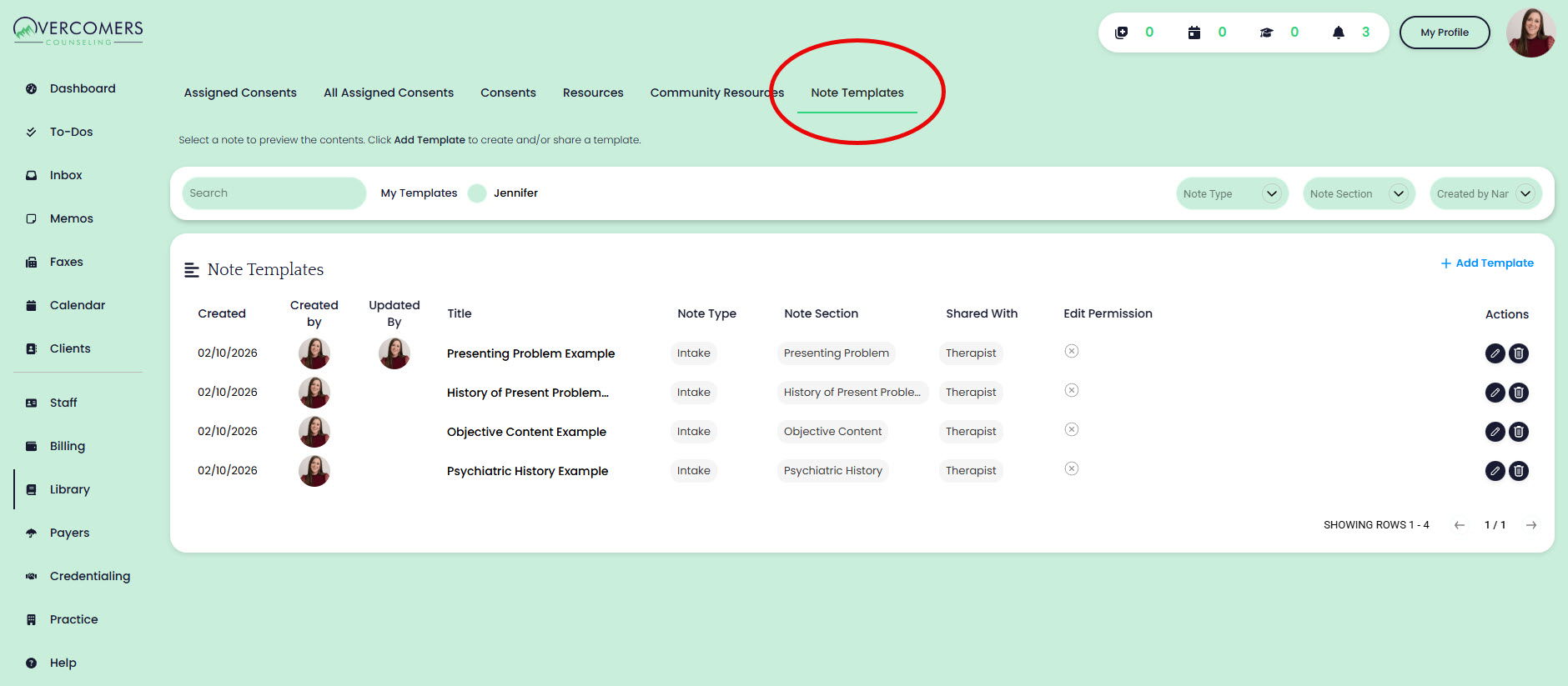
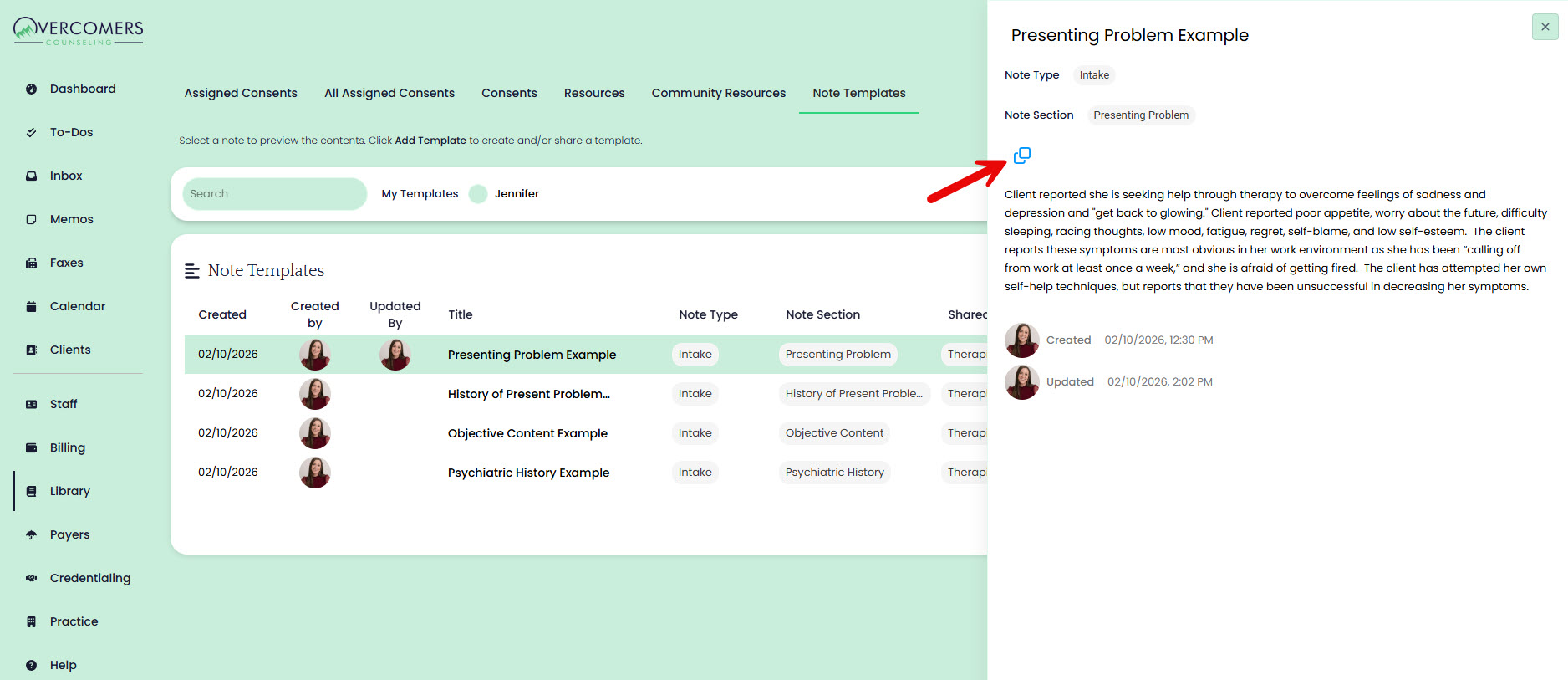
- Navigate to EHR → Library → Note Snippets. Here, you’ll see all Snippets that are currently visible to you.
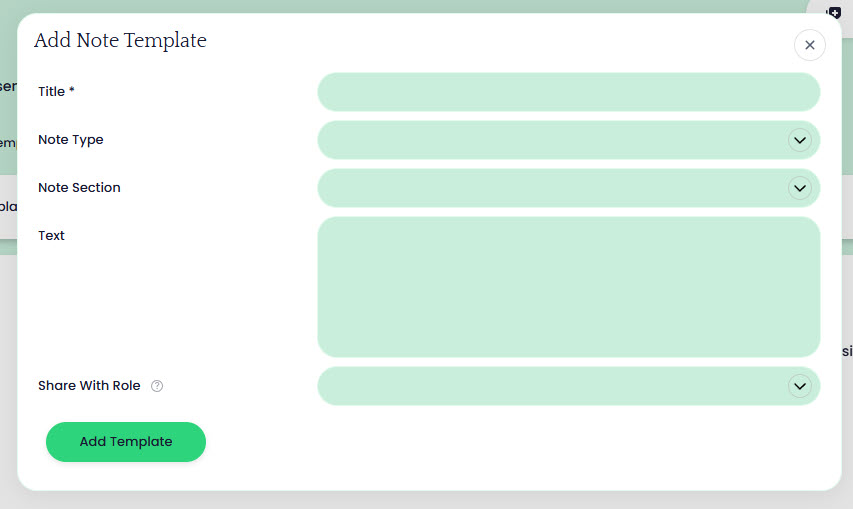
- Click Add Snippets to create a new one.
- Give your snippet a clear, memorable title—something you’ll instantly recognize when you’re documenting.
- Assign the Snippets to a specific note type and section so it appears exactly where you need it during note completion.
- Add your content. This can be commonly used phrasing, clinical language, or structured prompts you rely on regularly.
Keeping Snippets Private or Sharing Them
- Snippets can be kept private by removing any 'shared' roles.
- To share a Snippet, select one or more Roles you’d like to have access.
- If you want users in that role to be able to modify the Snippet, check the Edit Permissions box.
Accessing Your Note Snippets when Writing a Note
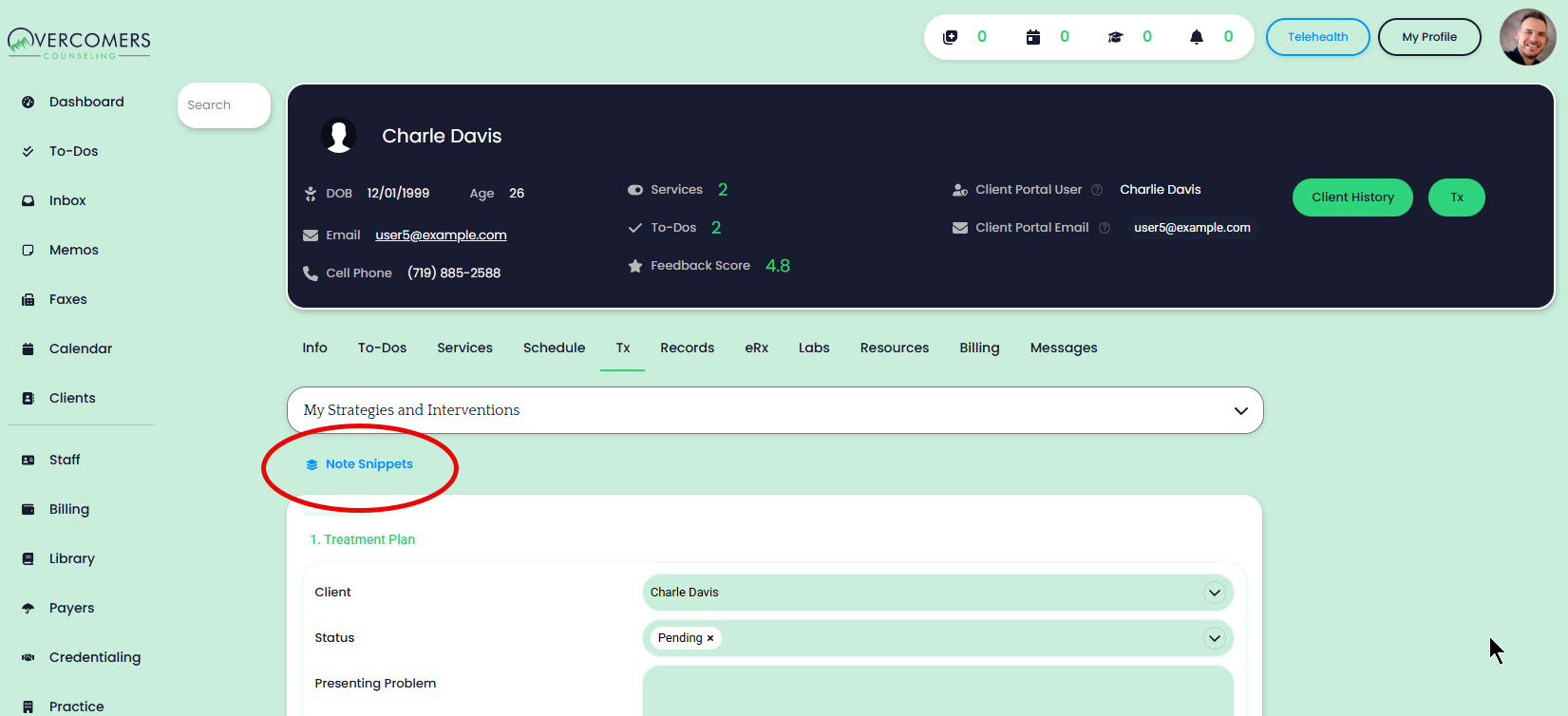
- To add and manage note snippets, you will want to navigate to Library → Note Snippets, however, when you create your intake/progress note (when EHR is client-ready), you'll have access to all your note snippets from a side drawer. This will allow for immediate copy/paste/insertion into the desired section of the note. No need to navigate to the Library, no need to open multiple browser tabs.