How to refund a terminated client's CC
Task assigned every 2 weeks.
- Go to Billing >> Patient Aging Report & Batch Statements
- Set Balance = Has Unassigned Credit
- Open all Client files that have a credit
- Review past sessions (view – All Items) and see if the credit needs to be applied to older sessions. You are determining why there is a credit on their account before refunding. Examples:
- Low insurance payment with a $0 client payment. Should the client have been charged??
- A couples’ session should have been charged $125, not $110. Should the balance owed be changed to $125, and the credit applied to the balance?
- A written-off balance checkbox was accidentally checked on an appointment.
- As a simple rule of thumb, we should have collected around $100 for every therapy session.
- Refund client if:
- Termination Note exists, AND
- There are no future sessions AND
- There are no pending insurance claims.
How to refund:
- If the CC used is still on file in TN,
- Select ‘Enter Refund’
- Choose the correct CC and click the Refund button.
- If there is no CC on file in TN:
- Login to Cardpointe: https://cardpointe.com/
- Go to Reporting
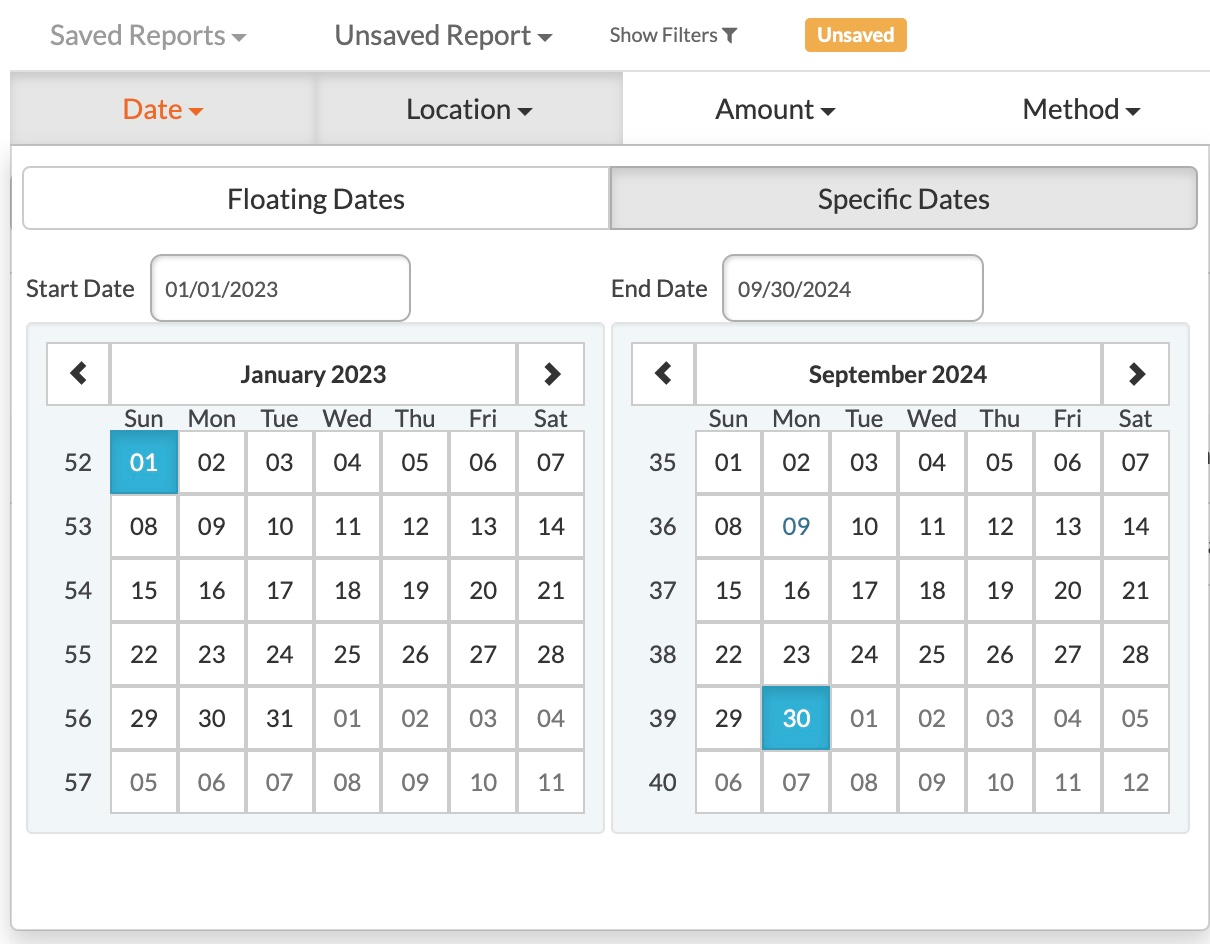
- Filter the dates to a range which would include the payment date
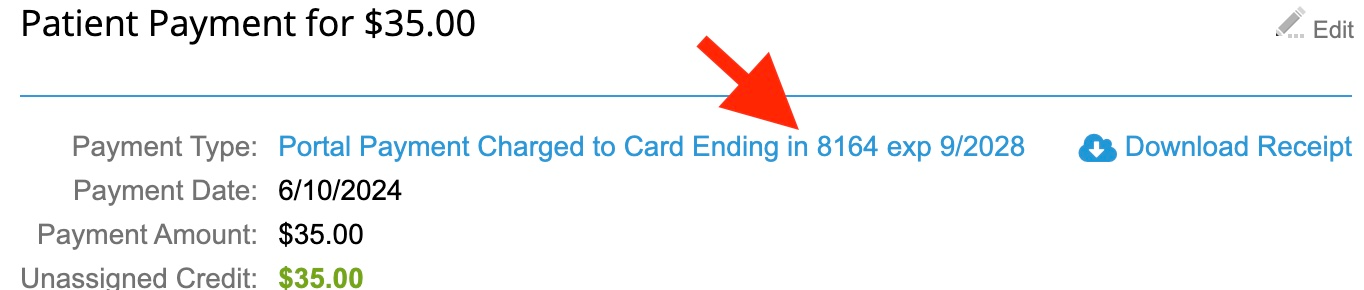
- In TN go to a recent Client Portal Payment and click it to view the reference number.
- In TN go to a recent Client Portal Payment and click it to view the reference number.
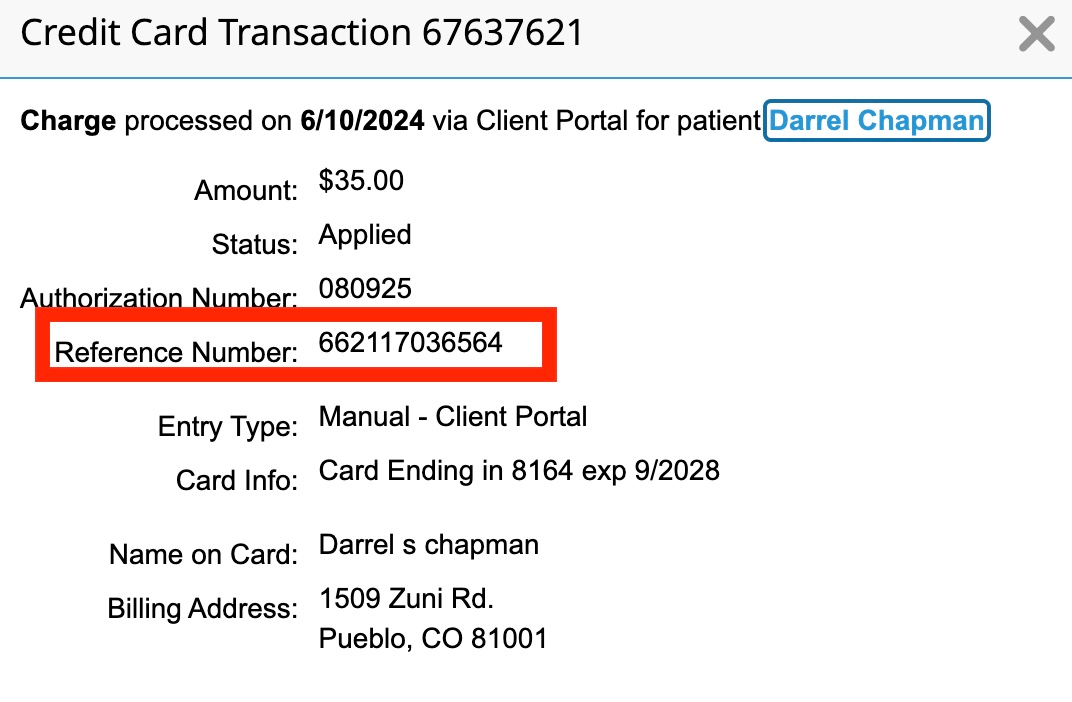
- Search and click the reference number in Cardpointe
- Click on Refund
- Enter the appropriate amount
- Refund reason = “Overpayment”
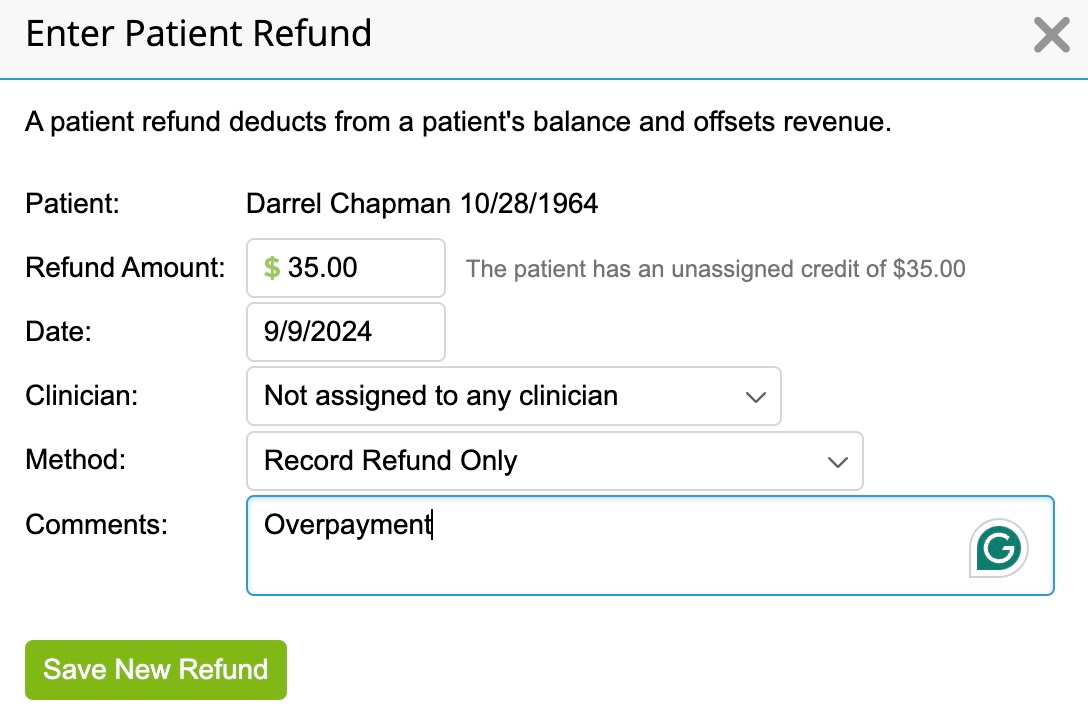
- Record the Refund in TN