How to Create Appointments in TN
In order to document a session, a corresponding appointment must be added to the calendar. Scheduling the appointment will tell TherapyNotes what type of note you need to write, and information from the appointment will be automatically populated in the note header, saving you from entering information that TherapyNotes already has available.
TherapyNotes offers several ways to create clinical appointments, allowing you to choose whichever method is most convenient for your individual workflow.
How to create appointments TN video:
New Appointment Window
A New Appointment dialog will appear when you click "Add Appointment".
Complete the fields as accurately as possible to ensure that the information on the subsequent documentation and insurance claim is correct.
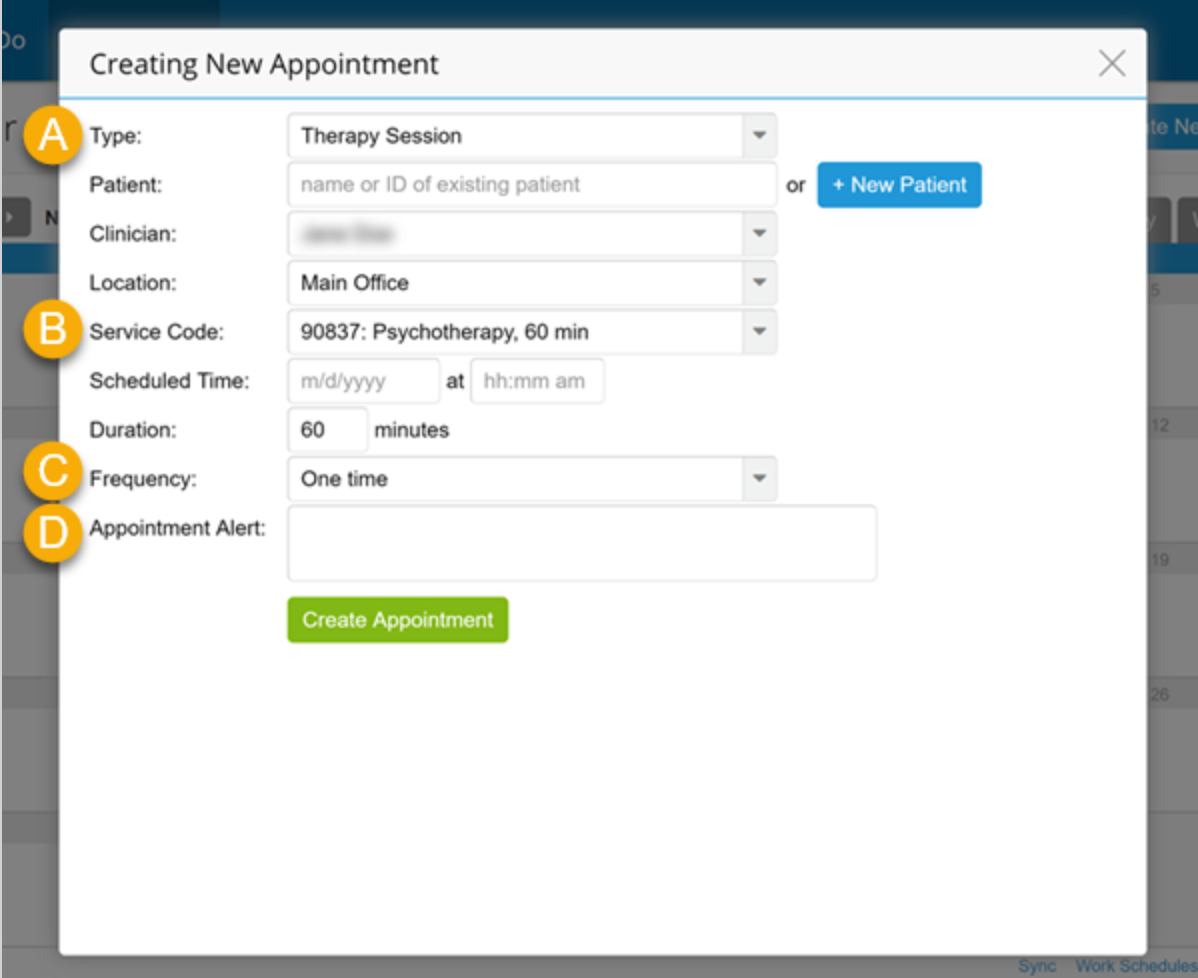
(A) Type: The selection in this dropdown determines 1) which Clinicians will be available to schedule the appointment with, 2) which service codes can be connected with the appointment, and 3) which note template will be available to the Clinician at the time of the appointment. For example, ini you select Therapy Intake, only Clinicians with a Psychotherapy type will be available from the Clinician dropdown, only service codes under the service type Therapy Intake will be available from the Service Code dropdown, and the Clinician will be prompted to complete a Psychotherapy Intake Note once the session has begun.
(B) Service Code: The service codes you have available for the appointment depend on the Type selected above. For example, if you need to bill for a 90791 intake code, set your service type to Therapy Intake.
(C) Frequency: Appointments in TherapyNotes can be one-time or recurring. Recurring appointments may continue for a full year or end on a specified date.
(D) Appointment Alert: Appointment alerts are identified with a bell icon on the calendar and are visible to the entire practice. In Agenda, Day, and Week view, appointment alerts are shown below to the corresponding appointment. Hover over the appointment in Month view to view the alert.
Non-Clinical Events
In addition to scheduling clinical appointments, TherapyNotes allows you to schedule events, vacations, and blackout periods to keep track of each clinician's availability. Scheduled events, vacations, and blackout periods affect each clinician's availability on the client portal. There are two types of non-clinical events that you can schedule: a Scheduled Event and a Vacation or Blackout Period.
Scheduled Event
Scheduled Events may be associated with either a specific Clinician or the entire practice. Practice-wide events may include events such as meetings, employee training, and other similar happenings and appear on every user's calendar. Clients may schedule appointments on the client portal during practice-wide Scheduled Events, but clients may not schedule appointments during Scheduled Events for individual clinicians.
To schedule an event:
- Click Scheduling
- Do one of the following
- Click the Create New Appointment button
- Double-click on a date on the calendar
- Hover over a date on the calendar and click the plus sign (+)
- The New Appointment dialog will appear. From the Type dropdown, select Scheduled Event
Vacation or Blackout Period
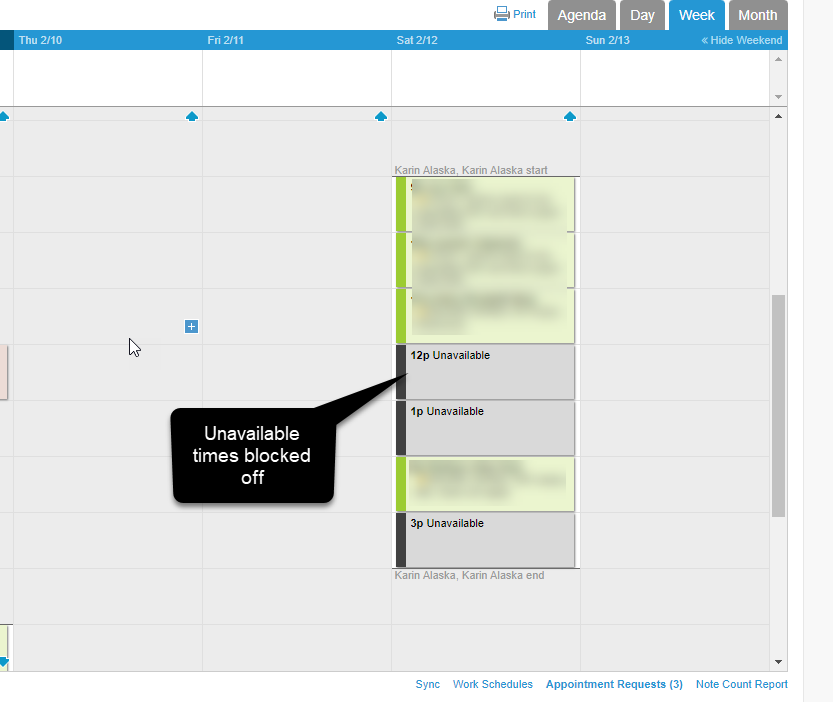
To block off time for vacations, lunch, personal appointments, or other blackout periods, schedule a Vacation or Blackout Period. Clients may not schedule appointments with a clinician during a Vacation or Blackout Period.
To schedule a vacation or blackout period:
- Click Scheduling
- Do one of the following
- Click the Create New Appointment button
- Double-click on a date on the calendar
- Hover over a date on the calendar and click the plus sign (+)
- The New Appointment dialog will appear. From the Type dropdown, select Vacation or Blackout Period
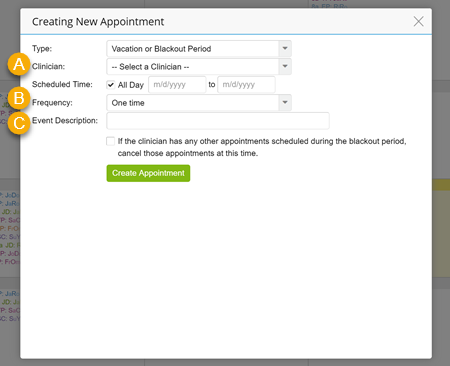
(A) Clinician: Select a single clinician. If you would like to cancel any conflicting appointments for this clinician, select the If the clinician has any other appointments scheduled during the blackout period, cancel those appointments at this time checkbox.
(B) Frequency: Vacations or blackout periods can be one-time or recurring. Recurring vacations or blackout periods may continue indefinitely or end on a specified date. If the event recurs indefinitely, leave the until field blank.
(C) Event Description: Click in the Event Description field to select from a list of generic responses, or type in your own response. Your Event Description will be the title of the vacation or blackout period on the calendar.
- Click the Create Appointment button.
Automated Patient Appointment Reminders
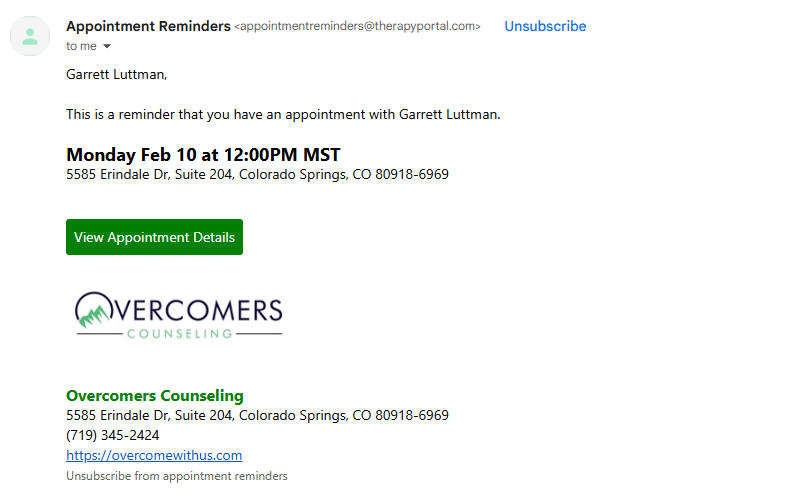
By default, the client should get SMS and Email reminders.
Email Reminder Example:
SMS Reminder Example:
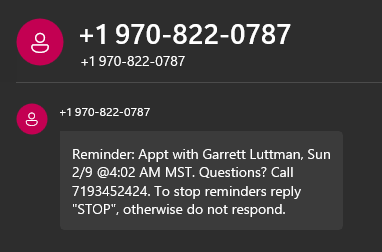
Customize appointment reminders for individual clients
By default, all scheduled appointments receive an SMS and email reminder. You can see the default settings in the Patient info tab:
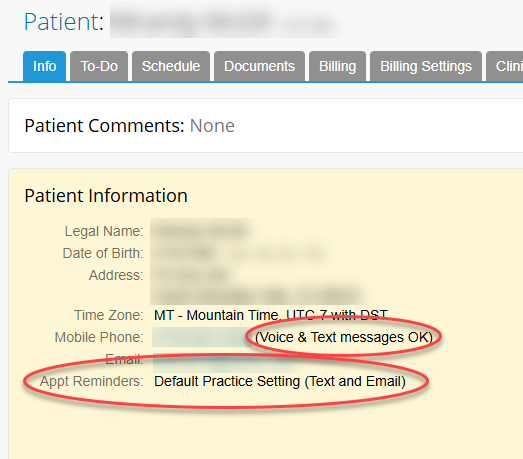
If you need to customize these settings for the client, you may do so by following the instructions below.
- Click anywhere on the Patient Information box to edit
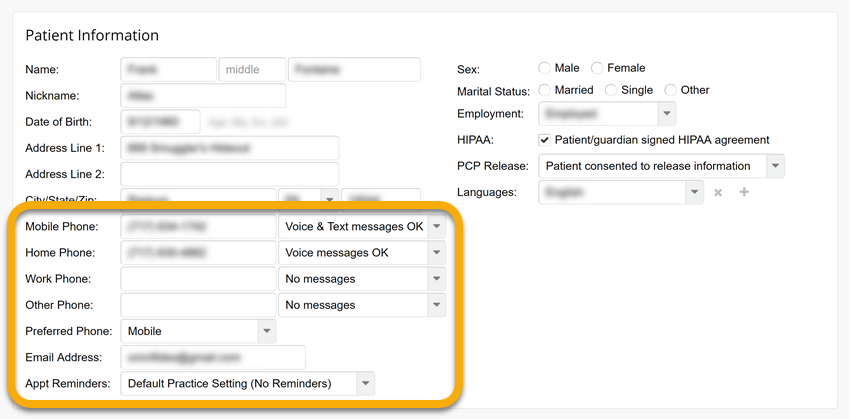
- Please verify that the client's contact information (Mobile Phone, Home Phone, Work Phone, Other Phone, and Email Address fields) is correct, and choose whether they have consented to have messages (either voice or text) sent to each of their phone numbers using the dropdown to the right of each field.
- Note: TherapyNotes will never send voice or text message appointment reminders to a client's Work Phone. This field is for your reference.
- In the Preferred Phone dropdown, select which phone number should be called when automated phone call reminders are enabled.
- The Appt Reminders dropdown is set to Use Practice Default Settings by default. Select a different option from this dropdown to override the practice default.
Please note: If a client's Mobile Phone indicates that text messages are OK, and Text or Call, and Email is selected from the Appt Reminders dropdown (or Text or Automated Call, and Email is selected as the practice default), TherapyNotes will always attempt to send a text message first. If delivery of the text message fails, then an automated call is attempted to the Preferred Phone.