How to add/change your Work Schedule in TN and/or Office Rooms
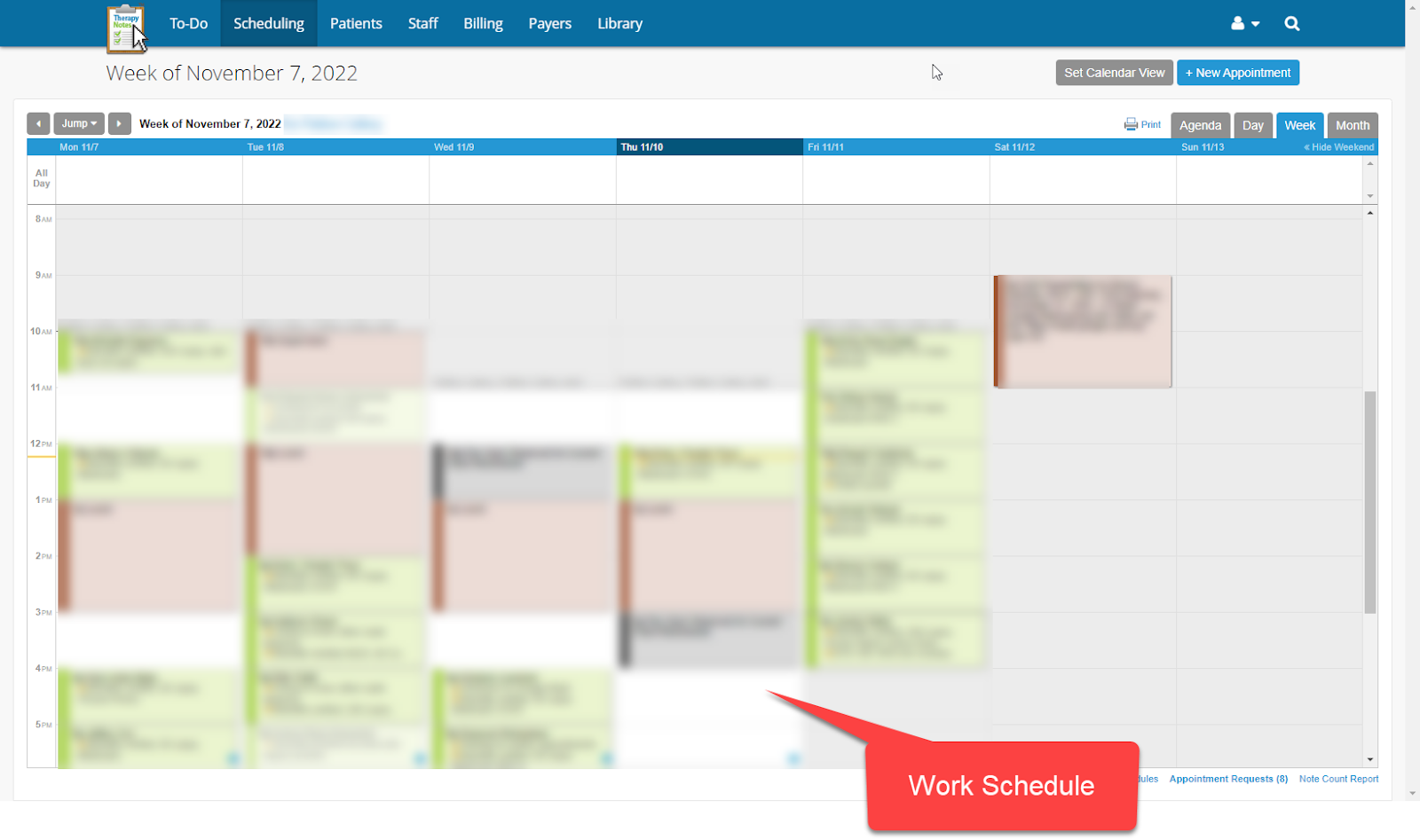
A clinician's "work schedule" is the days & times they typically see clients. It's the 'boundary lines' of when a clinician is working. Here are some essential things to remember about a clinician's work schedule in TN:
- Existing clients can see their clinician's availability within their work schedule via the Client Portal and reschedule or book new appointments. Existing clients mean clients added to TN and invited to the Client Portal.
- Changing a clinician's work schedule does not turn them on in the Directory. Clinicians must still request new clients.
- Once a clinician creates a work schedule, they need to block off any particular days/times within that schedule that they are not available (e.g., lunches, Dr. appointments, vacations, etc.).
(NEW WORKFLOW) Calendar by Office -- View Room Reservations
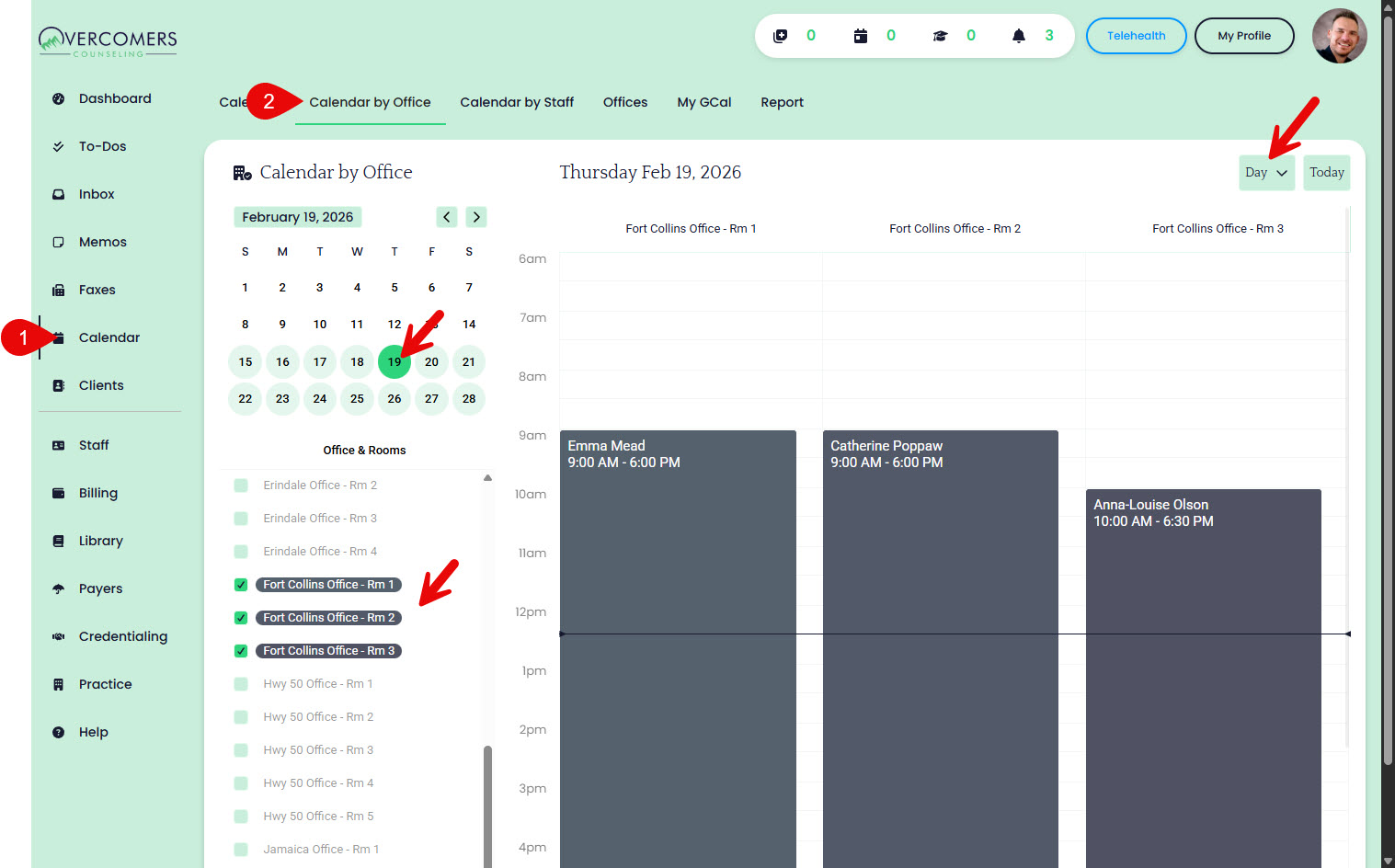
To see room reservations by office, go to: New EHR → Calendar → Calendar by Office
Select the office rooms and date to view availability and existing reservations. Use this view to help plan and adjust clinician work schedules as needed.
Times are RELATIVE to the VIEWER'S TIMEZONE. If the clinician creates a work schedule from 7-12 pm PST (because they live in the Pacific time zone), then the calendar will show 7-12; however, to the Support Team (in MST), it'll say 8-1 pm. No longer do out-of-state clinicians need to calculate their start/end times. When a client books the 8am timeslot in MST, it'll appear as 7 am to the clinician.
(NEW WORKFLOW) Updating a Clinician’s Work Schedule
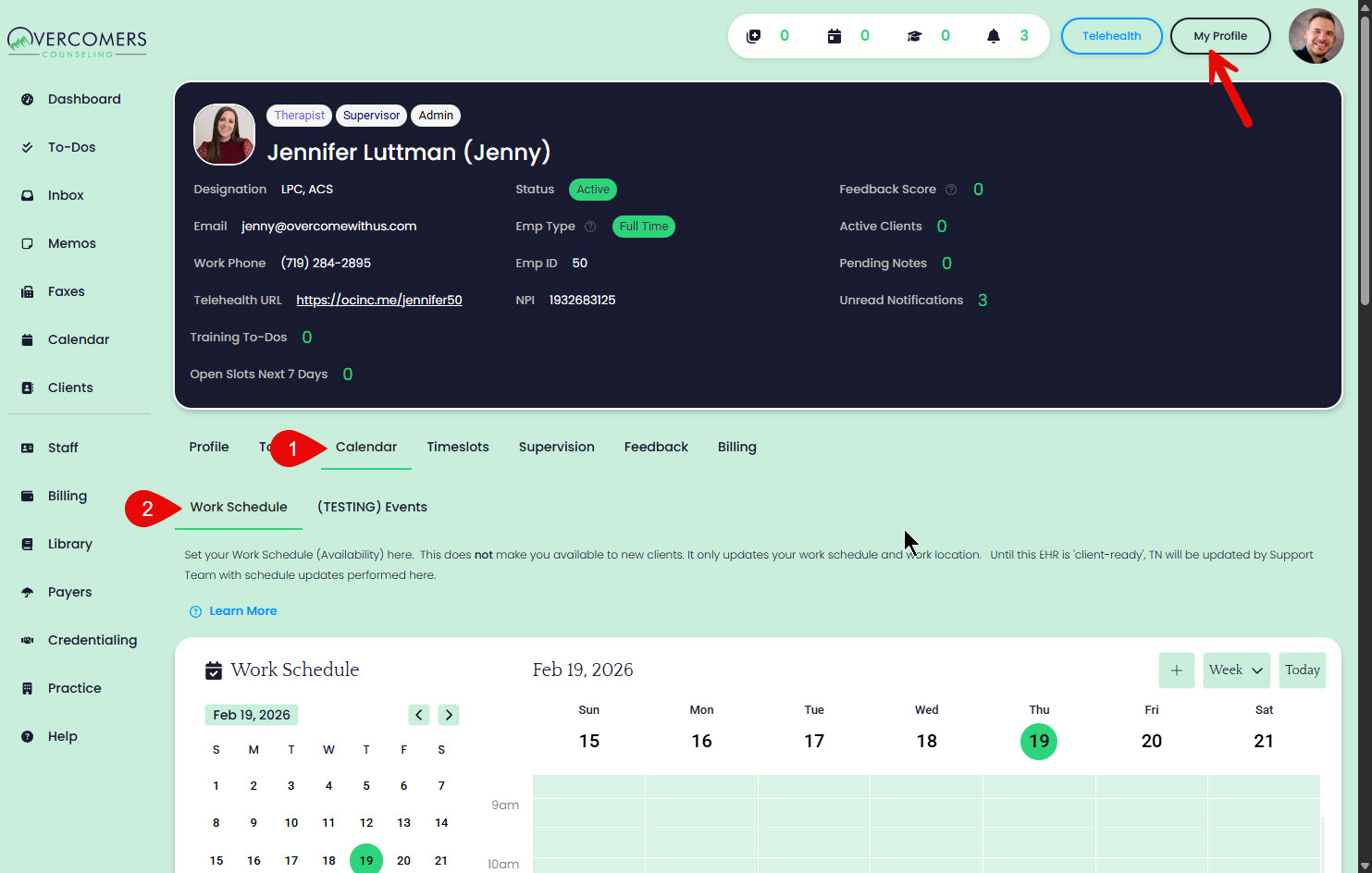
Clinicians must update their work schedules in the new EHR. While the new EHR is not yet client-ready, the Support Team will continue updating TN with any work schedule changes from the new EHR. Watch the video above to learn more!
Go to: New EHR → Staff → Your Name → Calendar tab → Work Schedule