CTM Overview

CTM, CallTrackingMetrics, offers exciting features to enhance communication and streamline workflows for both our Support Team and Clinicians. With call tracking, recording, routing, and SMS capabilities, CTM provides a comprehensive solution for managing client interactions.
CTM Videos
The Softphone
The ‘softphone’ is your phone to send/receive calls from your computer.
The Mobile App
The CTM Mobile app is similar to the softphone but for mobile use.
The Call Log
The Call Log allows you to view the history of incoming/outgoing calls.
The Text Log
The Text Log allows you to view the history of incoming/outgoing text messages.
Every Clinician has a Direct Line
Each Clinician will have a dedicated phone number that will be used for inbound/outbound calls & texts.
How to sign in to CTM (Desktop)
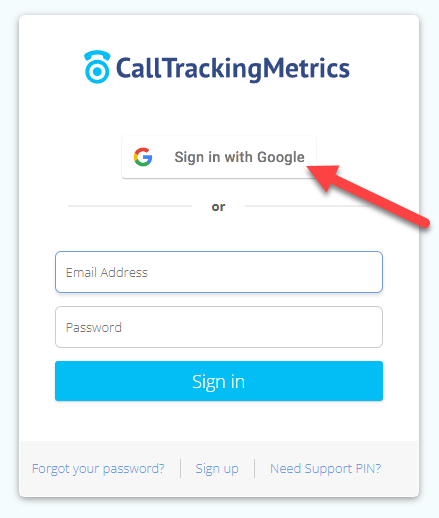
Click the Sign In with Google button to log into CTM.
How to sign in to CTM (Mobile)
You'll need to create a password to sign in to the Mobile app because there is no Sign In with Google button. Therefore follow these steps to create a password:
- Log in to the Desktop version
- Click on your profile icon, then click Profile
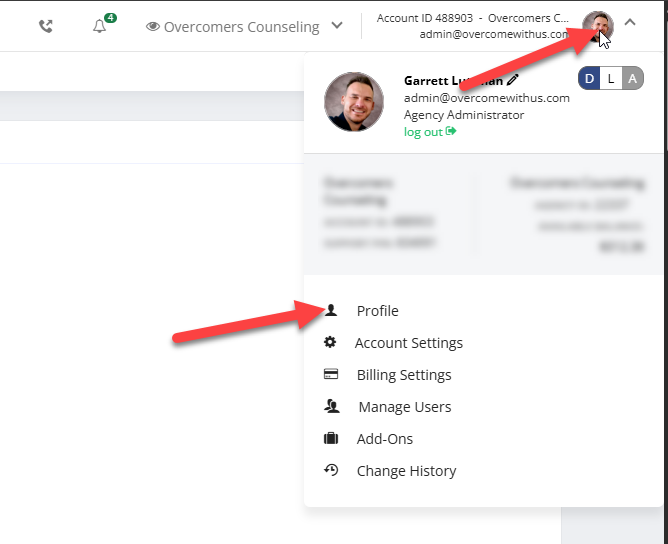
- Scroll down to select the 'Send Password Reset' and follow the instructions in your email. You'll still be able to log in with the Google button on Desktop or your password

Access the softphone from your browser.
As soon as you create an account, you’ll be taken to the Softphone, where you can view your call history and make outgoing calls or SMS.
- URL: CallTrackingMetrics

Opening the Softphone
The softphone is opened from the Call Log page by navigating to Activities → Calls. There are two options:
- Click Desk Mode to open the desk mode view.
- Click the Phone button to open the pop-out phone window.

Features
- Agent Status: shows your user icon and current status (Available, Not Available, Outbound Call, Inbound Call, or custom status).
- Number to Dial: shows the number that will be dialed. Type or paste a number here to place an outbound call.
- Dial Pad: tap or click to place an outbound call.
- Softphone Settings: click here to open the softphone settings menu.
- Contacts: click here to view and search for recent contacts.
- Toggle Availability: click to become available or not available for calls.
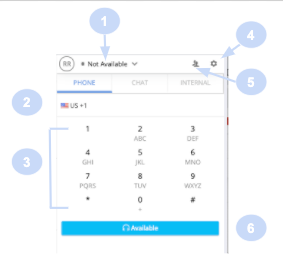
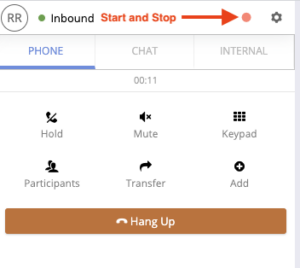
Start and Stop Audio Recording: click the button to start or stop the audio recording.
Selecting an audio device
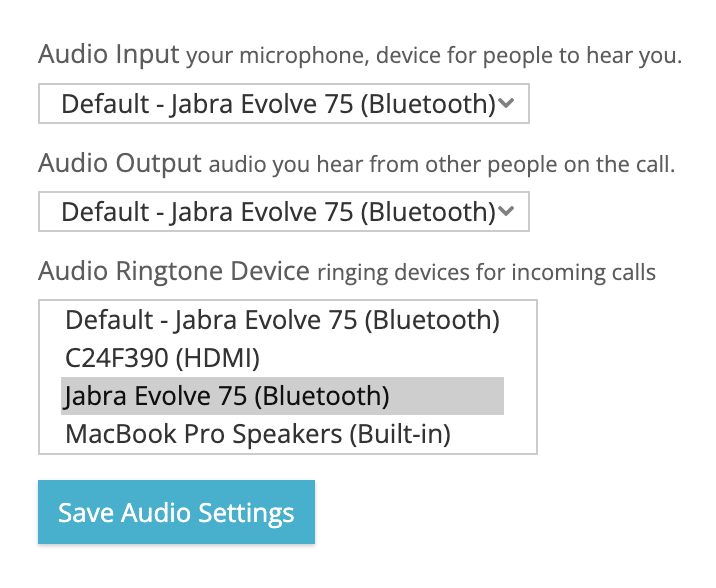
In the softphone settings, you can select the following audio settings:
- Audio Input: your microphone device for people to hear you
- Audio Output: audio you hear from other people on the call
- Audio Ringtone Device: ringing devices for incoming calls
To select your audio devices, click on the gear icon in the upper right corner of your softphone, then scroll to the Audio section to make your choices.

Answering a Call on Softphone
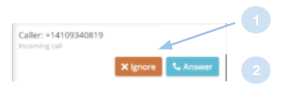
When an incoming call is routed to you, a ringing tone will play. You may also see a desktop notification.
- Ignore: dismisses the current call. The call will stop ringing for you but will continue to ring for other agents (if applicable). This button can be removed based on the configuration of your Team setting.
- Answer: answers the call.
- We also offer Auto-Answer options which would prevent this Answer Call display from appearing since when the call is routed to the agent, it will be automatically answered. This requires a Teams (Phone Settings) configuration
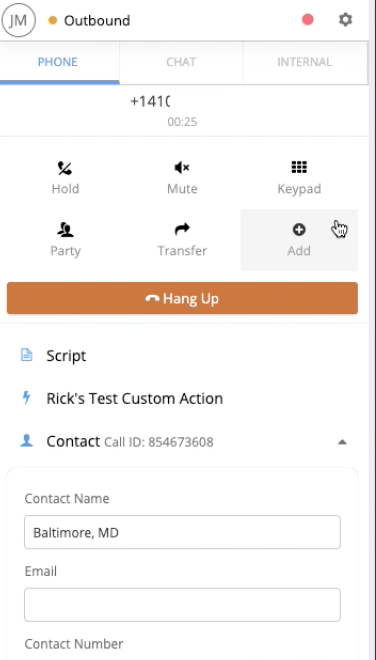
Softphone During a Live Call
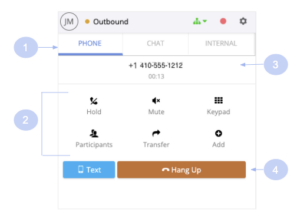
- Agent Status: indicates agent, status, and tracking number the call is being placed from.
- Call Controls:
- Hold: places the caller on hold either for yourself or for anyone else to answer.
- Mute: mutes your microphone.
- Keypad: returns to the dial pad view of the phone, which is helpful for keypress entry in Voice Menus as one example.
- Participants: click to view all agents and customers on the call. Call moderators can mute or dismiss other participants. You can also change the moderator of a call, which is helpful for warm transfers.
- Transfer: transfer the call to another agent, another phone number, a queue of agents, or a Voice Menu.
- Add: add another agent or another phone number to the call. You may also choose to place the caller on hold before adding. This is synonymous with “warm transfer.”
- Dialed Number and Call Duration: this shows the phone number of the person with whom you are currently connected to / speaking.
- Hang Up: ends the current call. A confirmation prompt can be displayed. (requires Teams (Phone Settings) configuration)
Using Message Responses (Canned Messages) in Text Messages
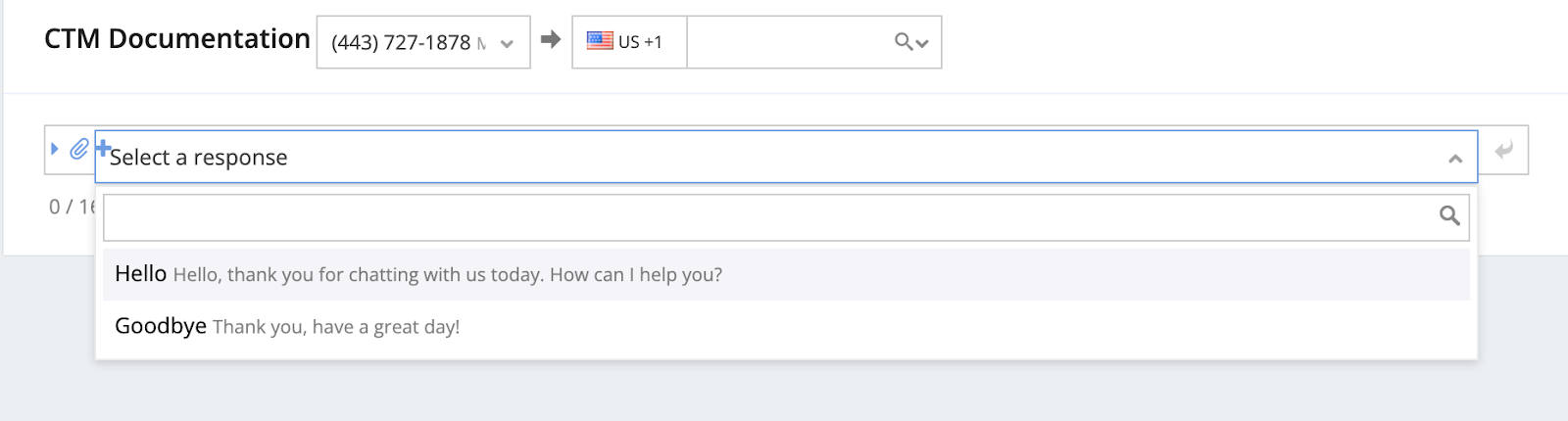
- In the message field, click on the + sign
- Next, a box will appear with each pre-written response to choose from
- Select your message
- To send the message, click the arrow in the far right corner of the text field

Download the CTM mobile app
You can also use the mobile app to receive incoming calls/SMSs and make outbound calls/SMS.
- Android: CallTrackingMetrics Agent - Apps on Google Play
- iPhone: CallTrackingMetrics Agent App on the App Store
Opening the Mobile app phone
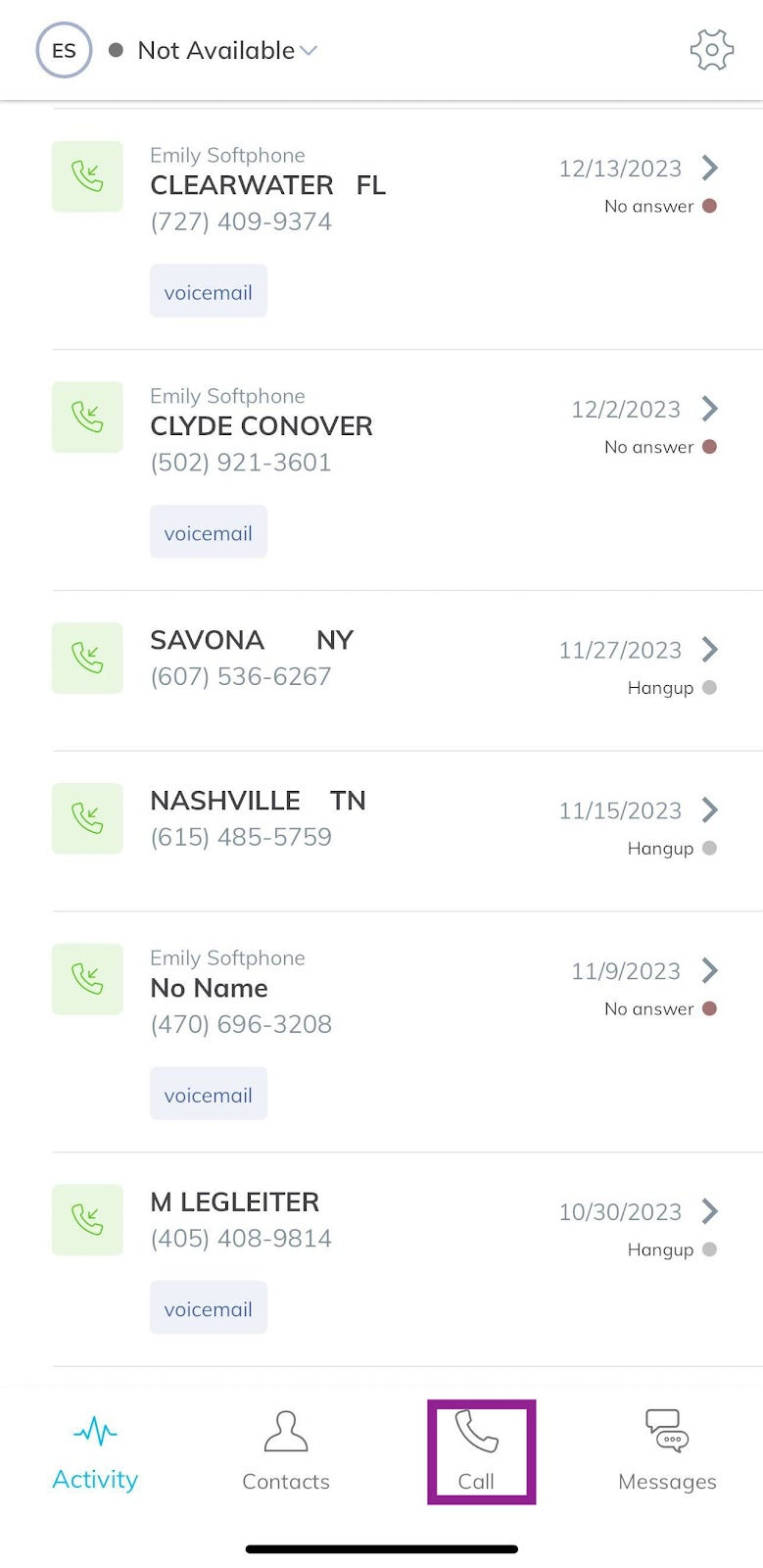
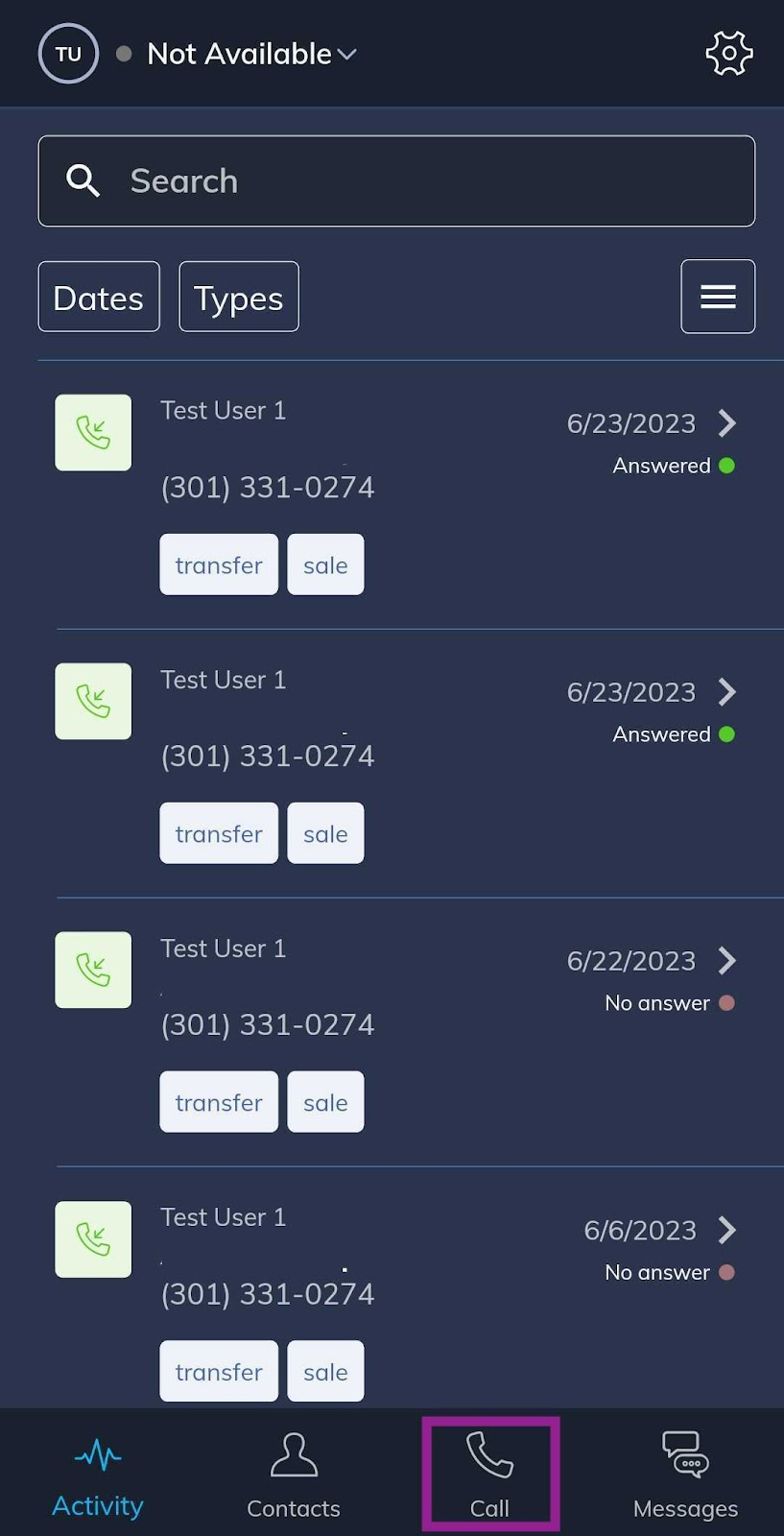
- Tap the Phone icon to open the phone.
- iPhone
- iPhone
- Android
Mobile App Features
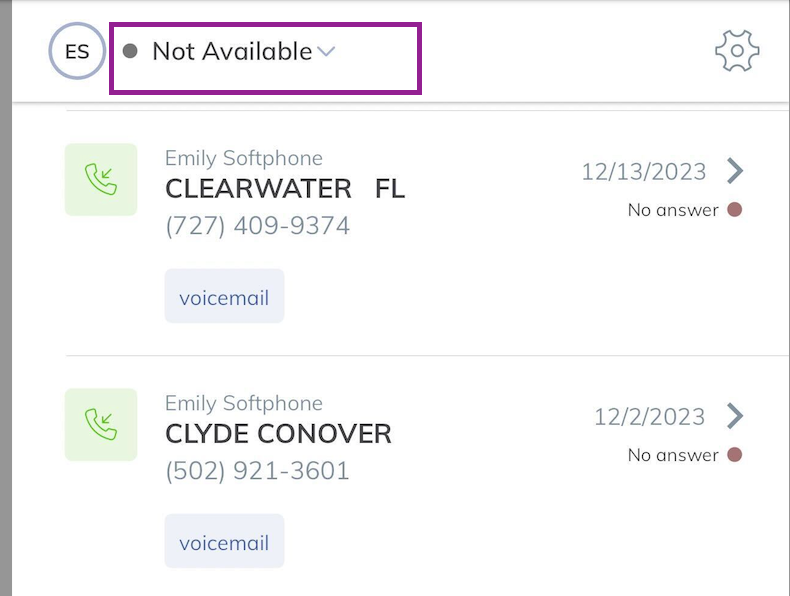
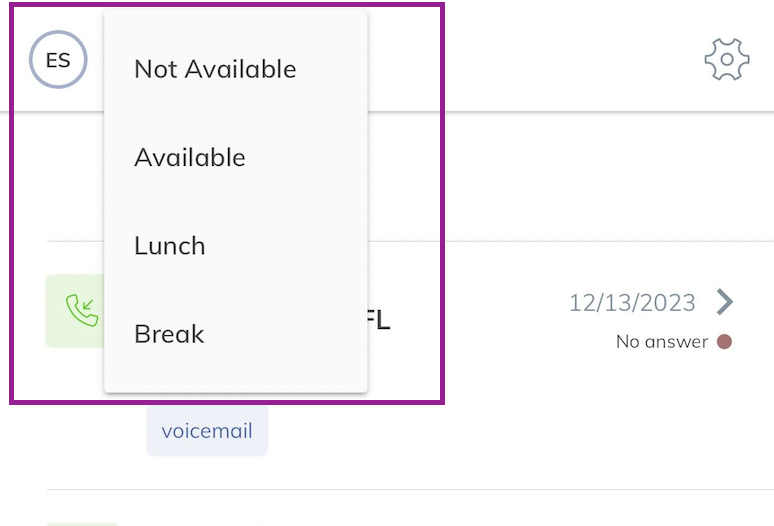
- Agent Status: shows your user icon and current status (Available, Not Available, Outbound Call, Inbound Call or custom status).
- Number to Dial: shows the number that will be dialed. Type or paste a number here to place an outbound call.
- Dial Pad: tap to place an outbound call.
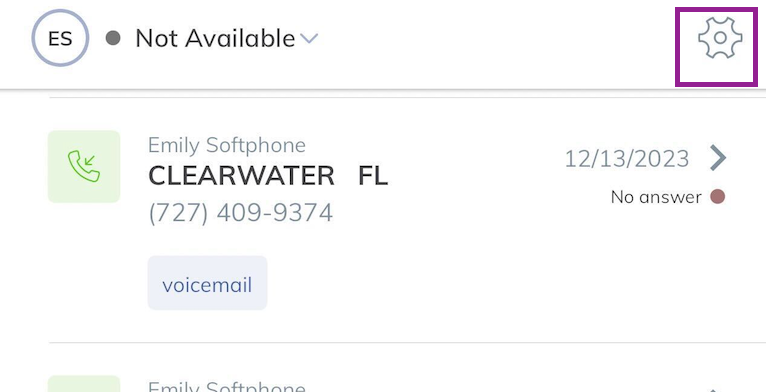
- Softphone Settings: click the gear icon to open the softphone settings menu.
- Contacts: click here to view and search for recent contacts.

- Toggle Availability: click to become available or not available for calls.
Answering a Call on Mobile App
A ringing tone will play when an incoming call is routed to you, and a prompt will appear to allow you to choose how to address the call.
- Ignore: dismisses the current call. The call will stop ringing for you but will continue to ring for other agents (if applicable).
- Answer: answers the call.
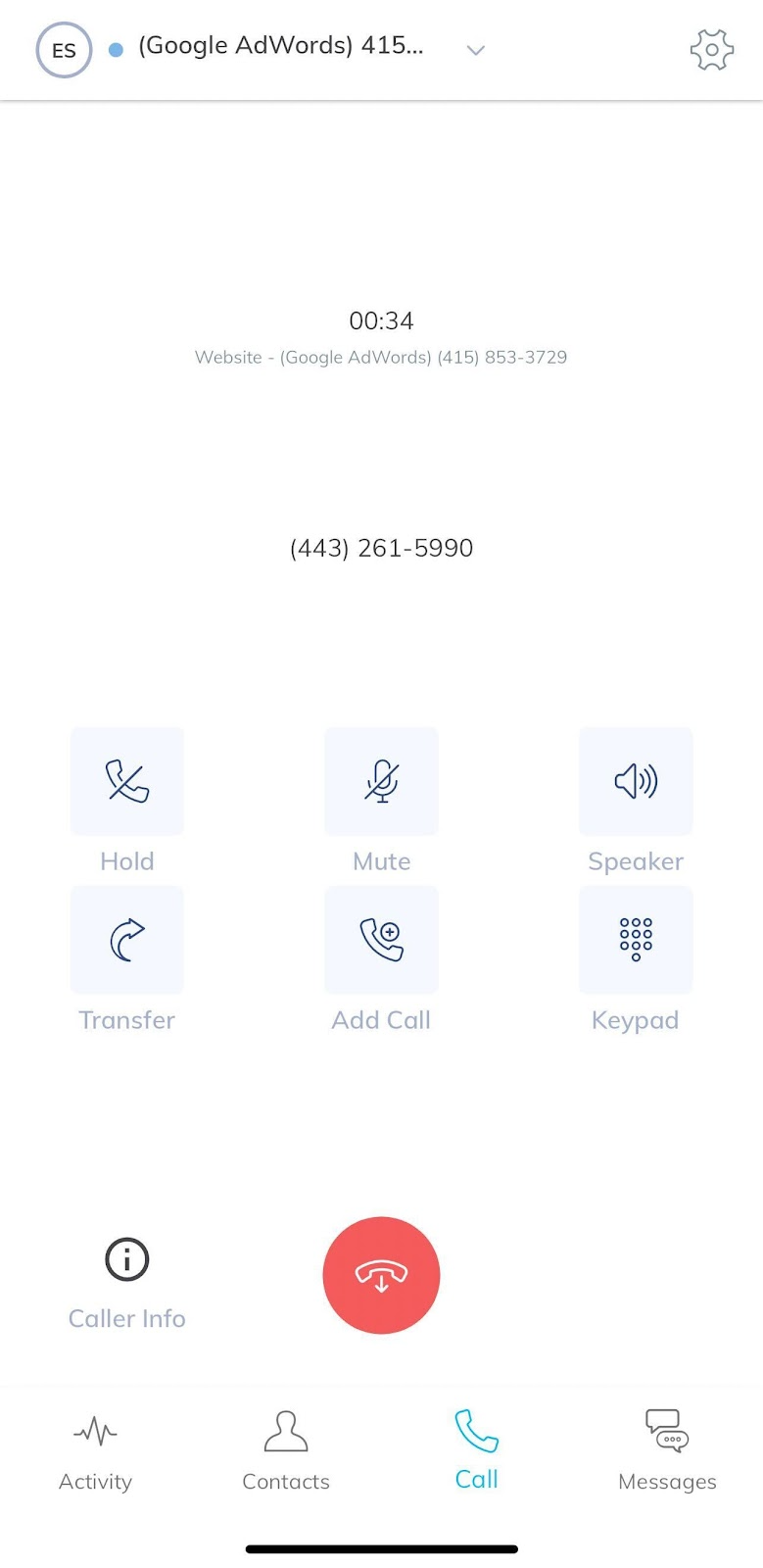
App Phone During a Live Call
- Agent Status: indicates agent, status, and tracking number from which the call is being placed.
- Call Controls:
- Hold: places the caller on hold.
- Mute: Mute your microphone.
- Keypad: returns to the dial pad view of the phone.
- Party: click to view all agents and customers on the call. Call moderators can mute or dismiss other participants.
- Transfer: transfer the call to another agent, another phone number, a queue of agents, or a menu.
- Add: add another agent or another phone number to the call. You may also choose to place the caller on hold before adding.
- Dialed Number and Call Duration: shows the number of the person you call (for an outbound call) or the person calling you (for an inbound call).
- Hang Up: ends the current call.
Troubleshooting Android or iPhone App
The CallTrackingMetrics mobile app is available for iOS and Android. If you do not have the latest version, you will see the option to update in the Google Play Store or the App Store. We always recommend using the latest version of your mobile operating system with the app. If you are having trouble making or receiving calls on the Agent App, there are some things you can check.
Notification Troubleshooting
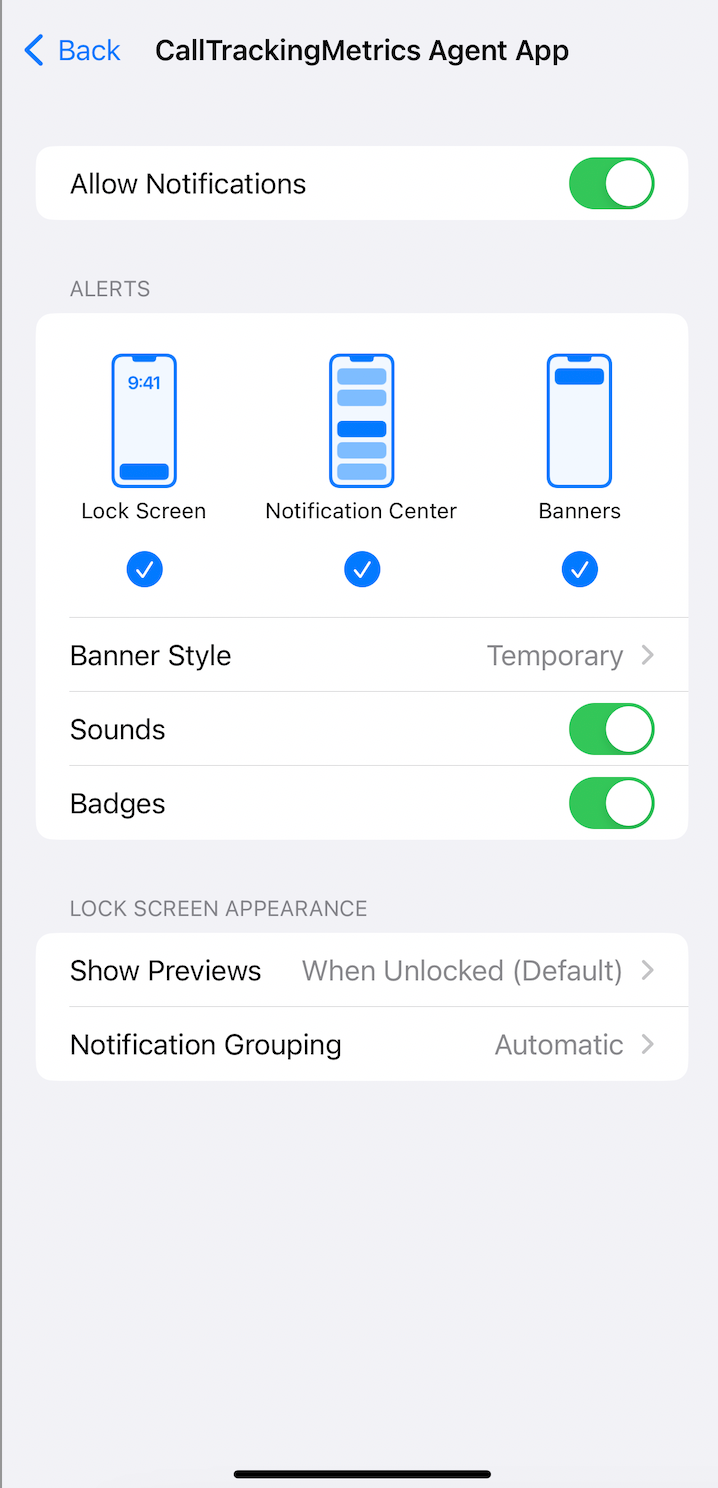
If you are not receiving notifications on your phone, ensure your phone's notifications are enabled for the Agent app.
iPhone:
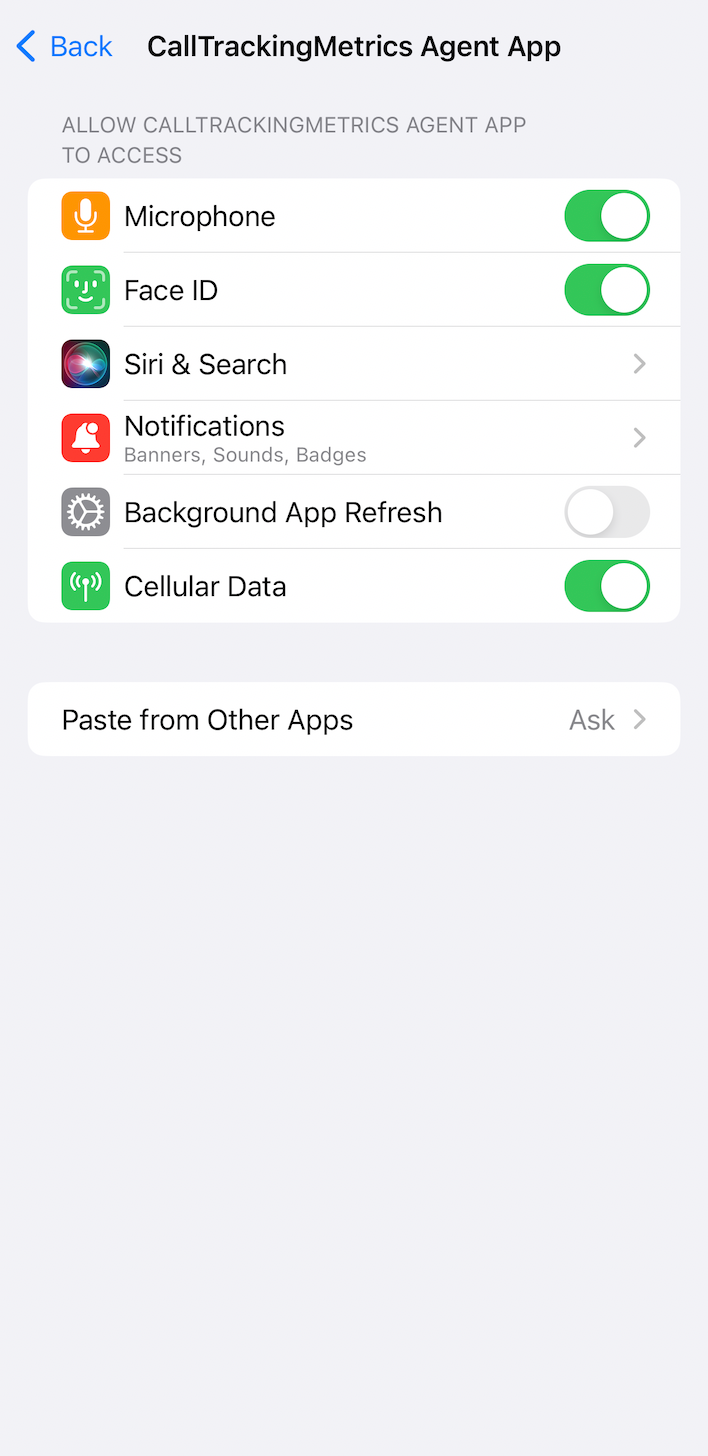
- Navigate to Settings > Notifications > CallTrackingMetrics Agent App.
- Enable notifications in the Lock Screen, Notification Center, and Banners.
- Enable Sounds.
- Navigate to Settings > Scroll down to CallTrackingMetrics Agent App and choose what the Agent App can access.
Android:
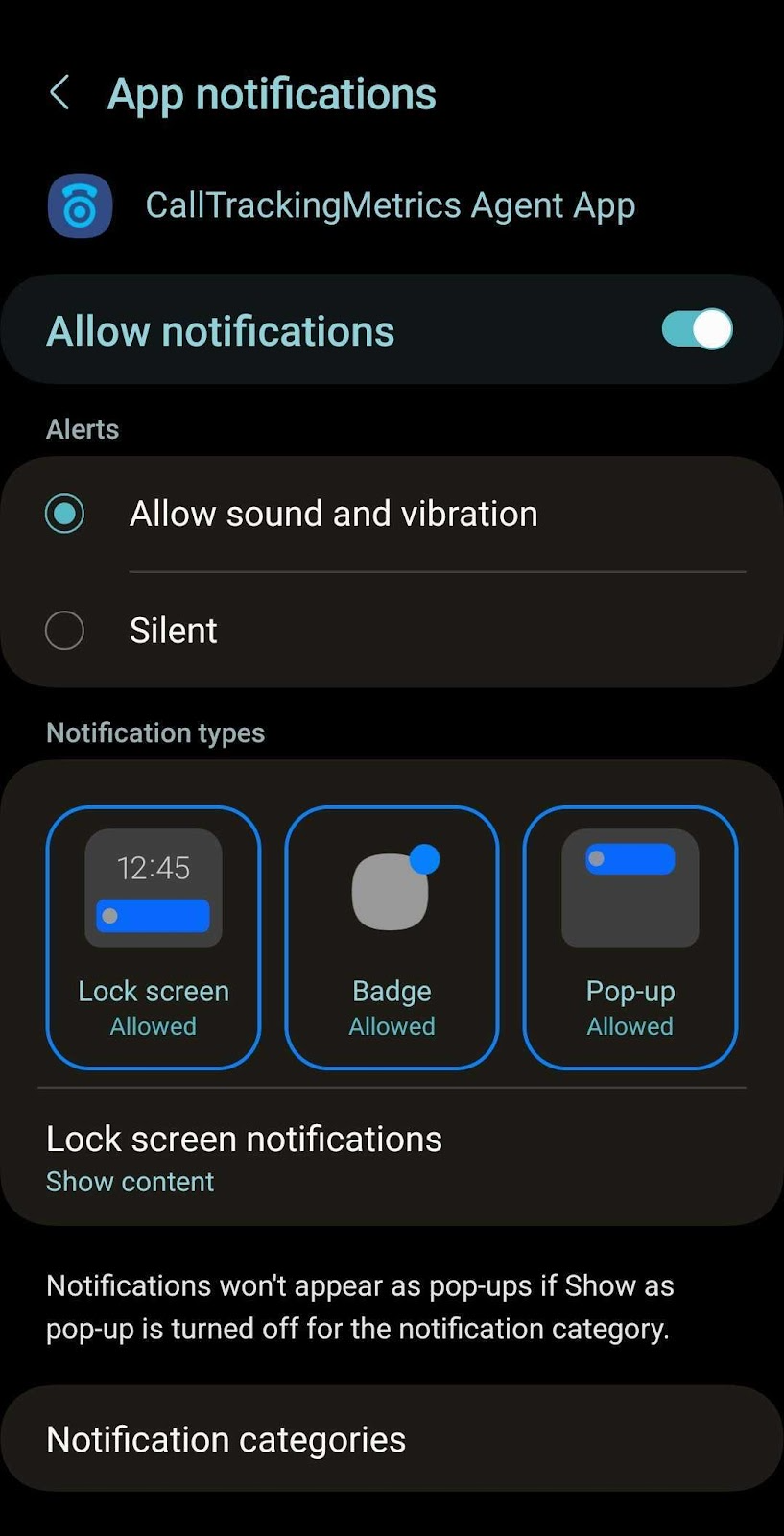
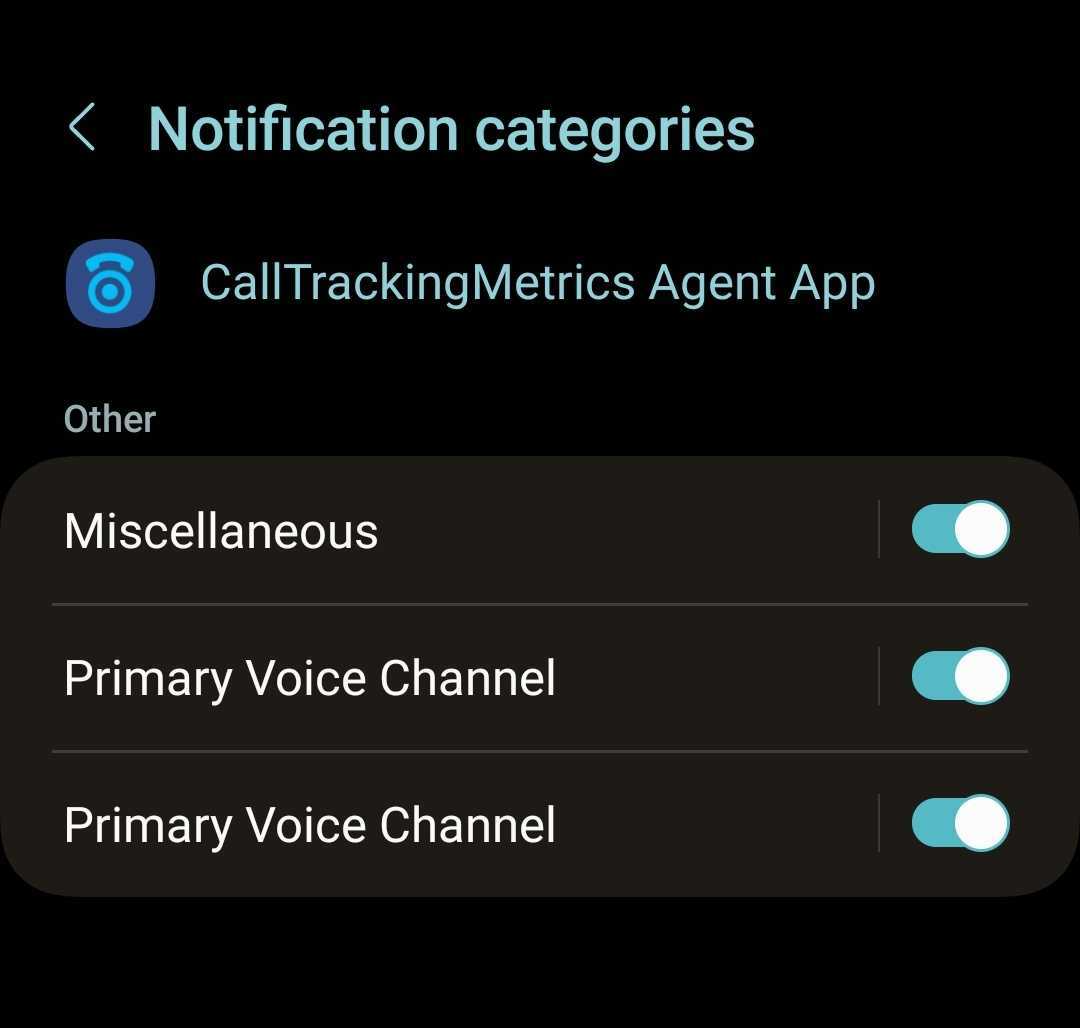
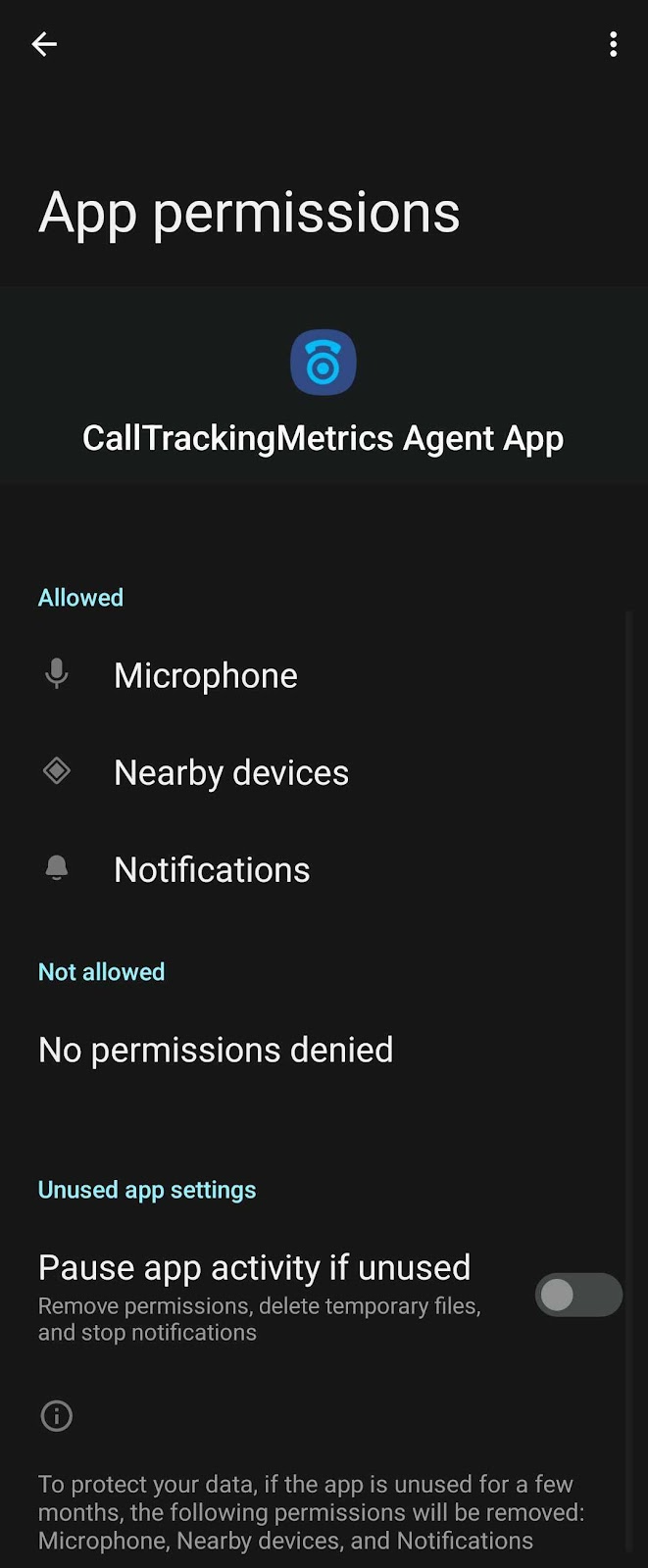
- Navigate to Settings >> Notifications >> CallTrackingMetrics and Settings >> Apps >> CallTrackingMetrics.
- Allow sound and vibration.
- Configure notification types.
- Choose what the Agent App is allowed to access.
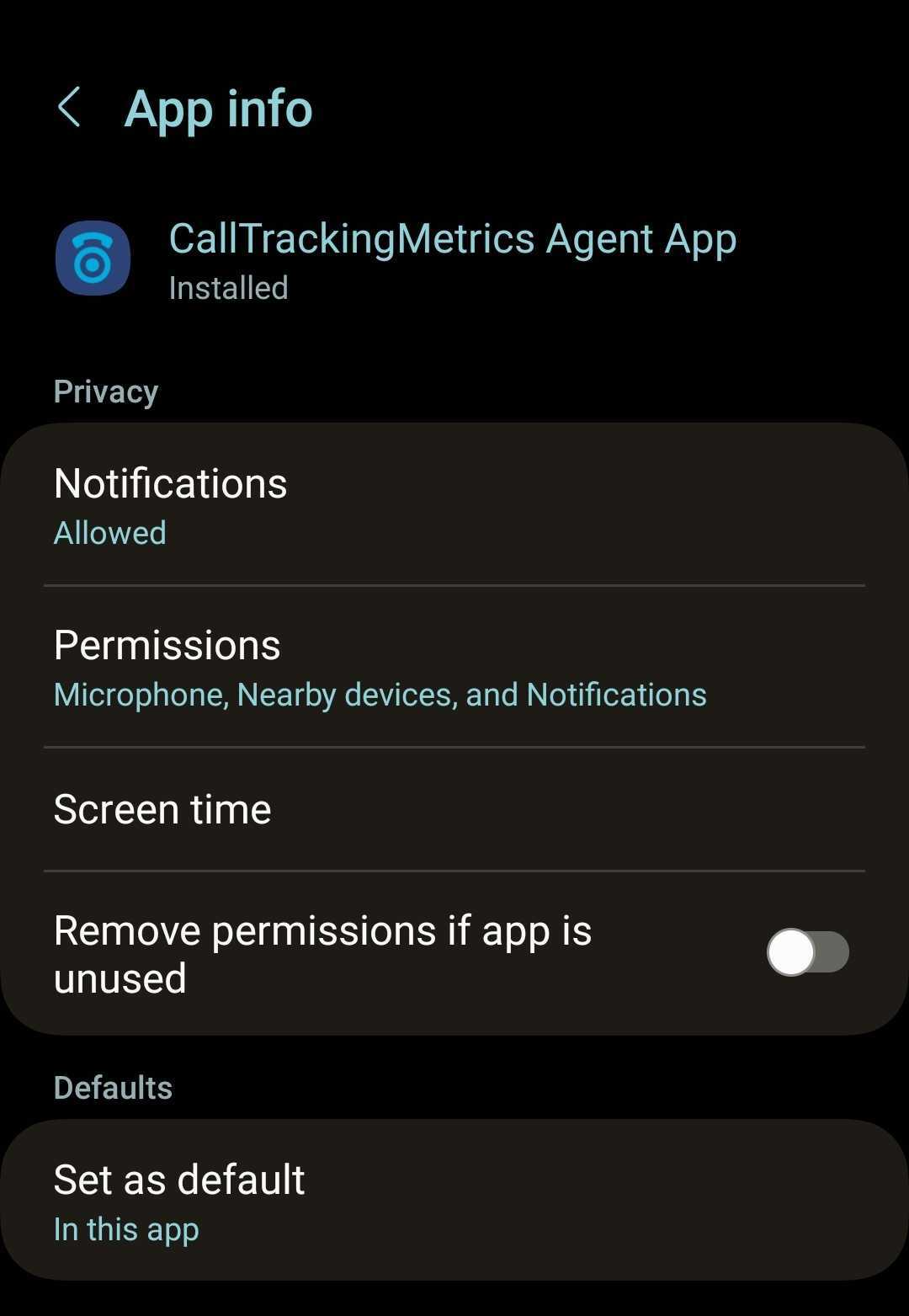
Versions
Check to make sure your phone and Agent App are up to date.
Unknown Callers
Make sure you are not blocking unknown callers on your phone.
Do Not Disturb
Iphone:
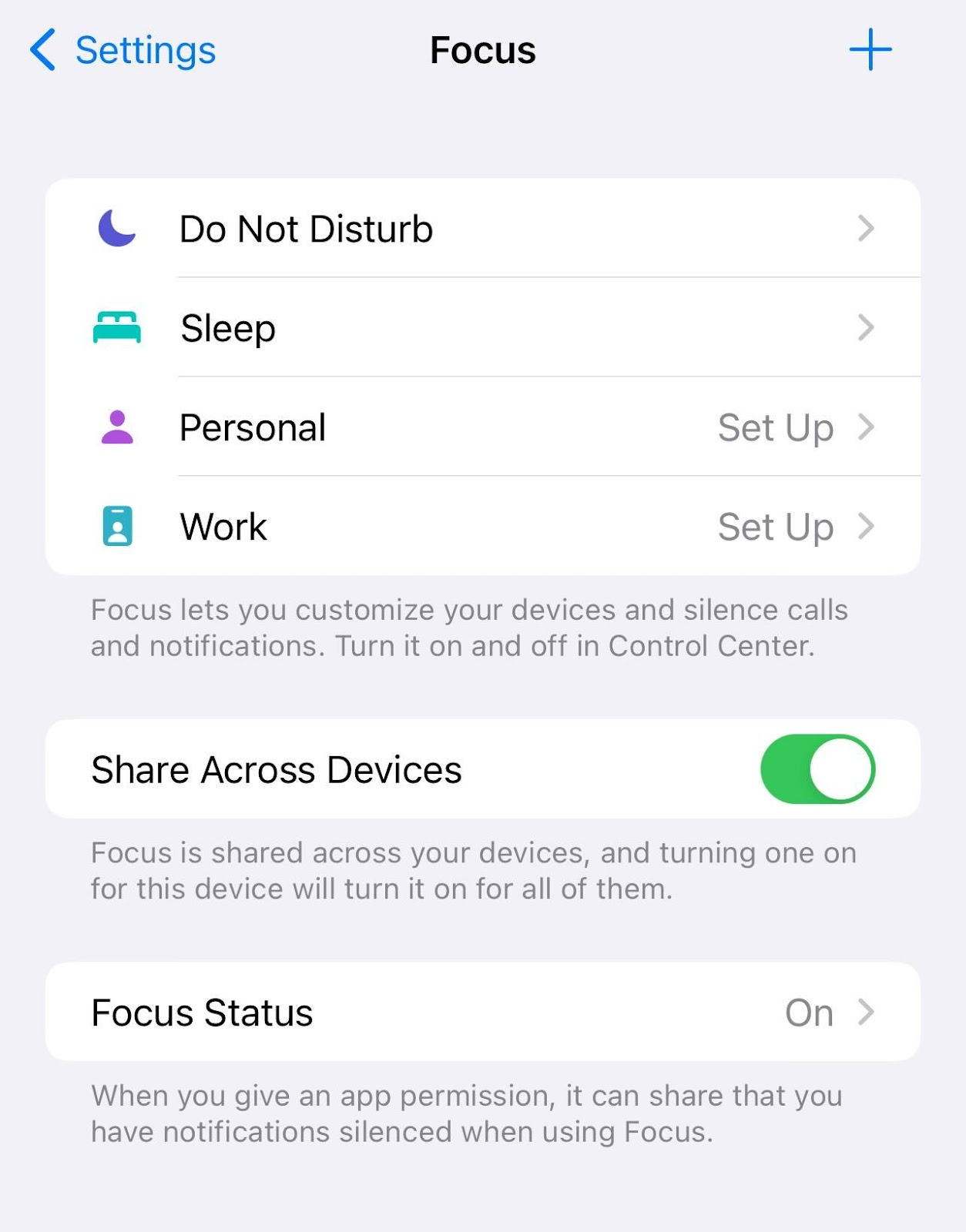
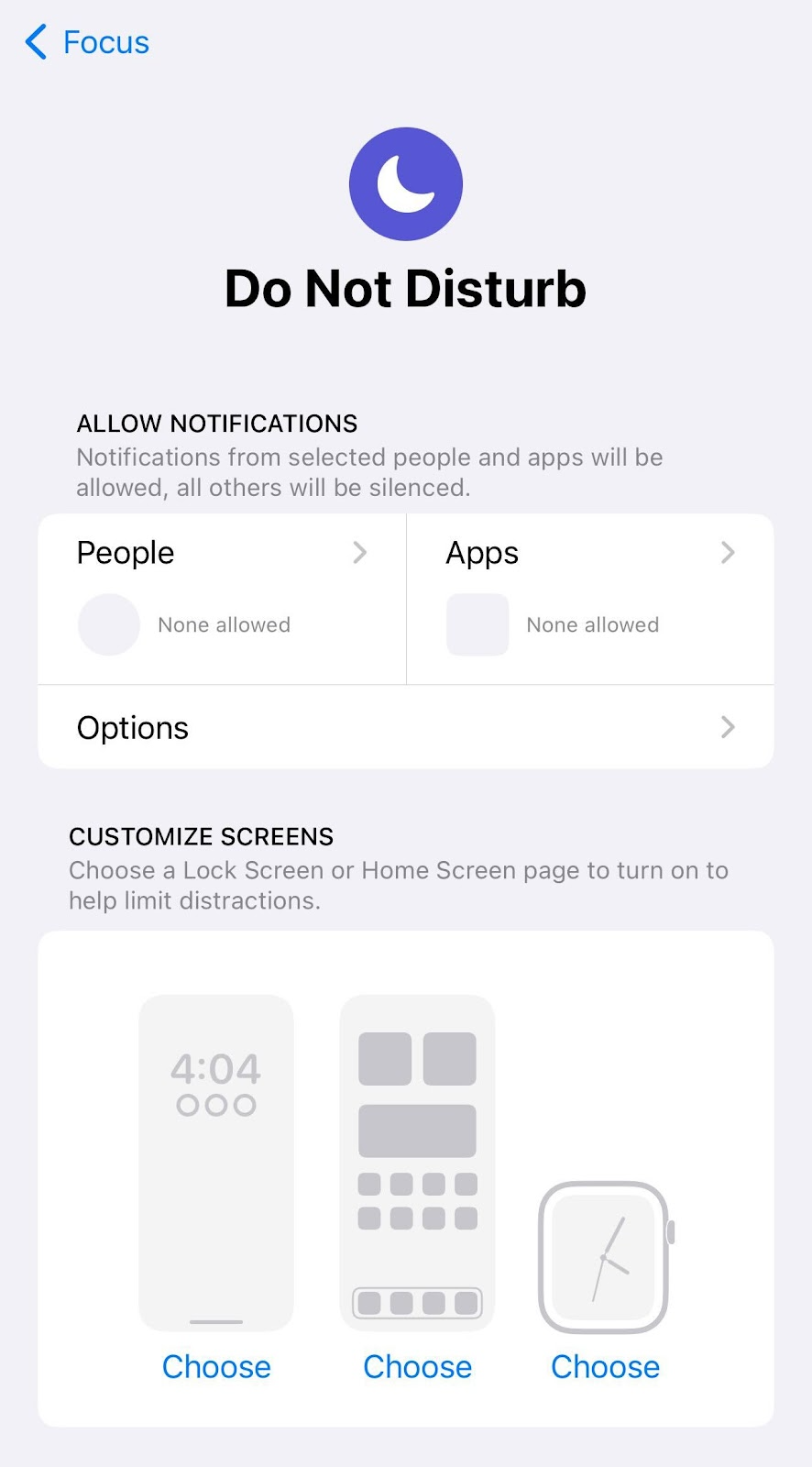
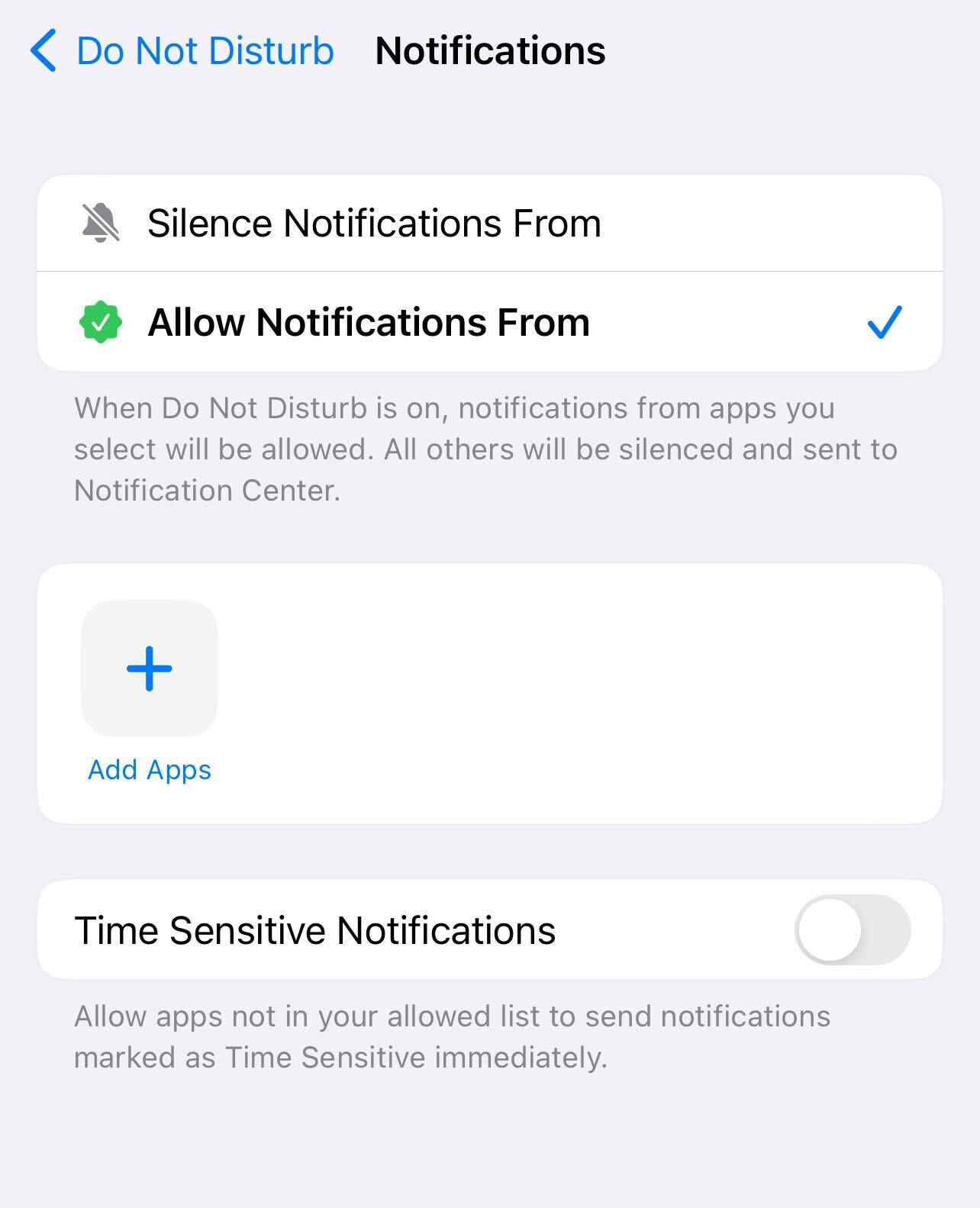
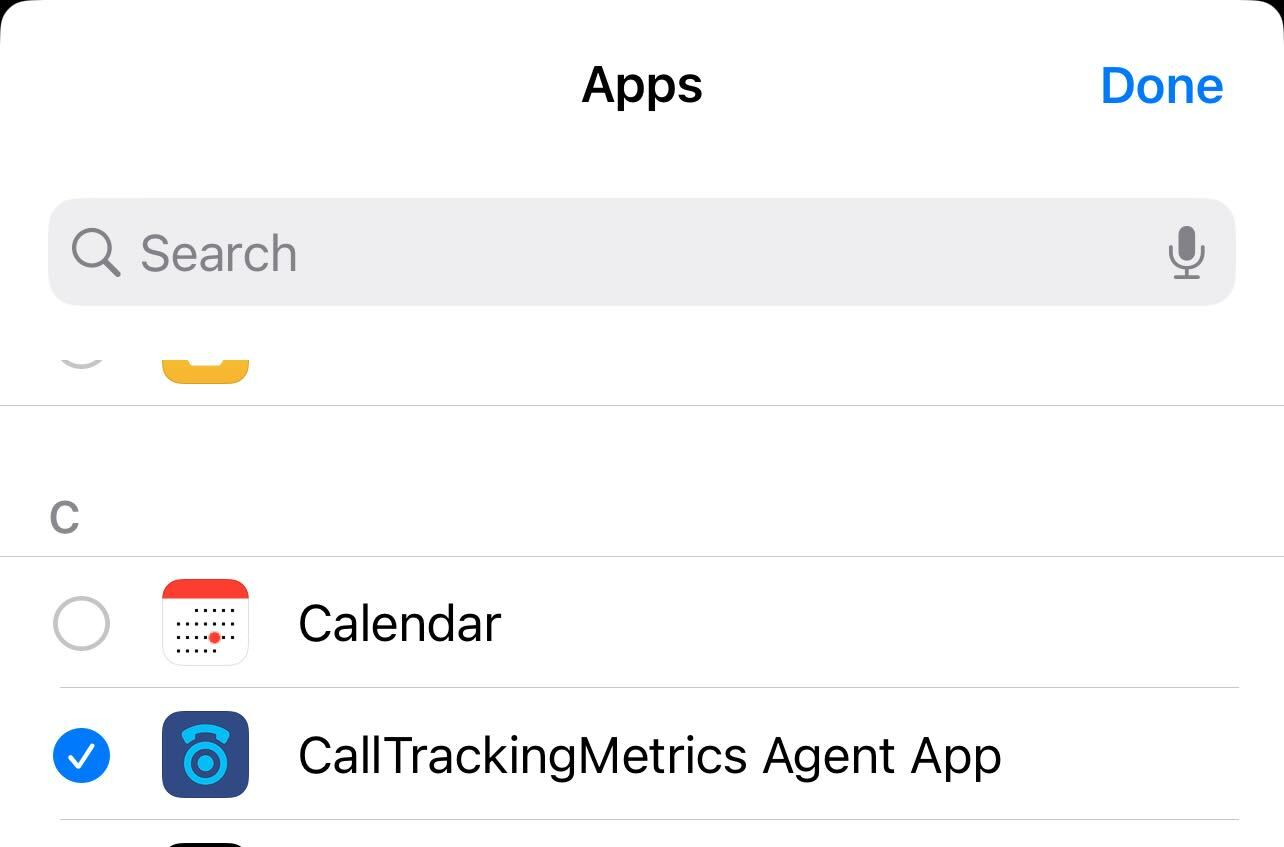
- Navigate to Settings > Focus > Do Not Disturb
- Click on Apps.
- Click Allow Notifications From.
- Click the plus sign to choose the CallTrackingMetrics Agent App.
Android:
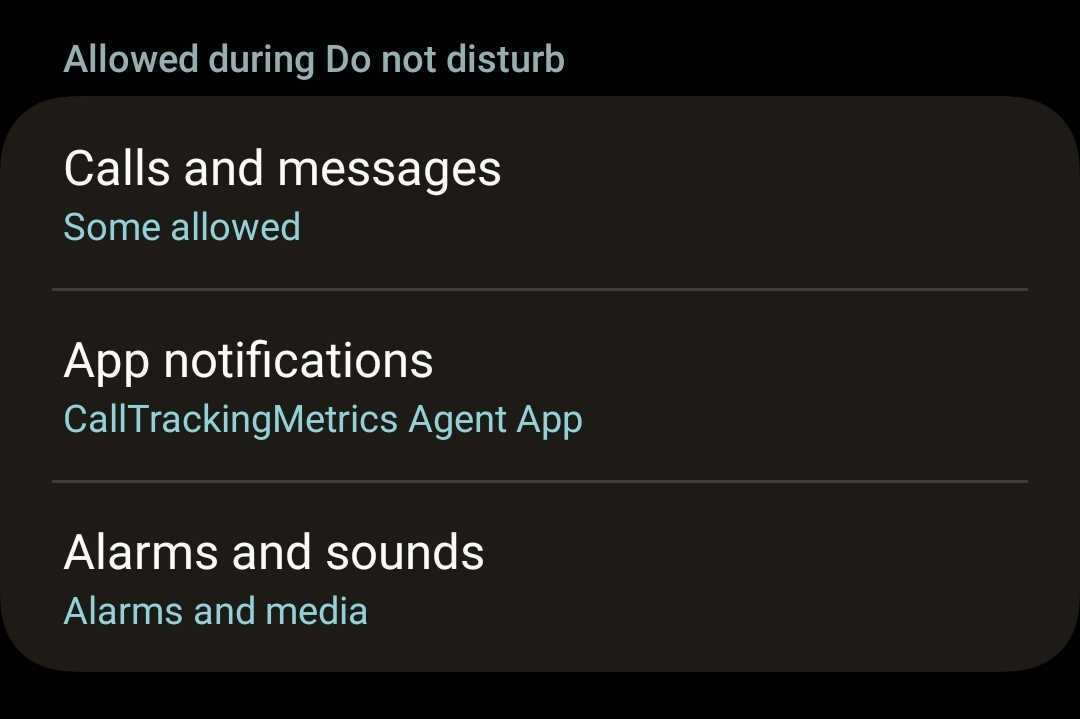
- Swipe down from the top of the phone twice.
- Scroll through quick commands by swiping left to right until you see Do Not Disturb.
- Long Press (Hold) the Do Not Disturb icon to access its settings.
- Allow the CallTrackingMetrics Agent App.
Note: if you still have issues after the previous steps, try deleting the app from your phone and re-installing it.
Sending a Call/SMS Activity via Email to a Team Member
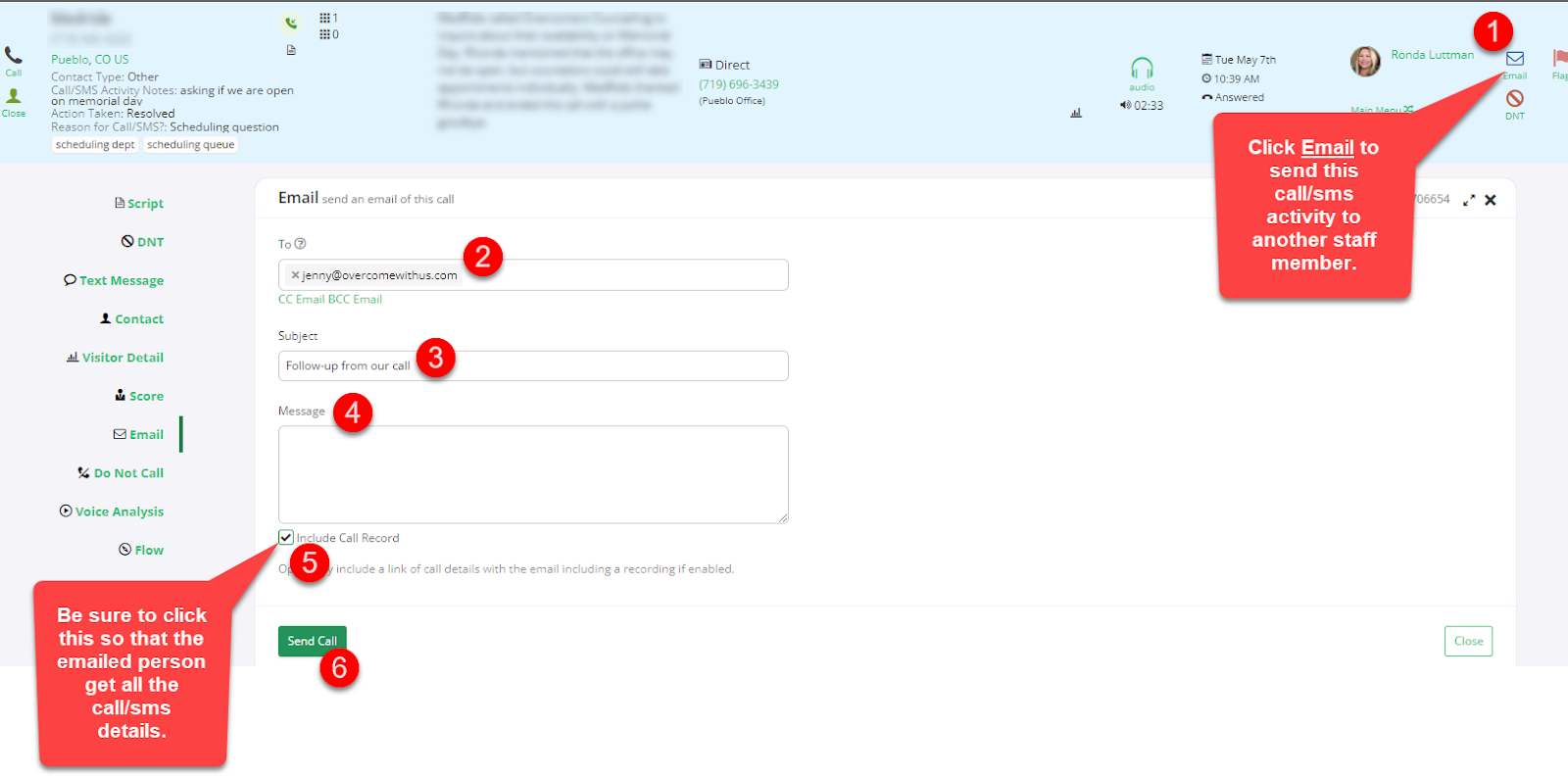
Let's say you want to share a call/SMS activity with the Scheduling team, Billing team, Admin, your supervisor, etc. You can quickly and easily do so by following the steps here.
- In the To: field, you can type an email address or select it from the dropdown.
- Only use this feature to send emails within our organization.
Conference Calls and Transfers
To turn an ongoing call into a conference call, or to add additional members to an existing conference, click the +Add button on your softphone. An additional menu will appear with four options:
- Hold and Add Agent: places the call on hold, then allows you to add an agent from your account. This is the most common use for transferring calls to another department such as Billing.
- Hold and Add Number: places the call on hold, then allows you to choose a phone number to add to the call.