Creating Your Dedicated Telehealth Link
(NOT FOR CLIENT USE ... YET. Clients are currently being directed to TN's Client Portal for TH sessions. However, you are welcome to create your dedicated link, now, in our EHR. )
A dedicated telehealth link makes joining sessions easy for both you and your client. For each telehealth appointment, simply click your personal link (for example, ocinc.me/garrett2). The link is also at the top-right of the EHR. To create your TH link, follow these steps:
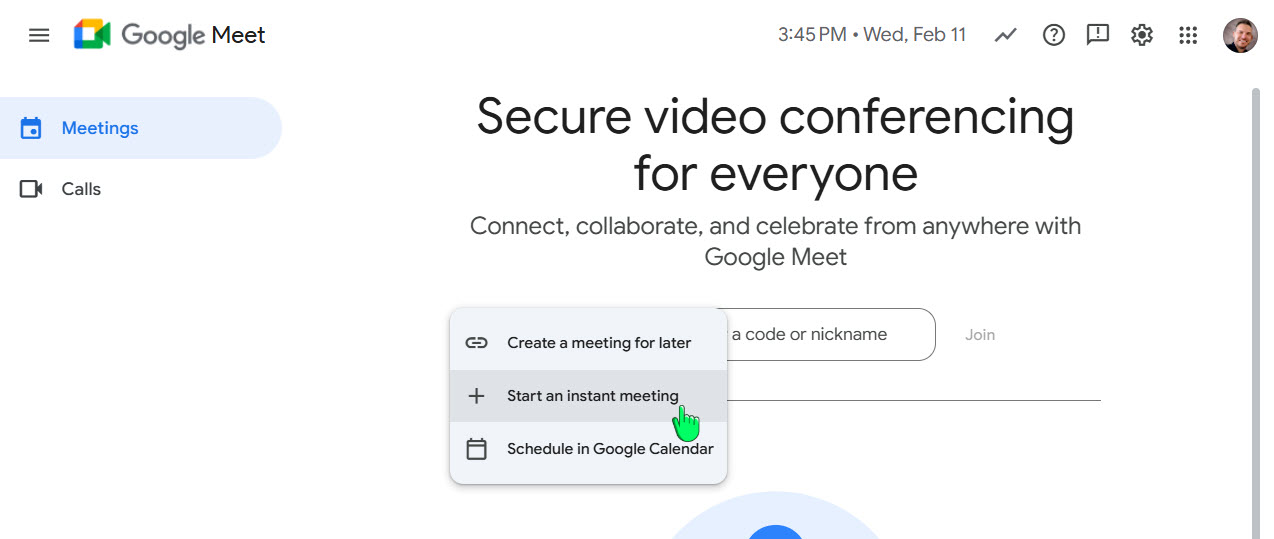
- Go to https://meet.google.com/landing
- Create New -- Instant meeting.
- Copy the meeting URL.
- Paste it into the Google Meet Link field on your Profile -> Telehealth Link Creator section.
- Click the Update Link button.
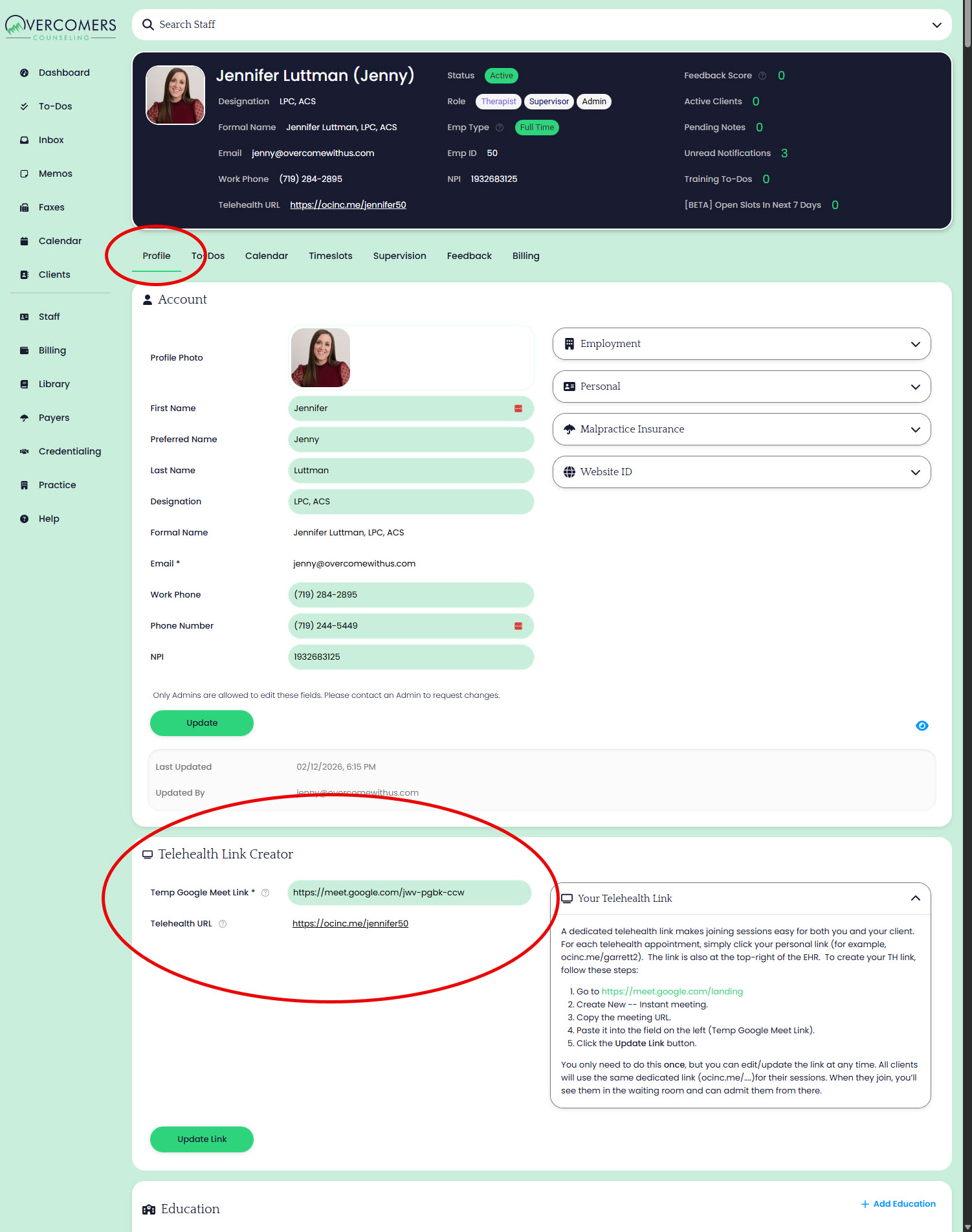
You only need to do this once, but you can edit/update the link at any time. All clients will use the same dedicated link for their sessions -- no login to the Client Portal required. When they join, you’ll see them in the waiting room and can admit them from there.
Telehealth Button in Header
Once the steps above are complete a telehealth button will appear at the top of the page for quick access.

Google Meet Waiting Room
Every client with a Google account will be asked to join and their Google account name will appear in the waiting room. Clients without a Google account will be asked to enter their name.
