How to Update Your Work Schedule
Calendar
A clinician’s Work Schedule is the set days and times they are available to see clients. Think of it as the outer boundaries of their availability.
Key Reminders
- Existing clients can view availability
Clients who are:- Added to TN, and invited to the Client Portal, can view open times within the clinician’s Work Schedule and book or reschedule appointments.
- Updating a Work Schedule does NOT activate the Directory
- Changing availability does not open a clinician to new clients. Clinicians must still submit a request to receive new clients.
- Block out unavailable times
After creating a Work Schedule, clinicians must manually block off:- Lunch breaks
- Appointments
- Vacations
- Other time away
Calendar by Office – View Room Reservations
Use this view to check office room availability before adjusting schedules.
To access:
- Go to New EHR
- Click Schedule
- Select Office Schedules
- Choose the office rooms and date
This view shows:
- Room availability
- Existing reservations
Use it to plan and adjust clinician Work Schedules as needed.
Understanding Time Zones
All times are shown relative to the viewer’s time zone.
Example:
- A clinician in PST sets availability from 7:00 AM – 12:00 PM
- The Support Team in MST will see it as 8:00 AM – 1:00 PM
No manual time conversion is needed.
When:
- A client books 8:00 AM MST
- The clinician will see it as 7:00 AM PST
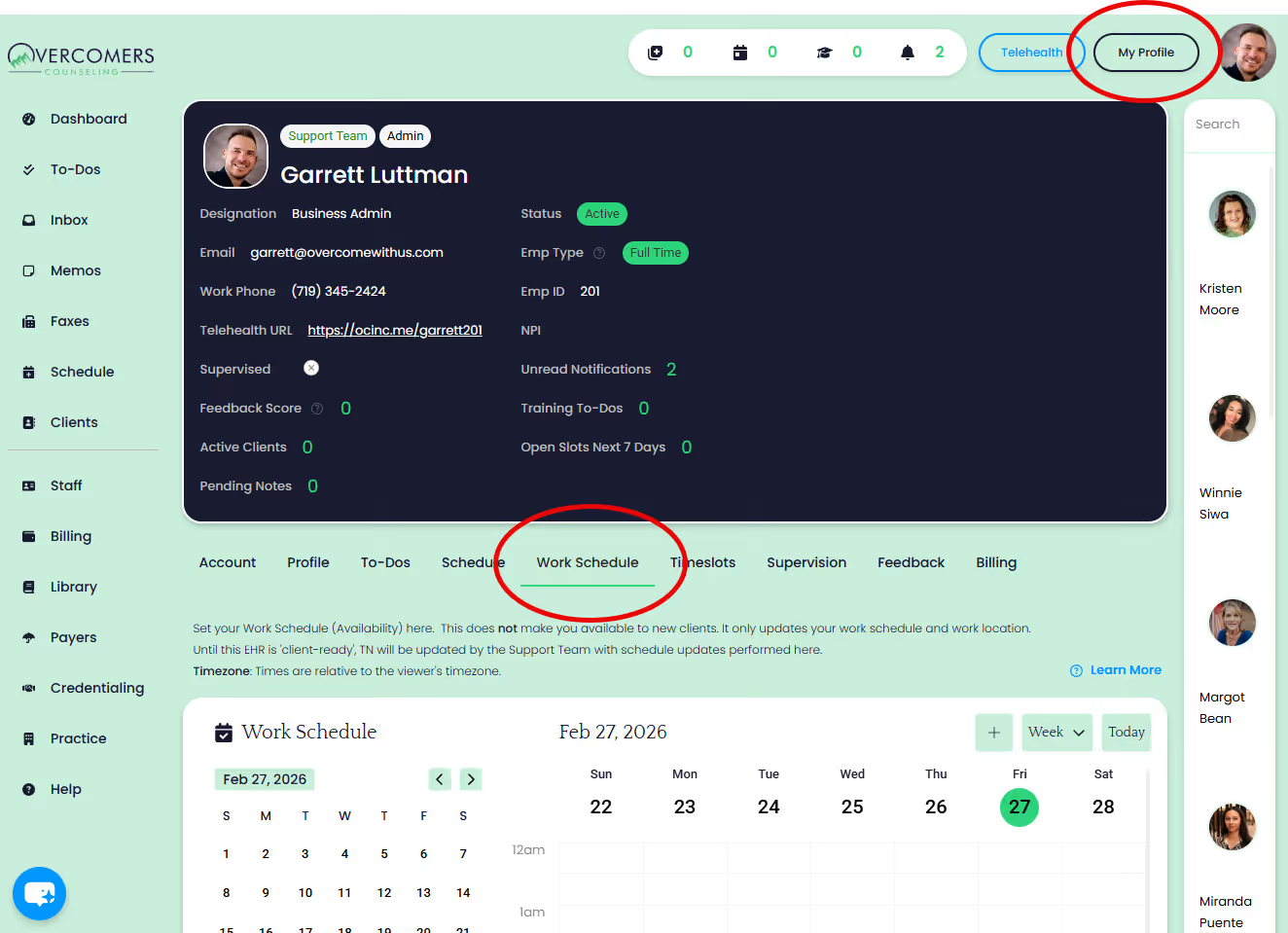
Updating a Clinician’s Work Schedule
Clinicians must update their Work Schedule in the New EHR.
Until the New EHR is client-ready:
- The Support Team will continue updating TN based on changes made in the New EHR.
Steps to Edit a Work Schedule
- Go to:
New EHR → My Profile → Work Schedule - Hover over the day you want to edit.
- Click the trash can icon to delete that day’s schedule.
- Click the + button to add a new time frame or click anywhere on the calendar.